Create a new graph
Build a graph by adding nodes to the canvas and connecting them with wires. To save your graph, you need a user package. If you don't have one yet, see Create a user package.
Do one of the following:
- In System Modeler, click File menu
 and select Create graph.
 - Click + in the tab bar.
The Create graph dialog opens.
- In System Modeler, click File menu
Enter a name.
From the Package drop-down list, select an existing user package.
Click Create.
The graph opens on a blank canvas.
Add a node
Click Add node
 on the toolbar or press Space.
The Add node dialog opens.
Type to filter nodes by name, type, package, or folder path.
Select the node you want to add.
The node is placed near the center of the current viewport. The dialog shows one version per package. When the active package already depends on another package, the dialog shows the version locked to that dependency.
Move a node
Drag the node to any position on the canvas. The move is recorded as a single undo step when you release.
Delete a node or wire
Select the nodes or wires you want to remove, then press Delete or Backspace.
Add a compatible node from a port
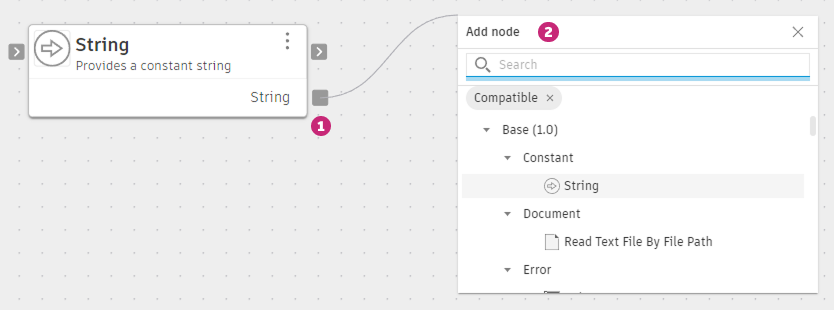
You can also add a node directly from an existing port. The dialog opens pre-filtered to nodes that are type-compatible with that port.
Drag from an output port and release the mouse button on the empty canvas without connecting to another node.
The Add node dialog opens with a Compatible filter already applied. Only nodes with input ports that accept the output's type are shown.
Select the node you want to add.
The new node is placed on the canvas and connected to the port automatically.
Connect nodes
Drag from an output port on one node to an input port on another. The editor only accepts connections between ports of the same type: data ports connect to data ports, and flow ports connect to flow ports.
Inspect and configure a node
Click a node to select it. The Details panel on the right updates to show the node's properties and port details. In the Node tab, you can rename the node and edit its properties.
Save the graph
The graph is saved automatically when you create it. After that, use Save from the toolbar or menu to save any edits, for example after adding nodes or updating the graph description. Graphs from read-only public packages can't be saved.
Rename or delete a graph
You can rename or delete graphs in your own user packages. Graphs in read-only public packages can't be modified.
In the Library panel, expand your user package and right-click a graph. The context menu offers:
- Rename: Enter a new name for the graph.
- Delete: Permanently removes the graph from the package. This can't be undone.
Manage package content
To organize graphs across packages, create additional user packages, or control which packages are loaded, see User packages.