Debugging graphs
System Modeler reports issues and run information through two channels: node badges on the canvas and the Diagnostics tab in the Details panel.
Node badges
Each node can display a diagnostic badge (1), a small circle at the top-right of the node. The badge shows the highest severity of any issue currently on that node. Place the pointer over the badge to see a tooltip (2) listing every diagnostic for that node, including severity, message, and source. You can also see these diagnostics on the Diagnostics tab in the Details panel (3).
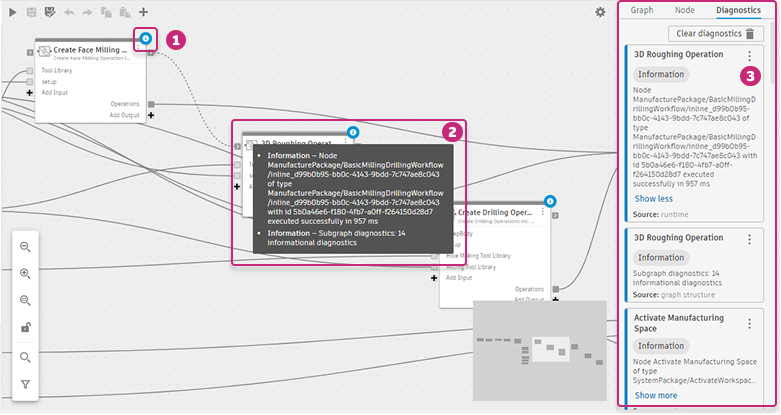
Badge colors indicate severity:
- Error (red badge): A blocking or severe issue. The node can't run as wired.
- Warning: A general warning that may affect results. No badge color is assigned.
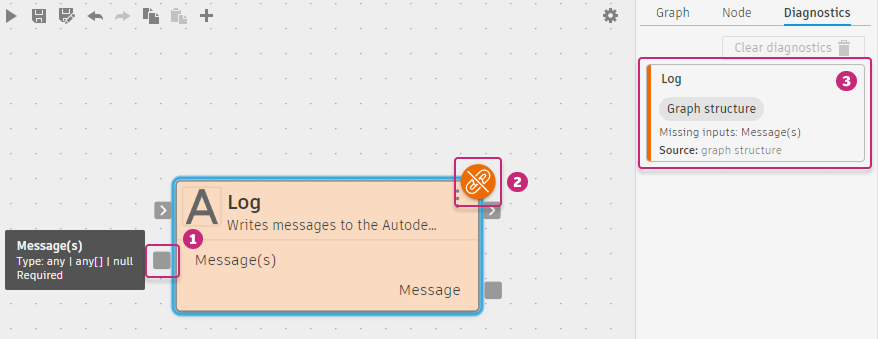
- Graph structure (orange badge): A wiring issue, such as a required input port with no wire connected.
- Information (blue badge): An informational note, such as run timing.
The most common diagnostic before running a graph is a Graph structure warning, shown as an orange badge on a node where a required input port isn't connected. Placing the pointer over the unconnected port shows its accepted types and the label Required. Connect a wire to that port or set a property value to resolve it.
Last-run output port values
After a graph runs, each output port on the canvas records the value it produced. You can inspect these values without opening the Diagnostics tab.
In the tooltip: Place the pointer over any output port on the canvas. The tooltip shows the port name, its type, and a Last run row with the value produced during the most recent run. For complex or large outputs, the tooltip shows a truncated preview.
In the Details panel: Select the node and open the Node tab. The Outputs section shows the same Last run value alongside each port's name and type, so you can read it without placing the pointer over the port.
Diagnostics tab
The Diagnostics tab in the Details panel lists every diagnostic in the current graph level, sorted by severity and then by node name. Each entry shows the node name, severity, a message, and the source:
- Graph structure: A wiring issue detected before the graph runs
- Runtime: A diagnostic generated when the graph ran
After a graph run, the tab shows timing information for each node that succeeded, and error details for any node that failed.
To locate a node listed in the Diagnostics tab, place the pointer over the entry and click Show node. The canvas navigates to and centers on that node. This is especially useful in large or deeply nested graphs where a failing node isn't immediately visible.
If a While loop reaches its Max Iterations limit without Break becoming true, the tab shows a warning and returns the Loop Results accumulated so far. This indicates the loop may not be converging as expected.
Common issues
Unexpected list-of-lists output
A downstream node produces unexpected results or fails, but no error badge appears on the loop or merge node. The issue is that the output is a list of lists rather than a flat list.
This happens in two situations:
- A For-Each loop is nested inside another For-Each loop. Each iteration of the outer loop contributes a list as its Loop Result, so the outer Loop Results output is a list of lists.
- A Merge Lists node is used without the Return a flat list property enabled. The default behavior wraps each input list as a nested entry rather than flattening them.
To confirm the issue, select the wire carrying the suspect value and check the port type shown in the Details panel. A nested list appears as a type like any[][] instead of any[].
To fix it, add a Flatten List node after the loop or merge node, or enable the Return a flat list property on the Merge Lists node. See Lists for details.