Work with graphs in the IDE
Open, edit, and run System Modeler graphs directly in Visual Studio Code (or Cursor). Graphs are stored as .graph.json files in your package folder.
Before you start, confirm that:
- Fusion is running with the System Modeler add-in enabled
- The Fusion Automation API extension is installed and the System Modeler toggle is on in its settings
- You have a package folder open in the IDE
Open a graph
In the Explorer panel, click any
.graph.jsonfile in your package folder.System Modeler opens inside the IDE and shows the graph canvas. A connection status message appears in the status bar at the bottom of the screen.
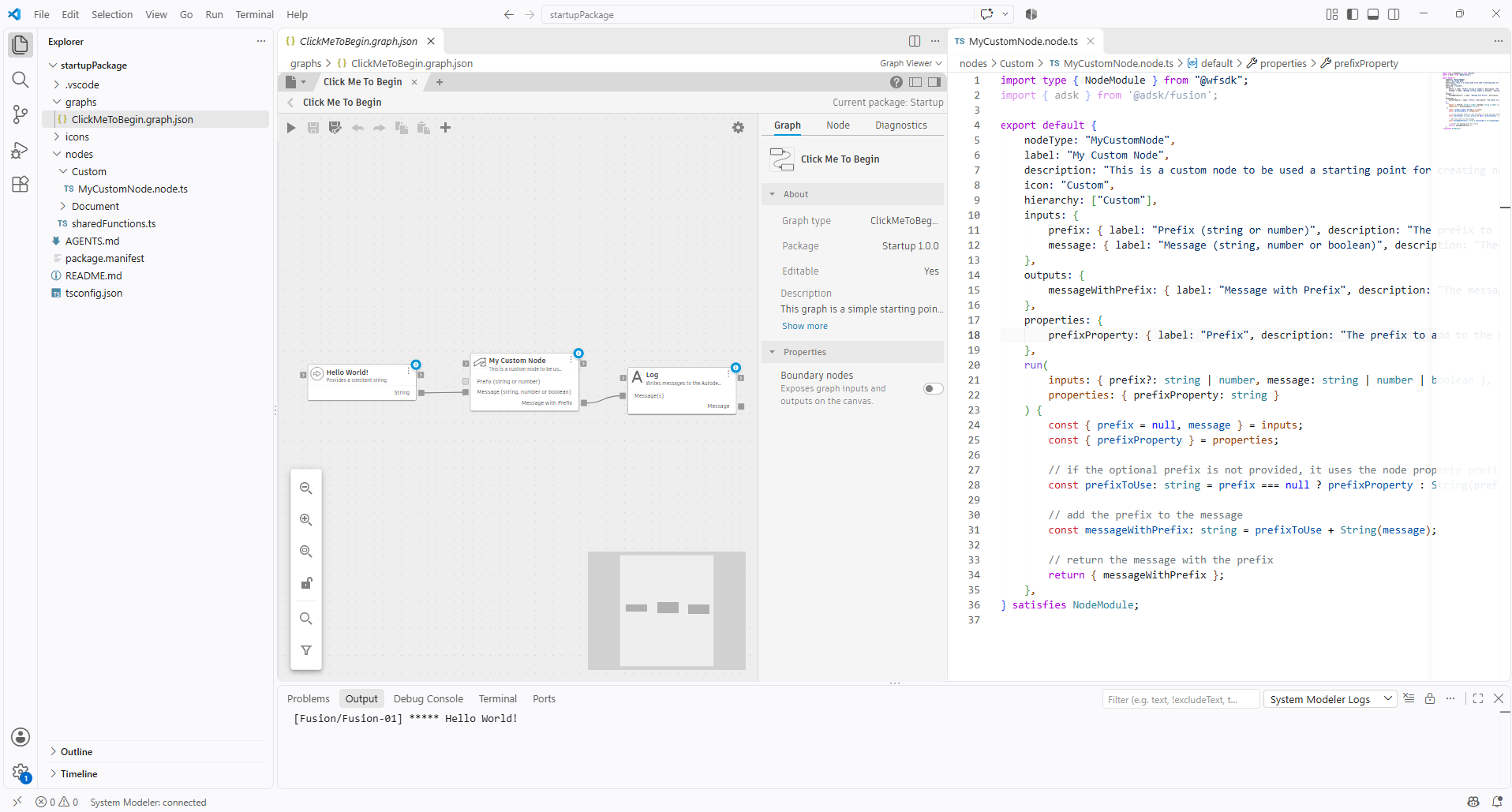
Edit a graph
Editing works the same as in the System Modeler add-in: add nodes from the Library, connect ports with wires, and configure node properties in the Details panel.
Save a graph
Press Ctrl+S (Windows) / Command+S (macOS) to save. The file is saved to the package folder on disk.
Run a graph
With a graph open, click Save and run the graph on the toolbar, or press Ctrl+R (Windows) / Command+R (macOS).
The graph runs against the active Fusion document. Results appear in the Diagnostics tab and, for Log nodes, in the Fusion console.
Create a new graph
Create new graphs through the System Modeler canvas, not by creating files manually in the Explorer. See Create a new graph for steps. The new .graph.json file appears in your package folder automatically.