Open a graph
Open an existing graph to view, edit, or run it in System Modeler.
Open a graph from the welcome screen
In the Welcome screen, click Open graph.
The Open graph dialog opens.
(Optional) Type in the Search box to filter graphs by name across all packages.
Packages that contain no matching graphs are hidden while a search is active. Click × to clear the search and return to the full list.
In the left column, expand a package to see its graphs.
Public packages (Base, System, Design, Manufacture) are listed under Public packages. Your own packages appear under User packages. Packages with no graphs are hidden.
Select the graph you want to open.
Tip: To see details about the selected graph, look at the right panel. The About section (1) shows the graph's description and package. The Graph structure section (2) shows the number of nodes, inputs, and outputs.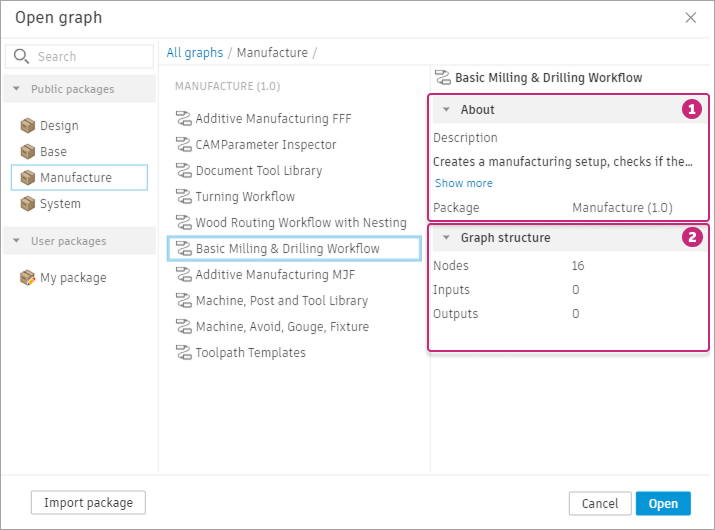
Click Open.
The graph opens in the editor as a new tab.
Import a package from the Open graph dialog
If the graph you need is in a package that isn't yet loaded, import it without leaving the dialog.
In the Open graph dialog, click Import package.
Select one or more
.package.zipfiles and confirm.- If one package is imported, the dialog returns to the graph list with the newly imported package selected.
- If multiple packages are imported, the dialog returns to the graph list without selecting a package automatically.
A confirmation toast confirms how many packages were imported.
Select a graph from the imported package.
Click Open.
For more information on importing, see Import a package.
Open a graph from the File menu
If a graph is already open, click File menu  in the top-left corner of the editor.
Click File menu
.Select Open graph.
The Open graph dialog opens.
In the dialog, search or browse for the graph.
Click Open.
Result
The graph opens in the graph editor. If the graph belongs to a read-only package (such as one of the four public packages), you can view and run it but not save changes. To edit a read-only graph, use Save as to save a copy to a user package first.