Read a graph
Reading a graph is easier when you work from the result back toward the inputs. Most graphs are laid out left to right, so you read them right to left.
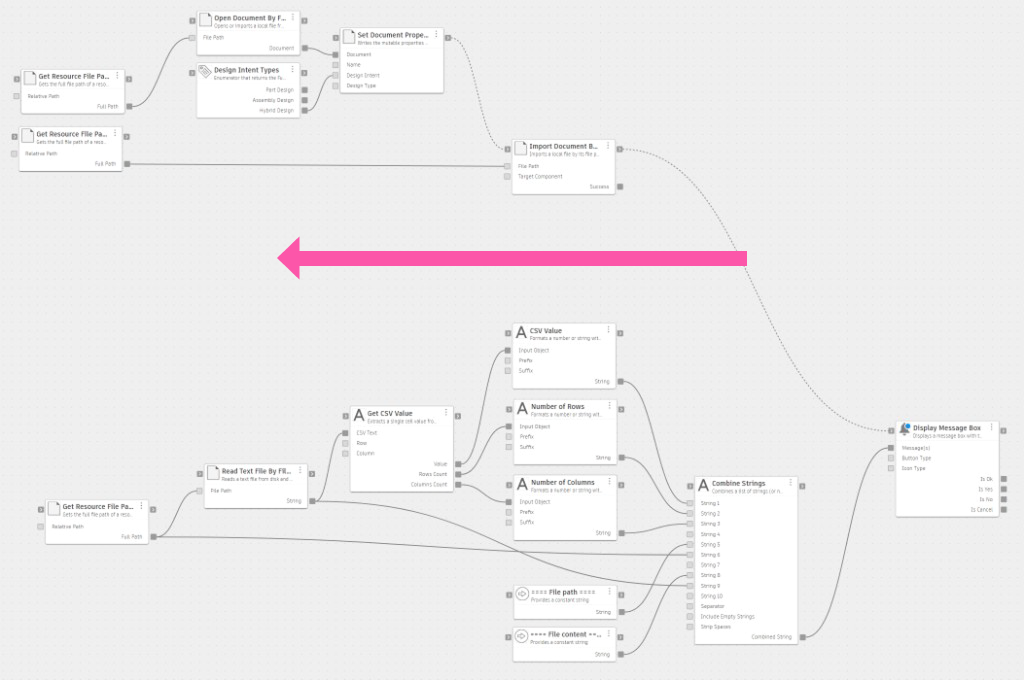
System - Open and Import Files
Open the graph in the graph canvas. See Open a graph.
To follow the steps with the example in this topic, open the Open and Import Files sample graph from the System package.
Find the node at the end of the chain.
In a graph laid out left to right, this node sits on the right side of the canvas. It shows what the graph produces. In the Open and Import Files sample graph, this is the Display Message Box node.
Find the nodes where wires come together.
Look for nodes where many wires come in and only one or a few go out. These nodes combine the work of the nodes before them, so they usually show the main steps of the graph. In the example, Combine Strings collects the results of the CSV branch into one message.
Read the display names and descriptions of those nodes to understand the goal of the graph.
If a key node is a subgraph, its name describes a whole group of operations. Read the name first, and open the subgraph only when you need the detail. For an example, see the Basic Milling & Drilling Workflow sample graph in the Manufacture package.
For any node you want to understand in more detail, trace the wires leading into it from the left.
The nodes upstream of a key node prepare the data it needs. In a graph laid out in columns, reading one column upstream is usually enough.
(Optional) Identify flow ports to understand sequencing.
Flow ports appear alongside data ports on some nodes. A wire between two flow ports forces one node to run before another, even when there is no data dependency between them. Common uses include forcing the creation order of objects in Fusion or routing error handling before other branches run. In the example, the dashed flow wires make Import Document run after Set Document Properties, and Display Message Box run last.
For guidance on writing graphs that are easy to read, see Graph readability.