 Smart Bevel creates smooth, adjustable bevels with precise width, segments, and depth settings, supporting world units and complex geometry handling.
Smart Bevel extends the traditional Bevel tool in Maya by adding controls for geometry handling, filtering, and smoothing. Its advanced geometry handling, filtering options, smoothing capabilities, and additional features make it a valuable tool for modelers, addressing the common limitations and challenges encountered with traditional beveling tools.
How to access Smart Bevel
Smart Bevel can be accessed two primary ways:Options
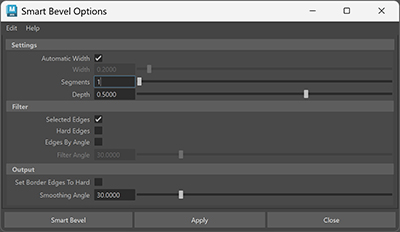
Smart Bevel's options are very similar to those of Maya's traditional Bevel method, with a few notable differences.
Settings
-
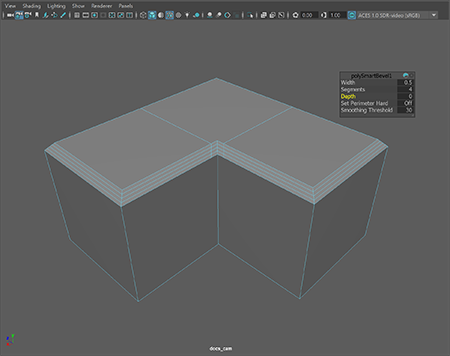
Width: Width controls the extent of the Smart Bevel along the selected edges. This option functions in world units, not as a percentage of edge length. This ensures consistent application regardless of edge length.
-
Segments: Segments defines the number of divisions within the bevel. Increasing the segments will add more subdivisions to the bevel, creating a smoother transition.
-
Depth: Depth controls the profile shape of the beveled face. A value of 1.0 produces a flat, chamfer-like transition. Values between 0 and 1 produce progressively smoother, rounded transitions. Negative values invert the curvature, creating a concave profile when multiple segments are used.
Filter
-
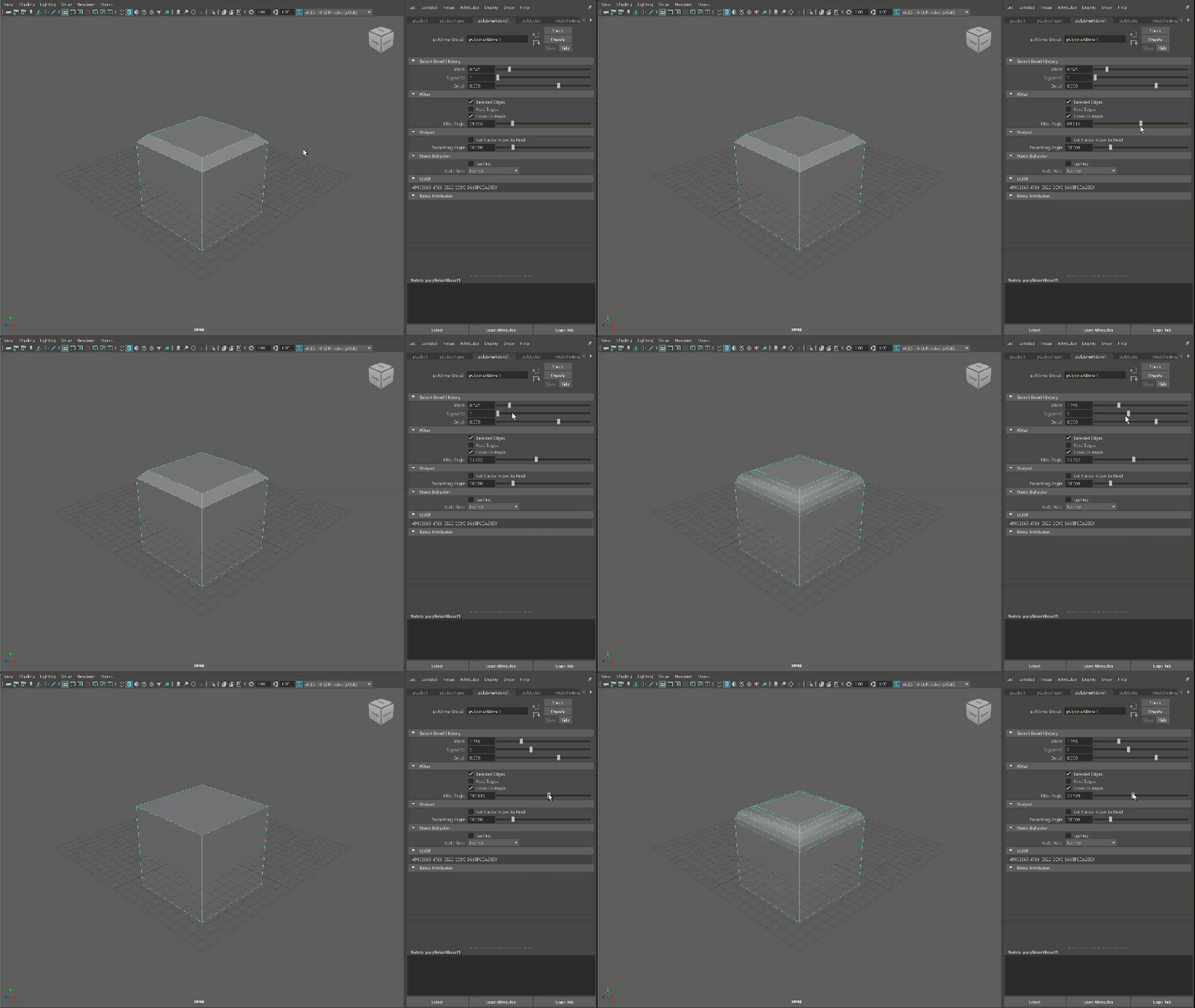
Selected Edges: Selected Edges is the default filter option where the bevel is applied only to the edges that have been manually selected.
-
Hard Edges: Hard Edges applies the bevel to edges marked as hard. Use this option when edge hardness is already defining structural boundaries in your model.
-
Edges by Angle: Edges by Angle selects edges based on an angle threshold. Use this option to automatically bevel sharp edges across a model without manually selecting them.
Output
-
Cutback Relaxation: Smooths the bevel result on curved or uneven surfaces by relaxing the cutback interpolation. This reduces jagged or uneven transitions that can occur when beveling curved geometry. Because this process adjusts how the bevel is interpolated, it may slightly modify the surrounding mesh to achieve smoother results. Use this option when visual smoothness is more important than strict geometric fidelity, particularly when beveling curved surfaces.
-
Set Border Edges to Hard: The Set Border Edges to Hard checkbox specifies the treatment of border edges, or edges that form the outer boundary of a beveled region. This setting determines whether these edges should be rendered with a sharp (hard) transition or a smooth transition. Think of it like going to Mesh Display > Harden Edge, but only for your bevel.
-
Smoothing Angle: Smoothing Angle determines how the normals are interpolated across the beveled edges and newly created faces. This value controls whether the transitions on the beveled edges appear smooth or hard, impacting the final shading and rendering of the model.
-
Remove Isolated Arcs: Removes newly created bevel edges that do not connect to any other edges on the mesh. This helps prevent stray or floating arc segments from remaining after the bevel operation, keeping the resulting topology clean and easier to work with. Use this option to automatically discard disconnected edges that can appear during complex bevels.
-
Weld Opposing Arcs: Merges arc edge loops that directly oppose each other across the bevel surface, reducing duplicate arc pairs while preserving the overall arc structure. Use this option when bevel operations create paired arc loops that overlap but do not require full arc simplification.
-
Weld All Arcs: Merges all neighboring arc edge loops that fall within the specified tolerance, simplifying the bevel by removing excess or fragmented arcs. Use this option for aggressive cleanup after complex Boolean or high-segment bevel operations.
To learn how to apply Smart Bevel to a complex model, please consult this step-by-step guide.