Derived Fields
If you're a Fusion user, this feature is not available in the Components or Drawings workspaces. Learn more about system workspaces.
Derived fields let you display data from a selected item in another workspace. When users select an item from another workspace in a picklist, the associated derived fields automatically populate with data from that item. Derived fields can use data from the Item Details tab, system properties in the Owner and Change Summary sections, the Workflow Details tab, and the Lifecycles tab.
Derived fields help different users in different ways. Administrators no longer need scripts to copy data between workspaces. Item editors don’t have to update the same information in multiple places. Data managers benefit from fewer manual errors and improved data quality.
To users, derived fields simply appear as read-only fields. They behave like any other field and can be used in reports, grids, and other views for display and sorting.
Create a derived field
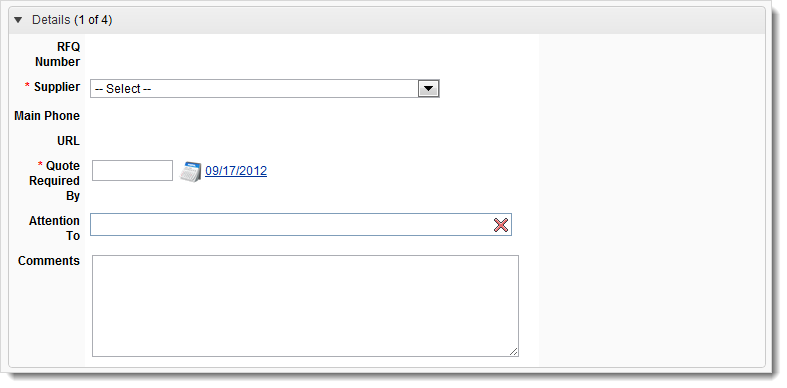
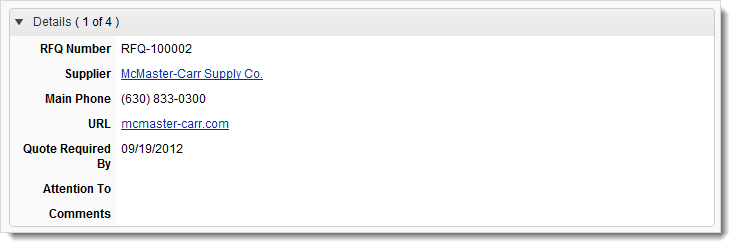
A common use for derived fields is to display supplier contact information in the Item Details of an RFQ workspace. When users select a supplier from a picklist field, the derived fields automatically populate with the supplier's phone number and website.
To set this up, you need both a picklist field and derived fields:
Create a Picklist field in the RFQ workspace Item Details tab (Suppliers) that points to a picklist of records from the Suppliers workspace ([WS] Suppliers). For instructions, see Picklist Fields.
Go to Administration > Workspace Manager and expand the RFQ workspace.
Select the Item Details tab.
Click Add Field.
The Creating a Field dialog opens.
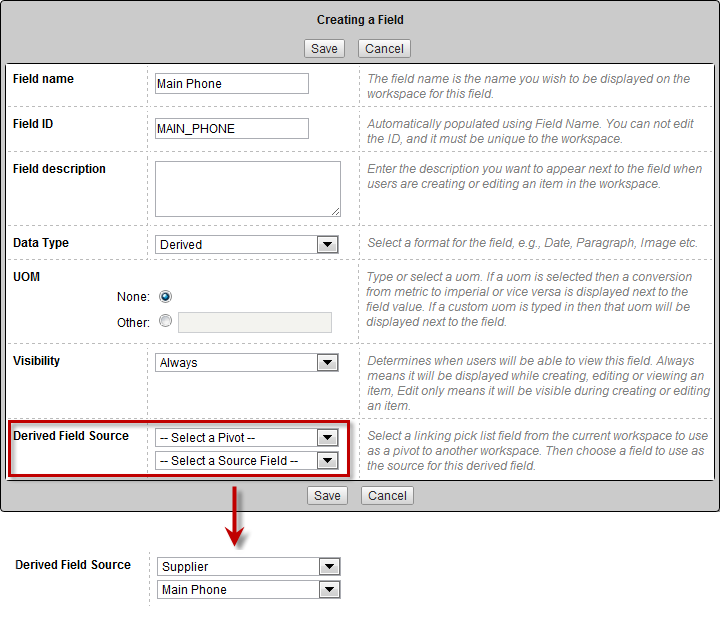
Enter a field name (for example, Main Phone) and a description.
From the Data Type drop-down list, select Derived.
In the Derived Field Source drop-down, select the picklist field that links to the source workspace (for example, Supplier).
In the Source Field drop-down, select the field in the linked workspace that you want to use as the source for the derived field (for example, Main Phone).
Click Save.
Here's how the derived fields appear before and after selecting a supplier: