Bulk Edit Items Using Import
Combine a report with an import project to bulk edit items in a workspace. Items can be updated or deleted.
Create a report of the items you want to edit
- From the navigation menu, select Advanced Tools > Reports.
- Create a new report for the workspace containing the items to edit.
- Enter a Name for the report.
- Scroll down to the Display Column panel and select Name in Item Details as the column to display in the report.
- Save the report.
Create the Excel file for the Import Project
Click Run Report as EXCEL in the report's Run As column.
Open the file in Excel and then delete the first three rows in the spreadsheet. Make sure to leave the header row.
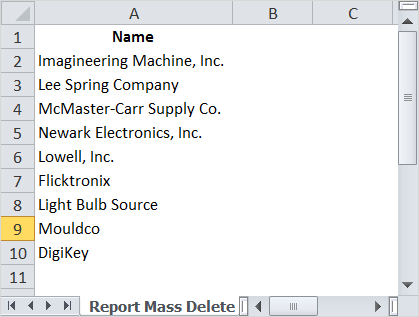
Save the Excel file.
Create the Import Project
From the navigation menu, select Advanced Tools > Imports.
Select the Workspace.
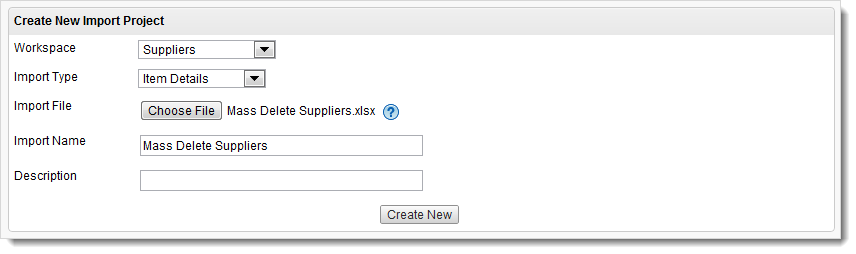
Select Item Details as the Import Type.
Click Choose File and select the Excel file you saved in the previous section.
Enter a Name for the project.
Click Create New.
Edit and run the Import Project
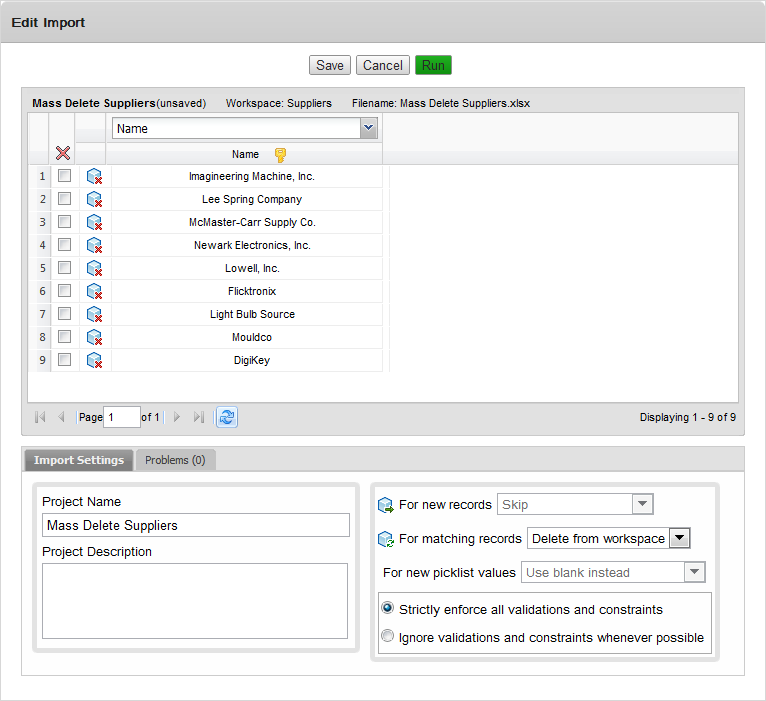
On the Edit Import page, select Match On in the drop-down list of the Name column header.
In the Import Settings panel, select Delete from workspace in the For matching records drop-down list.
Click Refresh.
 Tip:
Tip:You do not need to delete all the items in the workspace. To delete only some items in the workspace, turn off the delete checkbox in the rows to keep.
Click Save.
Click Run.
In the import confirmation box, click Proceed.
Check that the items have been deleted
Open the workspace.
Click the My Default View Item Viewer button.
Click Add a view.
In the Create View box, double-click Name under Available Columns.
At the bottom of the box, click the Show only deleted records for this view checkbox.
Enter a name for the view and click Save.
The deleted items are displayed.