Import a Level BOM
Import a BOM with unique level numbers that determine the relationships.
Before proceeding with the import, review Import Validation Rules for Item Revisioning Data.
Start the Import
- Create a BOM Import Project, OR
- Edit a saved level BOM import project:
- From the navigation menu, select Advanced Tools > Imports.
- In the My Import Projects table, click Edit to configure an import project.
Map BOM Data to Workspace Fields
On the Edit Import page, map and configure your BOM import data.
Map the incoming Excel values to the corresponding workspace fields. From the drop-down list above each Excel column, select a workspace field.
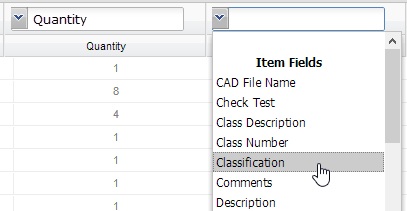 Note: Columns that are not mapped to a workspace field will not be imported.
Locate the column in the Excel sheet that represents the BOM levels. Click the header for the level column and then select Match as BOM Level key to indicate that this column will be used to determine the BOM structure when it is imported.
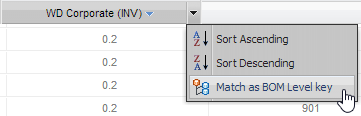 Note: When a BOM is imported, the records in the Excel sheet are compared to the existing records in the selected workspace to determine which records are new.
Specify which column to use for the comparison:
Pick a column to use for comparison. If it is not yet mapped, map it to a workspace field.
Click the Excel column header and then select Match On. The values in the column will be compared against existing records in the workspace.
Note: Multiple numeric and text fields can be specified.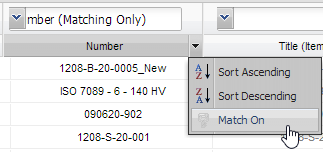
Import Classification Properties
You can import classification properties if the selected workspace has classifications enabled and the Excel worksheet includes classification data. One column in the Excel file must contain the system name of the class to which each item belongs. The column must be mapped as the class entry column in the import table. Fusion Manage attempts to map incoming fields to those in Classification Manager.
- Locate the column containing the classification system names. From the drop-down list above the column, select Class. This identifies the column as containing class system names.
- Locate a column containing classification properties. From the drop-down list above the column, select Field.
- The Choose Field dialog lists the system names for the classification fields in the workspace. Select the classification field to which the incoming property will be assigned and then click Select. Repeat this step for each classification property to be imported.
Configure Import Settings
For BOM parent items
Click the Import Settings tab.
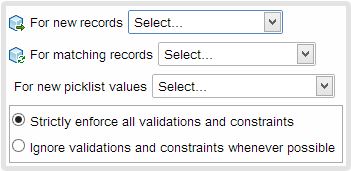
If necessary, edit the project name and description.
In the For new records drop-down list, indicate how to handle new parent items:
Add to the workspace
Append new records to the workspace
Skip
Do not add new records to the workspace
Error
Do not add new records to the workspace and report an error
In the For matching records drop-down list, indicate how to handle updates to existing parent items:
Add to the workspace
Overwrite the existing records in the workspace
Skip
Do not overwrite the existing records in the workspace
Error
Do not overwrite the existing records and report an error
In the For new picklist values drop-down list, indicate how to handle new picklist values:
Add to the existing picklist
Append new values to the picklist
Use blank instead
Ignore the new value
Error
Do not add new values and report an error
For BOM child items
Click the Import Settings tab.
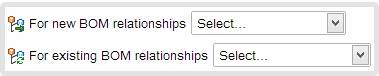
In the For new BOM relationships drop-down list, indicate how to handle new BOM parent-child relationships:
Add to the workspace
Include new relationships with existing relationships in the workspace
Skip
Do not add any new relationships to the workspace
Error
Do not add any new relationships to the workspace and report an error
In the For existing BOM relationships drop-down list, indicate how to handle updates to existing BOM parent-child relationships:
Add to the workspace
Overwrite existing relationships in the workspace
Skip
Do not overwrite existing relationships in the workspace
Error
Do not overwrite existing relationships in the workspace and report an error
Enforce or ignore validations and constraints
Workspace fields can have validations and constraints associated with them to ensure that the proper data types are entered and that required values are supplied. You can choose whether or not to adhere to the existing requirements.
Strictly enforce all validations and constraints
All field validations and required values must be met
Ignore validations and constraints whenever possible
Field validations and required values that can be ignored will be ignored
Apply Settings and Troubleshoot
- Click Save.
- The import settings are validated and any issues are identified in the Problems tab. Click the tab to view errors and warnings.
- Double-click an error or warning to go to the problem cell.
- Make corrections to the data, mappings, and settings as needed.
- Click Save again to re-validate the settings. Repeat until all problems are resolved.
Save the Project and Import the BOM
At the top of the page, click Save.
A final validation of the import settings is performed. Any issues are identified on the Problems tab.
At the top of the page, click Run.