Gantt interaction improvements
We've improved the experience when working with the Gantt chart in Flow Production Tracking.
Resize a Task bar from its edge
To change a Task's duration, hover over the left or right edge of its Task bar and drag it. The pointer now changes to a resize pointer, replacing the three lines that used to appear beside the bar.

Split Tasks use the same Gantt interactions
On the Gantt, there are no longer separate editing modes for split Tasks. You don't need to double-click a Task bar to work with its segments.
To move the whole Task, drag its first segment. To move one segment on its own, drag that segment.

Link Tasks by dragging
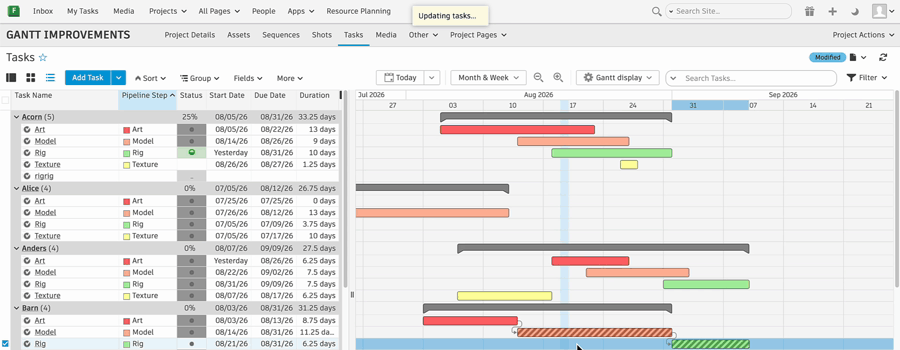
When you hover over a Task bar, a dot appears at each end. Drag from a dot to another Task to create a dependency. A dashed line follows the pointer while you drag, so you can see the link before you make it. Drawing a dependency no longer needs the Alt or Option key, and you can still link Tasks from the right-click menu.

Clearer dependencies you can't open
If a Task is linked to a Task you're not allowed to see because of your permissions, then the Gantt shows a lock instead of a dependency arrow. Hover over the lock to see why the Task details aren't shown.
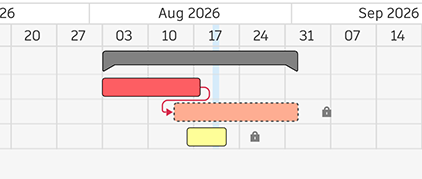 |
Two Tasks depend on a Task you can't view. A Lock stands in for each dependency arrow. |
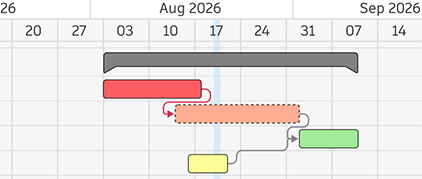 |
The same schedule seen with permission to view every Task. The arrows lead to the Task the locks stood in for. |
See when the Gantt is still working
When you move, resize, or link Tasks, the Task bars being updated are shown with a striped pattern and are locked until the update finishes. Only those Task bars are locked. You can keep editing other Tasks in the meantime, and start another update while the first one runs. A message at the top of the page tells you the update is in progress, and is replaced by a confirmation listing the fields that changed. If the update can't be applied, the Task bars return to their original dates and you're given the option to try again.
This means a large schedule no longer shows partly-updated dates while Flow Production Tracking recalculates a dependency chain.
New time controls
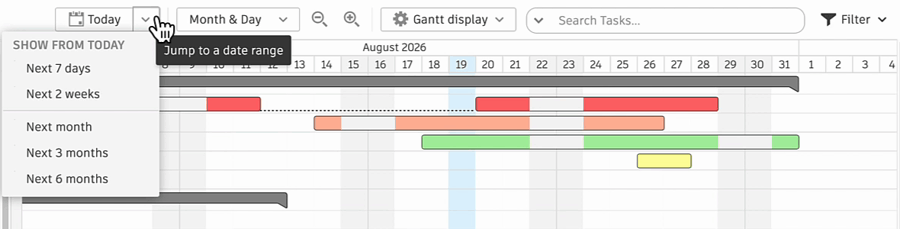
The controls above the Gantt now include Today, zoom in and zoom out buttons, and a timescale menu.
Select Today to bring the Gantt back to today's date, or open the menu to set a period ahead: under Show from today, choose Next 7 days, Next 2 weeks, Next month, Next 3 months, or Next 6 months.
In the timescale menu, under View by, choose Week, Month & Day, Month & Week, Quarter, or Year.
A refreshed look
Task bars, group bars, and dependency arrows have a rounded, modernized design. Row lines in the Task List View and the Gantt now stay aligned with each other, so a row is easier to follow across both panes.
When you select a Task, the Gantt no longer draws a border around its Task bar. The row stays highlighted instead, so the ends of the bar keep showing exactly where the Start Date and Due Date fall.

Documentation
To learn more about Gantt charts and tasks, see Gantt Chart and Tasks.
Release Information
Version:
8.88
Release Date:
August 2026