Set email notifications per group
Administrators can use Send Email Notifications on each group to reduce email when large groups are assigned work before it is distributed to individuals.
This setting is especially useful when you assign large, general groups to tasks or other entities before refining them down to individual users.
For example, you might assign the Animation group first. The Animation lead then reviews the tasks assigned to their department and hands them out to individual artists. By clearing Send Email Notifications for the group but not for the individual users, you avoid sending a lot of email for tasks that aren't assigned to individuals yet.
To change email notifications for a group:
Open Admin Menu > Groups.
Select or clear Send Email Notifications.
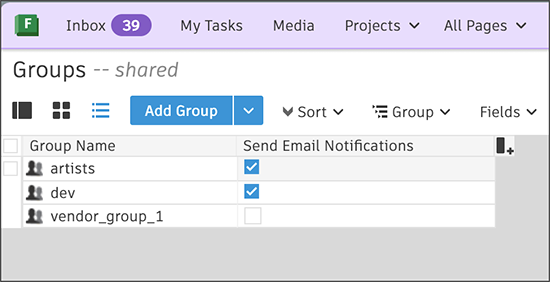
If you don't see the column, it's hidden: right-click any column and select Insert Column > Send Email Notifications.
New groups default to Send Email Notifications selected. When it's cleared, members do not receive email notifications when work is assigned or addressed to that group. Each member must still have the relevant options enabled under Email Notifications on their Account Settings page when the group sends email.
If an entity is assigned or addressed to a user directly, that user still receives email notifications even when a group they belong to has Send Email Notifications cleared.
Documentation
To learn more, see Groups and Departments.
Release Information
Version:
8.89
Release Date:
October 2026