Rearranging brushes and brush sets
Jump to Mobile or Windows 10
Want to rearrange the brushes in your palette or brush sets in the Brush Library, so your favorite brushes are easily accessible? The device you are using, as well as the version of SketchBook Pro you are running, will determine the if you can. Depending on the version you're running, you can not only organize your brushes in your palette and reorder your brush sets, but also rearrange brushes within a brush set.
Would you like a customized Brush Palette featuring your favorite brushes? Well, create a brush set and pin it to the palette. Do you want to share your brushes? Why not create icons for them, then export the set? Have you been dying to check out the free brush sets on the SketchBook Pro Blog? Depending on the version you're running, you can import the set. Once you've done that, why not rearrange them to organize the brushes and sets to best suit you?
Rearranging brushes in SketchBook Pro Desktop
In the Brush Palette, tap-hold, then drag a brush to a different location within the palette.
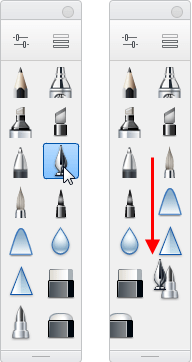
You can also rearrange brushes within a brush set. If you have favorite brushes in a set, move them either to the front of the set or into another set.
Rearranging brush sets in the Brush Library
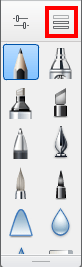
- In the Brush Palette, tap
 to access the Brush Library.
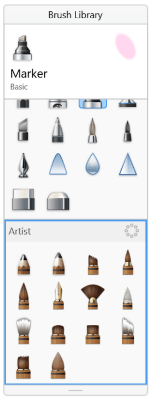
 - Tap the set you want to move. The
 icon appear.
 - Tap-drag to move the brush set to its new location.
Rearranging brushes in SketchBook Pro Mobile
The device you are using, as well as the version of SketchBook Pro you are running, will determine the brushes and tools available.
Rearranging brushes on an iPad
In the Brush Library, tap-hold, then drag a brush to a different location within the library.
Rearranging brushes on a handheld device
In the Brush Library, tap-hold, then drag a brush to a different location within the library.
Rearranging brushes in SketchBook Pro Windows 10
Tap-hold, wait for a second, then drag a brush to a different location within the palette.

Rearranging brush sets
You can rearrange your brush sets within the Brush Library to better organize them.
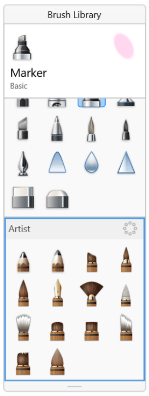
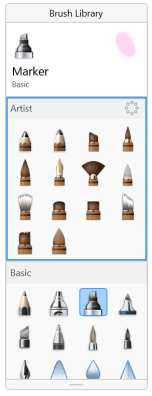
- In the Brush Library, tap-hold on the brush set name. The set will be highlighted blue.
- Tap-drag the set either up or down to rearrange it.