Locking layers
Jump to Mobile or Windows 10
When you lock layers, it ensures that nothing is accidentally altered. Locking a layer can also be used to indicate completion. When changes need to be made to a locked layer, unlock it and rework things. When finished, you can lock it again. When saving as a TIFF or PSD, your locked layers will be saved.
Layer locks
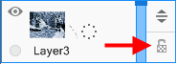
In each layer, there is a lock. Tapping it will lock and unlock SOMETHING; however, pay special attention to the body of the lock to know what you’ve locked or unlocked.

If the body of the lock is checked
 , it is locking layer transparency.
If the body of the lock is a solid color
 , it is locking the layer.
If the body of the lock is half solid and half checked
 , it is locking both the layer and its transparency.
Pay attention to any warning that appear. They will explain what is locked and needs to be unlocked to do certain actions.
Locking layers in SketchBook Pro Desktop
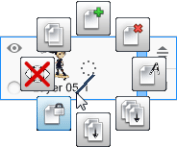
- To lock a layer, in the Layer Editor, select a layer.
- Tap
 .
.
Unlocking layers
- Once a layer is locked, to unlock it, in the Layer Editor, select the layer.
- Tap .
Locking layers in SketchBook Pro Mobile
For tablet and handheld device users, to lock a layer, tap a selected layer or double-tap an unselected layer to open the Layer Menu. Tap Lock Layer. Do the same to unlock it.
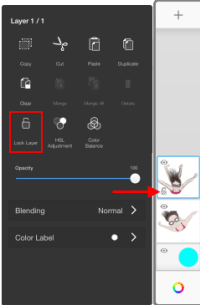
Locking layers in SketchBook Pro Windows 10
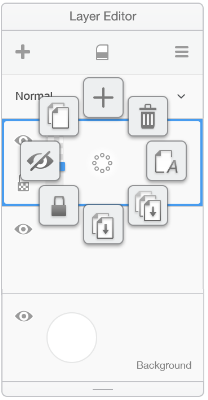
To lock a layer, in the Layer Editor, select the layer.
In the select a layer, tap-hold  , then swipe and select
  .
.