Repositioning your selection
Jump to Mobile or Windows 10
Once you’ve made a selection, there are a few different tools or gestures you can use to reposition your selection. Some versions of SketchBook have an assortment of tools to move, flip, mirror, scale, and rotate the selected content. For others, check your screen for directions as to the gestures available.
Did you know that you could use another tool, while still in selection mode? See How to use your selection like a mask for more information.
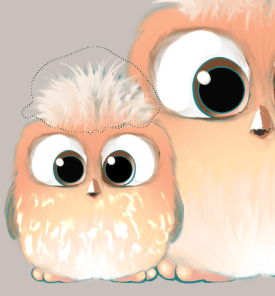
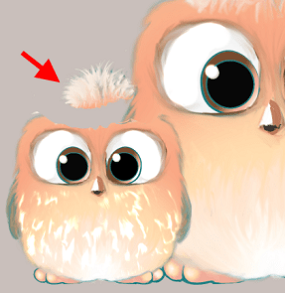
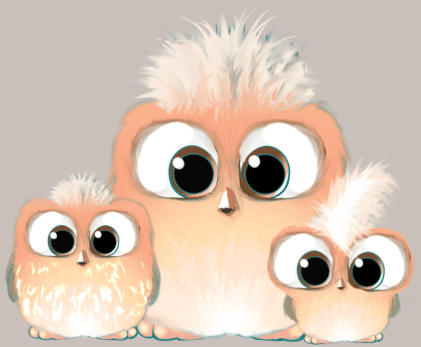
Repositioning tools
Your version of SketchBook might include:
 Nudge
Nudge
Tap Nudge to move the selection itself, NOT its content. It can be used in conjunction with Invert. Make a selection, tap , then drag the puck to place the selection. If you want to use another tool, such as Symmetry, select and used it. Then accept or decline the changes.
 Move
Move
Tap Move to move the selection and the content it encompasses. Once is selected, another toolbar appears for helping with the placement of the content.

You can move, flip, mirror, and rotate the selected content. If you want to use another tool, such as Symmetry, select and used it. Then accept or decline the changes.
 Transform
Tap  Transform to move, scale, or rotate your selection. In some versions of SketchBook, Transform opens a toolbar with tools for scaling, moving, rotating, distorting, and flipping a selection. For specifics, see How to use transforms.
Repositioning your selection in SketchBook Pro Desktop
With a selection already made, there are two ways to reposition your selection:
To only move the selection (NOT the content within the selection), drag anywhere within the canvas.
To move the selection and its content, tap  and ensure
is already active (it will be blue). If it isn't, tap , reselect the area, tap and use the puck to move, scale, or rotate the content.
Repositioning your selection in SketchBook Pro Mobile
To only move the selection (NOT the content within the selection), once you have made a selection, in the Selection toolbar, tap Nudge. Instruction will appear on the screen explaining what the tool does and how to use it.
- To free-form move the selection, drag with your finger in the middle of the puck to place the selection.
- To move the selection a pixel at a time, tap the arrow for the direction you want. Each time you tap it, the selection is moved one pixel in that direction.
If you want to use another tool, such as Symmetry, select and used it. When finished with your selection, tap  to accept the changes or x to decline.
Repositioning your selection in SketchBook Pro Windows 10
Once you’ve made a selection, use the Transform tool to move it.
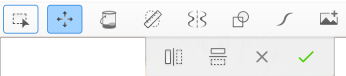
Tap
. Another toolbar appears for helping with the placement of the content. Messaging about the gestures to use appears at the bottom of the canvas.Use gestures, Flip, Mirror, or a combination of these to reposition the selection. If you want to use another tool, such as Symmetry, select and used it.
Tap
 to accept the changes or x to decline.