Advanced search in the web app
Advanced search gives you a faster, easier, and more precise way to locate specific data in your tenant, especially when you've been using Upchain for a while and the amount of data you have is quite extensive. It enables you to narrow your search by defining the specific item, file (model, drawing, and translation files only), project, customer, and eBOM attributes of the object you are looking for.
show.items.from.private.projects.in.search so that items from private projects are shown in your search results. However, you may not view their details or perform any actions on them. Perform an advanced search
Click Advanced search in the main header.
The Advanced search page opens.
Select an object type - the type you select here sets the output format for your search.
Select File to see a list of CAD files (model, drawing, and translation files only. Non-CAD documents are not included here).
Select Item Version to see a list of items.
Select Project to see a list of projects.
Note: The other object types are useful to narrow down your search results but may not be useful as the main object to find.
Select the type search operator.
- Match All : Search for objects that match all the attribute criteria.
- Match Any : Search for objects that match one or more of the attribute criteria.
Select the desired attribute. The attributes available depend on the selected search type.
Tip: When searching for items by a custom attribute configured by your Tenant Administrator, you must select Custom Attribute from this list.Select the attribute search operator.
- Equals : Search for objects that match the criteria exactly as entered.
- Not equal : Search for objects that do not contain the entered criteria.
- Contains : Search for objects that contain the entered criteria somewhere within the selected attribute.
- Between (inclusive, match case) : Search for objects that are within the range of the two entered criteria (results will include the start and end values).
Input the attribute criteria of the objects you are looking for.
Tip: When searching by a date, click the calendar to select the desired date.- Use the (
 ) and (
 ) icons to add or remove attributes.
 - Click (
 ) to add subclauses.
- Use the (
Click Add type to add more criteria to further narrow down your search.
Use the AND operator to search for objects that contain both types.
Use the OR operator to search for object that contain either of the types.
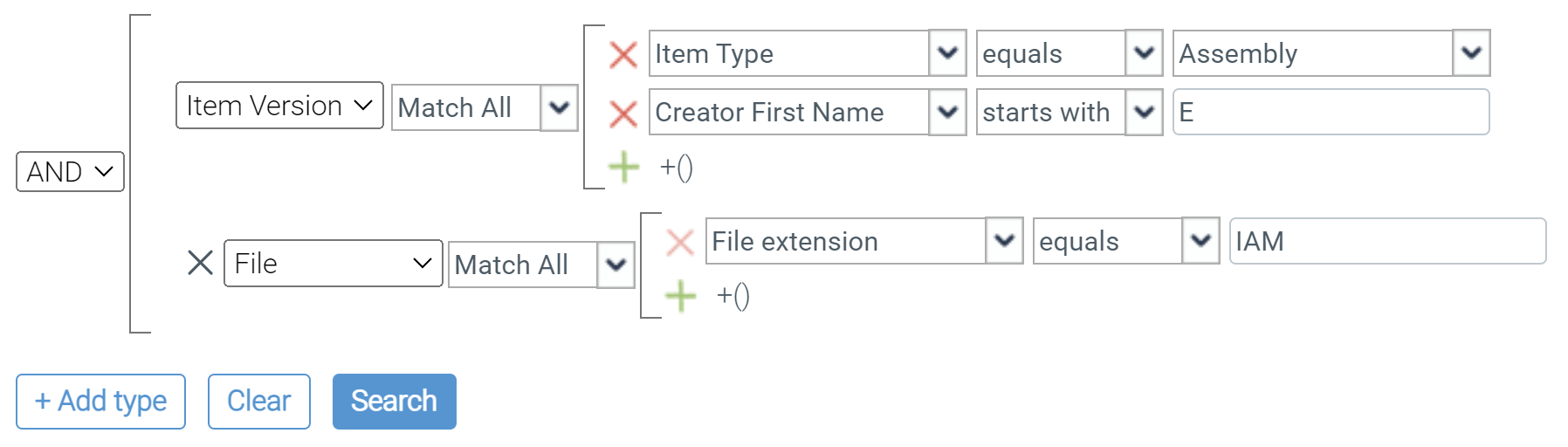 Tip: Here is where it may be useful to add an additional object type (Project, Customer, eBOM, CR, CN) to help narrow down your search for an item or file.
Click Search.
Your search results are displayed in a table. The object type shown is the type selected at the beginning of your search criteria.
Open an object returned in an Advanced search
Click the Go to icon ( ) on a search result to open the object directly in its location in Upchain if it has one. If it does not belong to any projects, Upchain displays a message indicating this.
If the object is an item, click the item to view its item details pane on the right in Advanced search window. You can then click the item's name at the top of its item details pane to open the item in its BOM location.
Additional actions from an Advanced search
Based on your license type, you may complete one or more of the following actions from an Advanced search:
- Click Copy
 to copy the object to your clipboard.
Save your search criteria for future use
Save your search criteria and save yourself time when conducting future searches.
- Enter your desired search criteria.
- Click Save search.
- Name your search
- Select the Private box if you want your saved search to only be visible to you. Otherwise, your saved search is available to all users in your tenant.
- Click Save.
To use a saved search, select it from the Saved searches drop-down in the top-right corner, then click Search.