Quality assurance: Get started
The Quality assurance (QA) interface enables you keep track of your QA processes, assign them to specific people, attach documents to them, link them to items and create child tasks and QA processes.
To find the list of QA processes in a project:
- Open the desired project.
- Open the Business processes (
 ) section of the project.
 - Click the Quality assurance tab.
Quality assurance interface overview
The QA process interface shows a project's QA processes and tasks in an indented view with indices to indicate the parent-child relationship between QA processes and tasks. You can see a QA process's name, assignee, type, priority, and status.
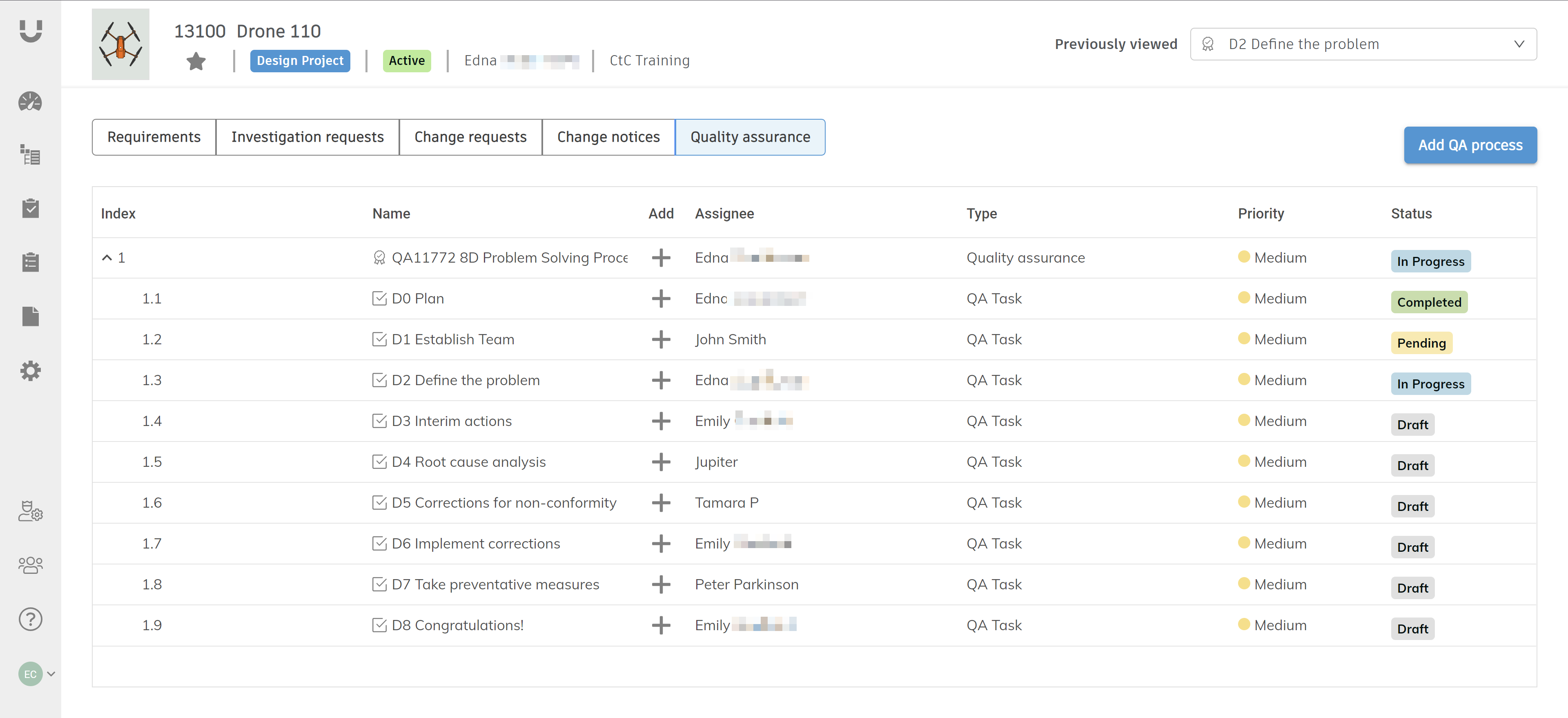
- Click Add QA process to add a new QA process to the root of the project.
- Click Add (
 ) to add a new QA process or task under an existing QA process.
QA process detail view
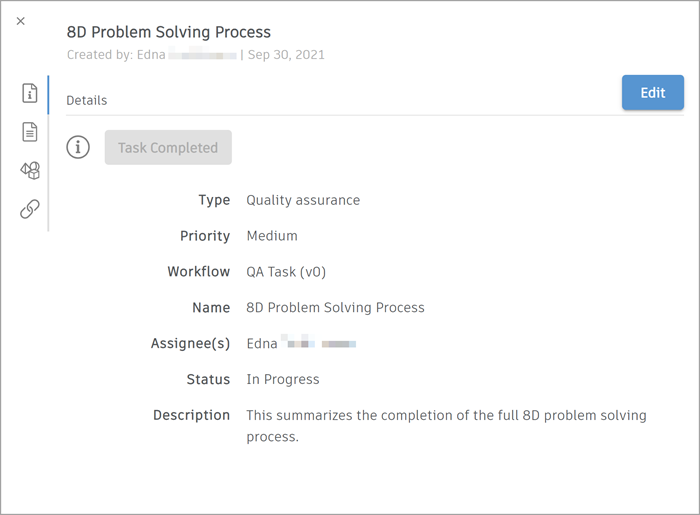
Select a QA process ( ) in list view to open its detail view, which contains additional information about the QA process.
Details tab
The Details ( ) tab is shown by default when you open a QA process' detail view. This tab contains all of the selected QA process' details, including its type, name, description, status, assignees, and priority.
Documents tab
The Documents ( ) tab shows a list of all documents that have been added to the selected QA process. The information show includes the document name, upload date, workflow status, version number, and creator.
Items tab
The Items ( ) tab shows a list of all items that have been attached to the selected QA process. The information shown includes item type, name, workflow status, and version number.
Relationships tab
The Relationships ( ) tab is where you can link a QA process to another QA process or another requirement. You can also specify how the QA processes/requirements depend on each other. This enables you to ensure that you can follow up on other QA processes/requirements that depend on one you've just completed.
QA task detail view
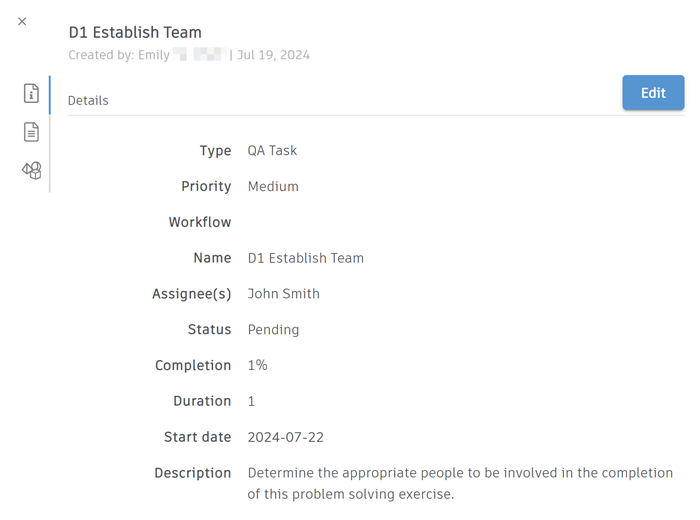
Select a QA task ( ) in the list to open its detail view, which contains additional information about the QA task.
Details tab
The Details () tab is shown by default when you open a QA task's detail view. This tab contains all of the selected QA task's details, including its type, name, description, status, assignees, and priority.
Documents tab
The Documents () tab shows a list of all documents that have been added to the selected QA task. The information show includes the document name, upload date, workflow status, version number, and creator.
Items tab
The Items () tab shows a list of all items that have been attached to the selected QA task. The information shown includes item type, name, workflow status, and version number.