Issue:
How to change or update the external reference saved paths in multiple AutoCAD drawings. Especially when migrating files to a new folder or server location, or if a mapped drive letter has changed.
Solution:
Use the Autodesk Reference Manager to modify reference paths for multiple drawings without having to open the individual drawings in AutoCAD.
The Reference Manager is included in the installation of any AutoCAD Product (except for AutoCAD LT) and can be found on the Windows Start menu, in the same installation folder as the product.
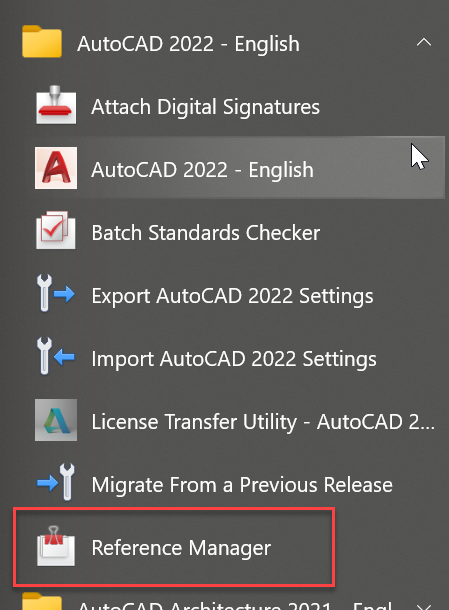
Note: the application is located at: C:\Program Files\Autodesk\AutoCAD 20xx\AdRefMan.exe
To replace a drive letter using the Reference Manager
- Start the Reference Manager.
- Add drawings by clicking Add Drawings or by drag-and-dropping them on the window.
- Select one or more drawings from the main window and click Find and Replace.
- In Find saved path, enter the drive letter to replace.
- In Replace with, enter the new drive letter.
- Click Replace All.
- Check if the paths have been replaced as expected and then click Apply Changes.
To replace the Xrefs path
- Start the Reference Manager.
- Add drawings by clicking Add Drawings or by drag-and-dropping them on the window.
- Optional, on the menu bar, click View, then select List by Reference Type.
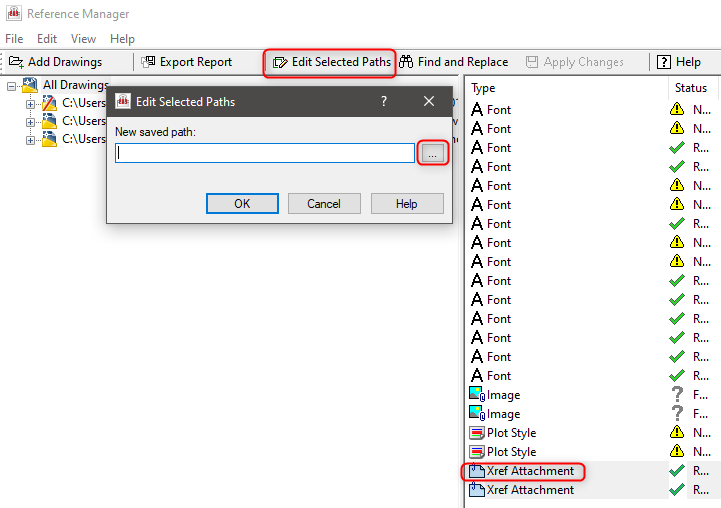
- Select one or more drawings from the main window and click Edit selected Paths.
- Past or navigate the new Xref path in the "Edit Selected path" dialog.
- OK
- Check if the paths have been replaced as expected and then click Apply Changes.