
Issue:
Thumbnails or preview images of drawings are not shown for AutoCAD or Inventor DWG files in Windows Explorer.
- Windows Explorer is set to display folder content as small, medium, large, or extra large icons, or the preview pane is active.
- The default DWG file icon is displayed instead.
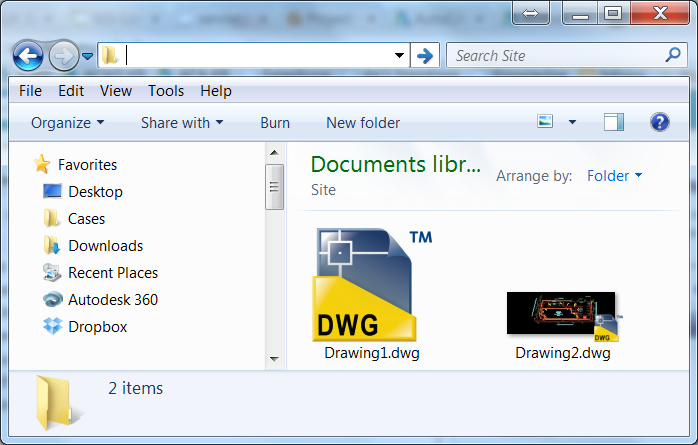
- The DWG file icon thumbnails is displayed as blank (white).
Causes:
- Uninstalling a previous version of AutoCAD.
- Installing a new version of AutoCAD.
- Drawing saved in a different version of AutoCAD.
- File saved in an older file format (2010 or earlier) which handles thumbnail preview images differently.
- File saved through WBLOCK.
- File set to not save a thumbnail preview image.
- The view settings in Windows Explorer are not configured to show previews.
- .dwg registry has lost its file association with AutoCAD or become corrupted.
- If part of the registry for Windows policies has been deleted, missing or set to the wrong value, such as DisableCAD, EnableLUA, FilterAdministratorToken, ConsentPromptyBehaviorAdmin.
- If these four registries are missing, corrupted, or set to different values, thumbnails may not function correctly.
Solution:
Make sure that the drawing file is set to save a thumbnail preview image
-
At the Command prompt in AutoCAD, enter THUMBSAVE and set the value to 1.
-
Save the drawing file to update its thumbnail image.
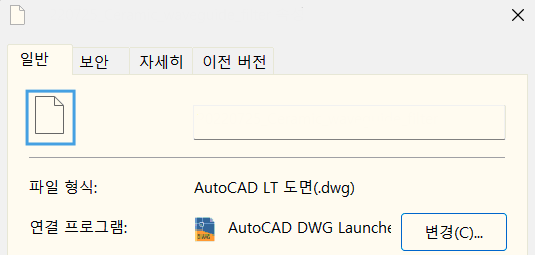
Check that DWG files are set to open with AutoCAD DWG Launcher
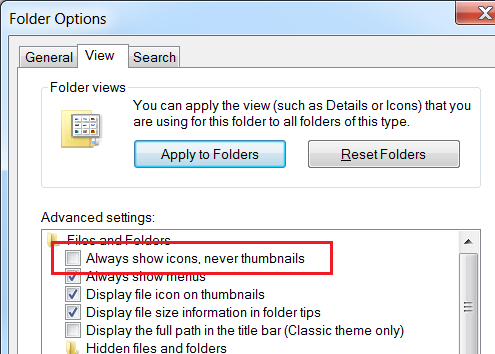
Make sure that Windows is set to display thumbnails
-
Go to the Windows Control Panel > Folder Options > View tab.
-
Deselect Always show icons, never thumbnails and click OK.
Multiple AutoCAD versions installed
- Uninstall all AutoCAD versions.
- Reinstall the desired version.
Corrupted .dwg registry
- Run Registry Editor as an administrator.
- Delete the .dwg registry entries located at the following registry path.
- HKEY_CLASSES_ROOT\.dwg.
- HKEY_CURRENT_USER\SOFTWARE\Classes\.dwg.
- HKEY_CURRENT_USER\SOFTWARE\Autodesk\DwgCommon\shellex\apps\(deleted subregistry in apps).

- HKEY_CURRENT_USER\SOFTWARE\Microsoft\Windows\CurrentVersion\Explorer\FileExts\.dwg.
- Launch AutoCAD.
- Register the DWG file association.
- Restart the Windows Explorer process from Task Manager.
Check for set to different values or deleted, missing in Windows Policies registry
The following registries are involved in managing administrative privileges for user accounts in Windows OS.
Note : Before trying with the registry, be sure to back up the system registry in Windows Policies.

| Name | Definition | Type | Default Value | Default's definition |
| ConsentPromptBehaviorAdmin | The behavior of the consent prompt for administrators. | DWORD(32bit)/REG_DWORD
|
5 | The User Account Control (UAC) prompts for consent on the secure desktop. |
| DisableCAD | The ability to disable the Ctrl+Alt+Delete secure attention sequence. |
DWORD(32bit)/REG_DWORD
|
0 | The Ctrl+Alt+Delete sequence is enabled and required for logging in. |
| FilterAdministratorToken | The built-in Administrator account uses Admin Approval Mode |
DWORD(32bit)/REG_DWORD
|
0 | The administrator token is not filtered, and the built-in Administrator account runs with full administrative privileges. |
| EnableLUA | Enables or disables User Account Control (UAC) on the system. |
DWORD(32bit)/REG_DWORD
|
1 | The user Account Control (UAC) is enabled, helping to prevent unauthorized changes to the system. |
| ValidateAdminCodeSignatures | This registry setting determines whether Windows enforces PKI signature checks on interactive applications that request elevation of privilege. | DWORD(32bit)/REG_DWORD
|
0 | By default, cryptographic signatures are not enforced on interactive applications that require elevation of privilege. |
| LocalAccountTokenFilterPolicy | This registry entry controls remote access to user accounts belonging to the local Administrators group. | DWORD(32bit)/REG_DWORD
|
0 | By default, UAC token-filtering is applied to local accounts on network logons, creating a filtered token. |

- If a registry is missing, add the missing registry.
- Start > Type REGEDIT and run as administrator.
- Path : HKEY\LOCALMACHINE\SOFTWARE\Microsoft\Windows\CurrentVersion\Policies.
- Verify if the registries exist.
- Right-click > New > Select DWORD (32-bit).
- Enter the registry name.
- Double-click the created DWORD (32-bit) registry.
- Add the value as Default Value.
- Reboot.
- If these registries are missing, corrupted, or set to different values, thumbnails may not function correctly.
- Start > Type REGEDIT and run as administrator.
- Path : HKEY\LOCALMACHINE\SOFTWARE\Microsoft\Windows\CurrentVersion\Policies.
- Verify if the registries exist.
- Double-click the registry.
- Change the value to Default Value.
- Reboot.
Installation of Autodesk DWG Trueview
If using AutoCAD(Included Toolsets such as Mechanical etc), AutoCAD LT, or Inventor Professional, install the same version of Autodesk DWG Trueview. See Autodesk DWG Trueview download.
Note : Autodesk DWG Trueview supports English, French, and Japanese, therefore it is recommended to install in English for non-supported languages.
Saving IDW/DWG Files as AutoCAD DWG in Inventor Professional
When converting IDW and DWG files created in Inventor Professional to AutoCAD DWG files, if saved as AutoCAD DWG using Save Copy As, as shown in the screenshot below.
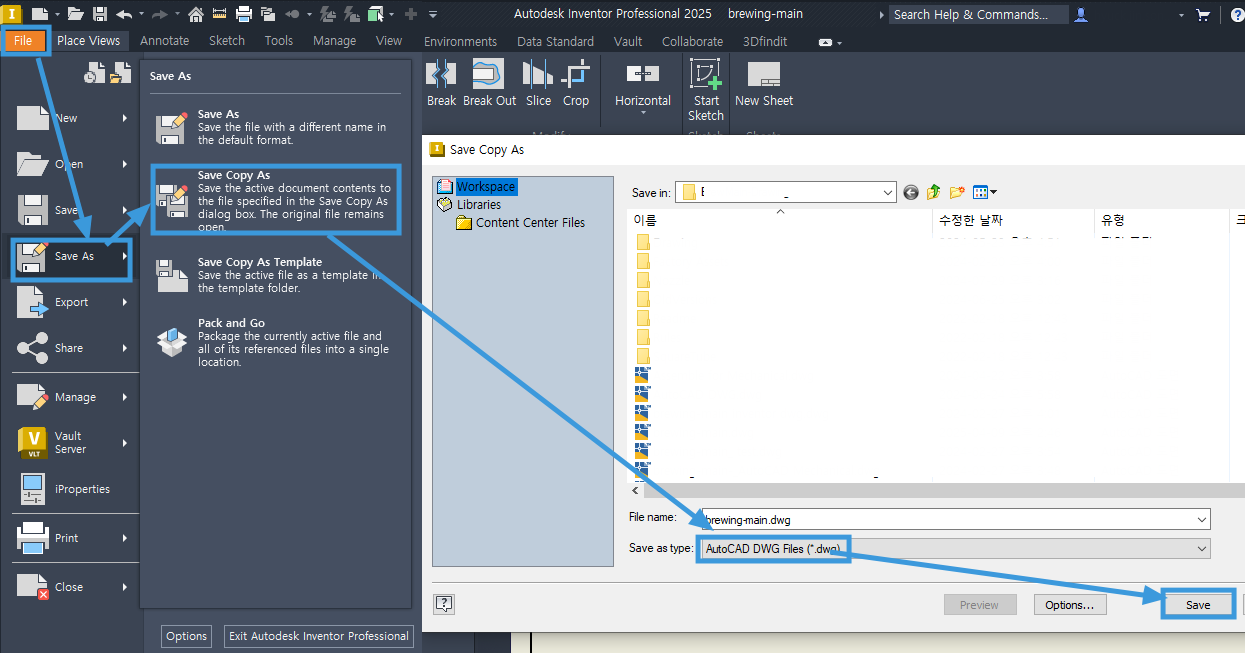
The conversion is done without the DWG file will not include thumbnail information such as AcDb_Thumnail_SchemaTDs.
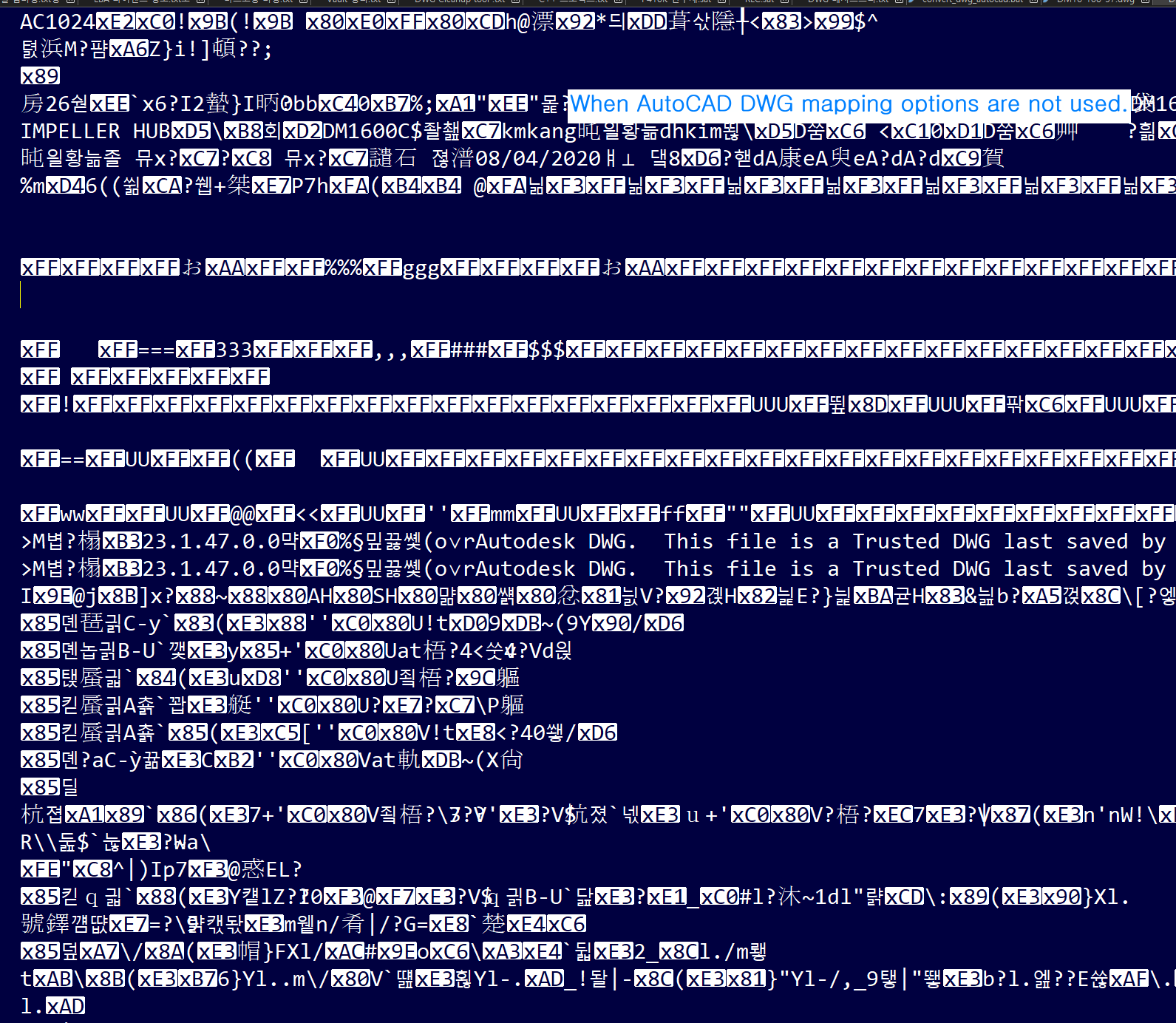
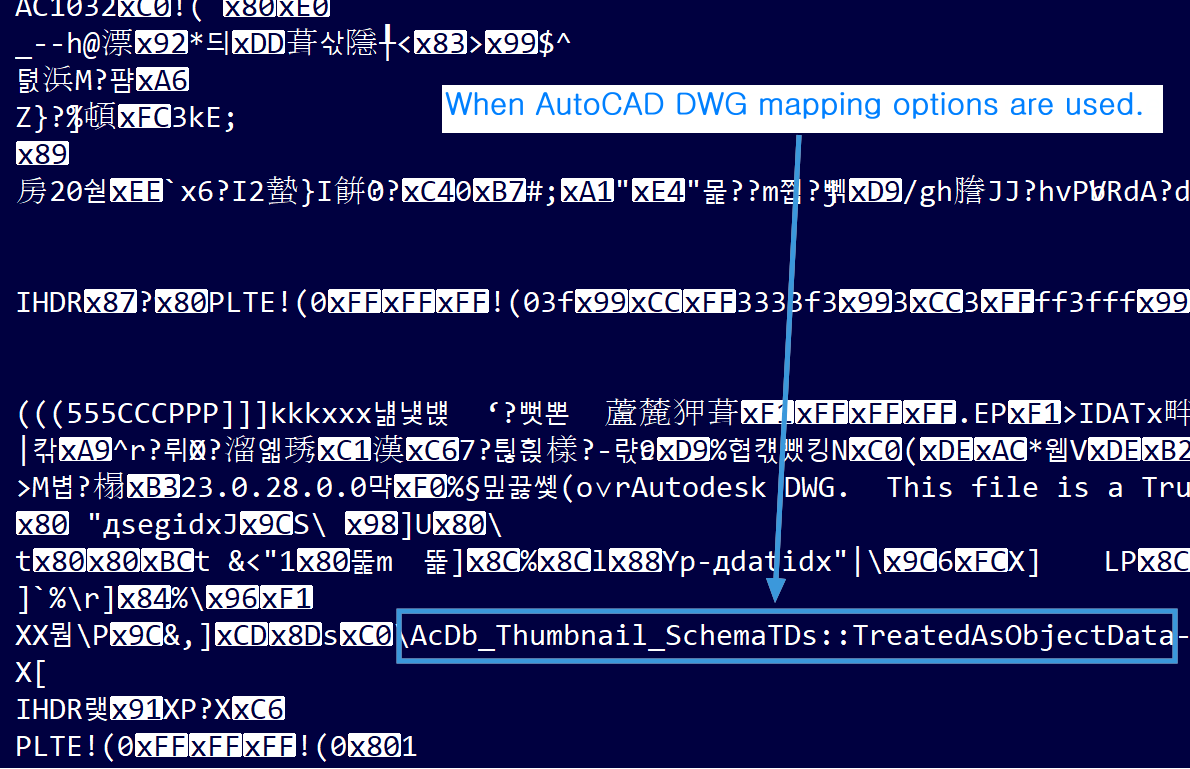
Therefore, when using Save Copy As, it is essential to select "Options" and map to the DWG file of AutoCAD or AutoCAD Mechanical before saving. See Inventor Professional Help | To Export Data to DWG.
Note : If there are DWG files that were not mapped to AutoCAD DWG options, these files need to be converted using the DWG Converter feature in Autodesk DWG Trueview. See Autodesk DWG TrueView Help | Understand the Conversion Process.