
Issue:
How to remove layer filters from a drawing file in AutoCAD.
Causes:
Solution:
On the command line in AutoCAD, type FILTERS and then click the "Delete Filters" button. First move filters to be kept to the left column.
Alternatively, when entering the LAYER command, the following message may appear:
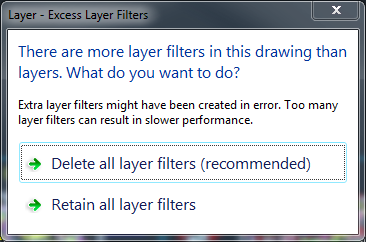
Clicking the option "Delete all layer filters (recommended)" will remove all layer filters.
In AutoCAD LT, the FILTERS command is not available, but the above dialog message will still appear and will remove layer filters. To manually remove layer filters:
Alternatively, when entering the LAYER command, the following message may appear:
Clicking the option "Delete all layer filters (recommended)" will remove all layer filters.
In AutoCAD LT, the FILTERS command is not available, but the above dialog message will still appear and will remove layer filters. To manually remove layer filters:
- Enter the LAYER command to open the Layer Properties Manager.
- Select all the layer filters.
- Right-click and choose Delete.