
Issue:
When double-clicking a DWG format drawing from a File Explorer, the wrong AutoCAD-based program starts up:
- A different AutoCAD product starts up, for example AutoCAD instead of LT, or a Toolset (AutoCAD Architecture or Mechanical, etc.) or Civil 3D instead of plain AutoCAD.
- An older or newer release of AutoCAD product than was expected opens.
- The program opens with an Imperial unit drawing instead of the Metric one, or the other way around.
- AutoCAD Web opens instead of the desktop version.
Causes:
- Multiple version are installed on the system and the DWG Launcher applications is opening the last-used verions of the program.
- The DWG file type is associated incorrectly on the operating system (Windows, macOS).
- Registry entries for DWG Launcher are not properly updated after upgrading the program.
Solution:
The recommended workflow is to always open DWG format drawing files from within the program as this helps to avoid:
-
Instability in the file or working session, and other anomalies.
-
Inadvertently launching multiple sessions of AutoCAD or Civil 3D.
-
Inadvertently saving a DWG in a different version of AutoCAD or Civil 3D.
Open the DWG from within the desired AutoCAD version
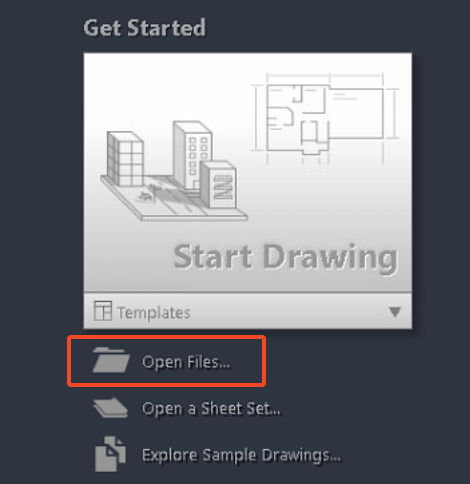
- Click Open or Open Files (depending on the AutoCAD product in use) on the AutoCAD Start Screen.

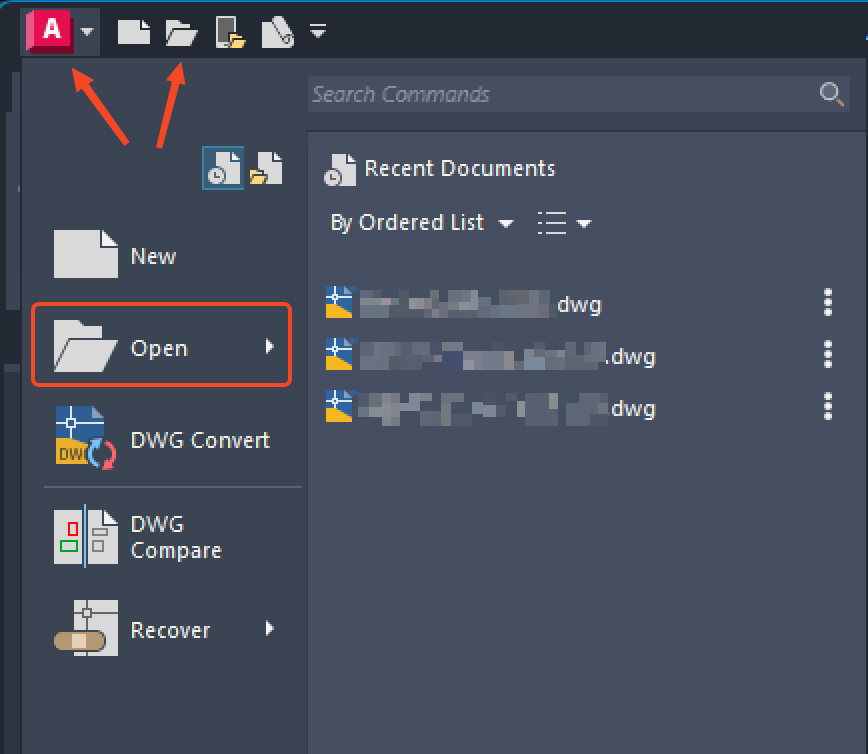
- Open from the AutoCAD (A) or Quick Start Menu, then select a recent file or browse to one.
- Drag and drop the drawing into the Start tab, the command line, the file tab bar, or the blank space next to the toolbars. The file types supported for this are: DWG, DXF, DWS, DWT and DST.
- For other options to open drawings from within the program, see To Open Drawings | AutoCAD.
Configuring the DWG file association in the operating system
Follow the appropriate procedure according to the current operating system.
-
Windows: Associate the DWG file type to open with the AutoCAD DWG Launcher, see DWG file type associativity in Windows.
-
macOS: Associate the DWG file type with the desired version of AutoCAD, see DWG file type associativity in the macOS.
Note: Depending on the permissions and configuration of the system, this method may not always work as expected. In these instances, the first workflow of opening the drawing from within the program is recommended.
Alternate options
-
Ensure that the DWG Launcher registry keys are correctly set. See, "Windows cannot find..." [File name].dwg, acad.exe, or acadlt.exe when double-clicking a DWG file to open in AutoCAD.
-
Uninstall all version of AutoCAD except the desired version.