
Issue:
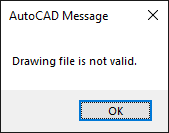
AutoCAD Message
Drawing file is not valid.
Causes:
The drawing or file is corrupted or has been damaged beyond usability. Some environmental factors that can cause a drawing to become corrupt or fail are:
- Transmittal issues.
- Improperly converted files.
- Hardware malfunction.
- Files stored outside the local hard drive, for example, on:
- Cloud servers (Dropbox Desktop, Google Drive, OneDrive etc.).
- Non-Microsoft networks. See Autodesk Support for Non-Microsoft Networks.
- External hard drives, such as NAS and SAN devices.
- Flash or thumb drives.
- Non-Autodesk (third-party) data.
- VPN connection dropped while working in the file.
- Desktop Connector updates have not been installed.
- The DWG is downloaded or opened directly from an email program.
- Drawing file encryption.
- Objects imported or copied into a drawing from a corrupted source.
Solution:
When the file can be opened
Click here to view solutions
Save the file to a previous file format
If the file can be opened anywhere, save it to a previous file format. See How to save an AutoCAD drawing to a previous or older file format.
Open the file in the native software
Open files created in non-AutoCAD (third-party) software in the native product and export to AutoCAD DWG format, if available.
Repair the drawing file
Try the solutions in How to Repair corrupt AutoCAD files.
When the file cannot be opened
Click here to view solutions
Open the drawing from the saved location
Open the drawing file directly from its current saved location instead of using the shortcut in the Recent Documents menu.
Recover the file
- Open a blank drawing.
- Enter RECOVER or RECOVERALL on the command line.
- Select the file.
- Click OK.
Note: See Have You Tried: Restore, Repair, and Recover Drawings for more information.
Compare the content to a known working drawing
Open the drawing file in a text editor, such as Notepad, and compare it to a known working drawing.
- The drawing should start with the file format number 'AC10[xx]'. See Drawing format version codes for AutoCAD:
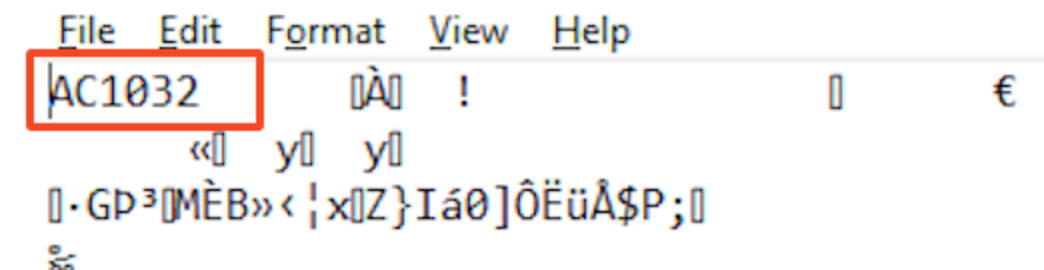
- The first few lines will show the AppInfoDataList and additional information about the AutoCAD product and release version:

- If the file format number and application data are not shown for the affected drawing, or they look consistently different:
- The drawing information may be encrypted, check with your IT about removing or working around the encryption.
- This may indicate irrevocable corruption, improper conversion, or wrong file type. See How to Repair corrupt AutoCAD files.
Open a backup or autosave file
Find a backup (BAK) or autosave (SV$) copy of the file. See Understanding backup and autosave files in AutoCAD.
Generate a new file from a previously saved PDF
If a PDF of the drawing exists, use the PDFIMPORT (Command) to convert the contents into linework in a DWG file.
Note: Depending on how the PDF was created, layers, lineweights, colors, and other object settings, may need to be reconfigured.
Environment related options
Click here to view solutions
Check the file path, name and extension length
Verify that the combined length of file path, file name, and filename extension does not exceed 255 characters. See Maximum Path Length Limitation (Microsoft).
Verify the integrity of the device used to transmit the file
If a USB drive or similar support has been used to transmit the file, check the storage for integrity.
Ensure the file storage location is working properly
Test that the file storage location is working properly, to rule out network or cloud storage issues:
- Test opening the file from a different location, such as the local hard disk
- Some storage solutions offer on-demand access, disable this option or download local copies of one or more files and check whether they open correctly.
- If cloud storage is where the error comes from, reinstall the cloud drive or consult support for the service.
Configure the cloud storage service
For cloud storage (for example: Dropbox Desktop Software, Google Drive, OneDrive):
- Have the necessary programs installed for the cloud storage.
- Be sure to Login to the cloud storage provider or application.
- Add the cloud drives to the support file path location and trusted location.
Prepare files received by email
For files received by email:
- Have the sender ZIP the file and resend it.
- Extract drawing files from the ZIP folder before opening, or copying them out of the ZIP to a new location.
- Download it from a most up-to-date version of Microsoft Outlook.
Replace the drawing file from the source
Request or obtain a new working copy from the author or original source.