
Issue:
Users reported that when opening a drawing in AutoCAD products, the text displays incorrectly, and may display as:
- A different font.
- Blank spaces.
- Barely visible until zoomed in.
- Corrupted letters or characters.
- Shifted, in a different scale or linetype.
- Larger than the space or frame in which it was originally placed.
- Overlapping other text in the object.
- Bold, automatically.
- Another font when the drawing is opened on different systems.
- Another font when output using plot and publish.
- Incorrect when switching between Graphics Engine in AutoCAD for Mac
Affected objects can include:
- Multiline text.
- Text.
- Dimensions.
- Attributes.
- Attribute blocks.
- Labels.
- COGO points.
Causes:
Font substitution
AutoCAD is substituting a font that:
- Was not found in the operating system or AutoCAD font folders.
- Can be found on the system but is corrupt and cannot be read correctly by AutoCAD.
- Is OpenType format with Postscript outlines. AutoCAD can only use system-installed fonts with TrueType outlines.
- Was specified in the font-mapping (FMP) file. This can occur even when the original font can be found and sometimes results in no text being displayed.
Incompatible fonts
- The affected object is specific to Civil 3D, such as labels and COGO points.
- Drawing files (DWG or DXF) exported from 3rd party software then opened AutoCAD changes the fonts size and turns bold automatically
Program and hardware
- Available AutoCAD updates have not been installed.
- Graphics card problems or limitations.
Solution:
First, verify whether the font is missing or installed
- Fonts are located in the following folders:
- C:\Autodesk\AutoCAD 20xx\Fonts
- C:\Users\[username]\AppData\Roaming\Autodesk\AutoCAD 20xx\[release]\enu\Support
- The default substitution font for AutoCAD is Simplex.shx. To show which font AutoCAD is substituting a font cannot be found:
- Open a drawing.
- Press F2 to open the dialog.
-
- Opening an AutoCAD 20xx format file. Substituting [simplex.shx] for [font_name.shx]. Regenerating model.
The font is missing or cannot be found
- Install the font (see How to install a font for AutoCAD).
- Copy the font from another system.
The font is installed, but AutoCAD is not using it
- Delete and reinstall the font:
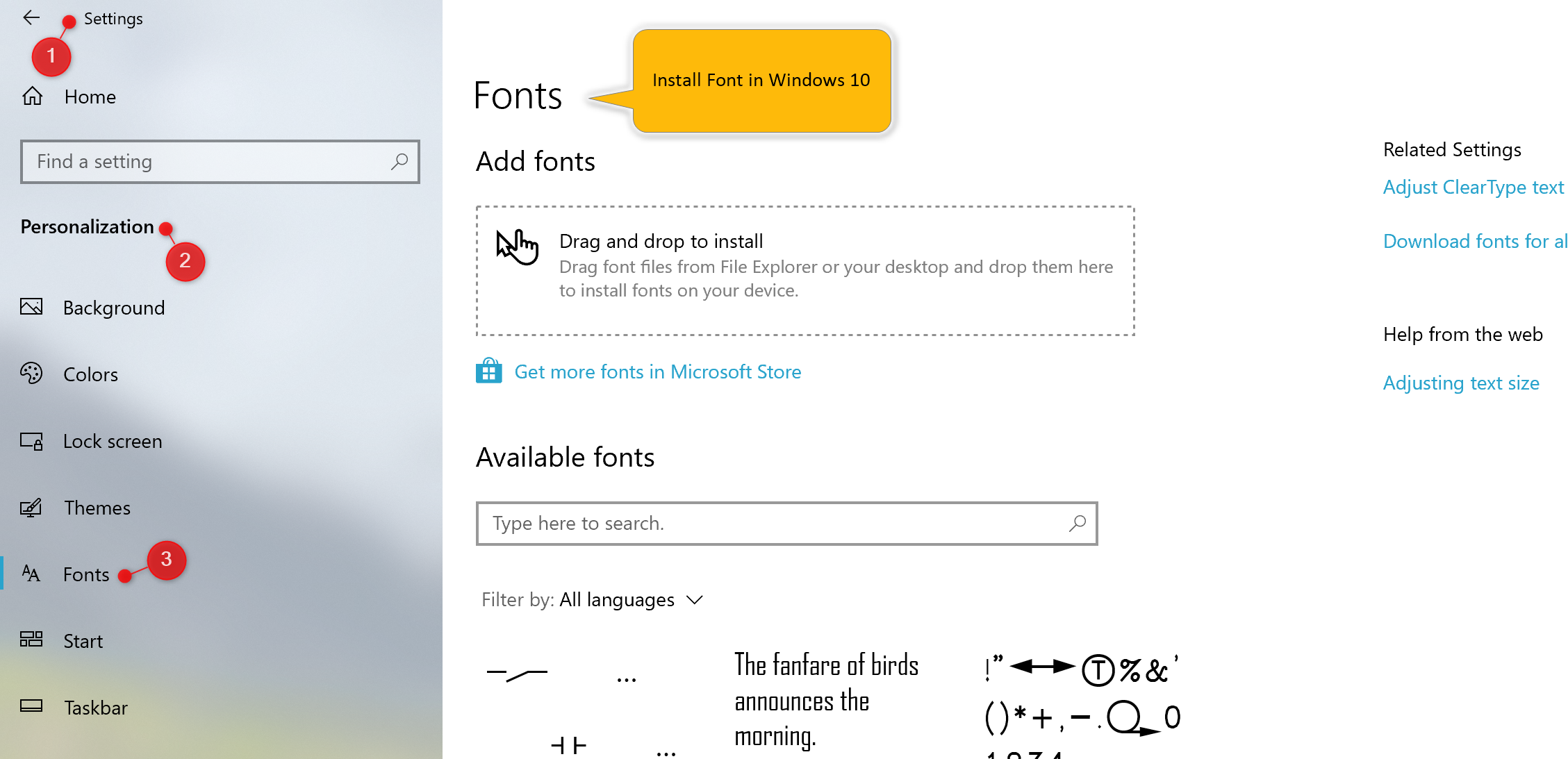
- Open the Windows Font folder:
- Windows 11 - Control Panel > Appearance and Personalization > Fonts.
- Windows 10 - Settings Settings > Personalization > Fonts.
- Delete the affected font.
- Right-click the working font file and choose install from the menu.
- Insert the font into a new file:
-
- Create a blank new drawing from the acad.dwt or acadlt.dwt template.
- Use the INSERT or CLASSICINSERT command to insert the file with the bad font.
- Save the new file and use it going forward.
- If the default simplex.shx substitution font is damaged and is not displaying correctly, copy simplex.shx from a working system into the folders noted above. This applies even when it is not the intended font, or AutoCAD has used it to replace another.
If the font cannot be reinstalled or replaced
Select a different font for use in the associated text styles (see How to change font styes in AutoCAD).
Verify Font Mapping Settings
- Find the path to the acad.fmp file in Options > Files > Text Editor, Dictionary, and Font File Names > Font Mapping File.
- Following this path, navigate to the acad.fmp file within the operating system and open it in a text editor such as Notepad.
- Compare the file with acad.fmp from a working system.
- Manually edit the font replacements as needed.
- Alternately, copy and replace the acad.fmp file with a working file from another AutoCAD workstation.
Note: Font substitutions specified in the font-mapping file will occur even if the font specified in the text object can be found on the system. This is expected behavior.
Corrupt MTEXT Objects
- Select the malfunctioning object.
- Right-click and choose Mtext Edit.
- Right-click the text and choose Select all.
- Right-click the text and choose Remove formatting > Remove all formatting.
- Reapply formatting as needed.
Objects originating in Civil 3D
Display properties of text objects created in Civil 3D cannot be changed in AutoCAD products; they can only be viewed/plotted. Changes to those objects can be performed only in Civil 3D.
Migrate Settings for Fonts
- If settings have been migrated from a previous version, reset AutoCAD to default and test the font again. See How to reset AutoCAD to defaults.
- If the font displays as expected, migrate the settings back in the affected version of AutoCAD. See How to migrate settings from an older version of AutoCAD to a newer one.
Install AutoCAD Updates
Use Autodesk Access or Autodesk Account portal to obtain and install any available updates for the product.
Graphics troubleshooting
- Update the graphics driver to the newest version (see How to update to the latest certified video driver for Autodesk software).
- Configure AutoCAD to use DirectX 11 instead of DirectX 12. Enter GFXDX12 on the command line and set the value to 0.
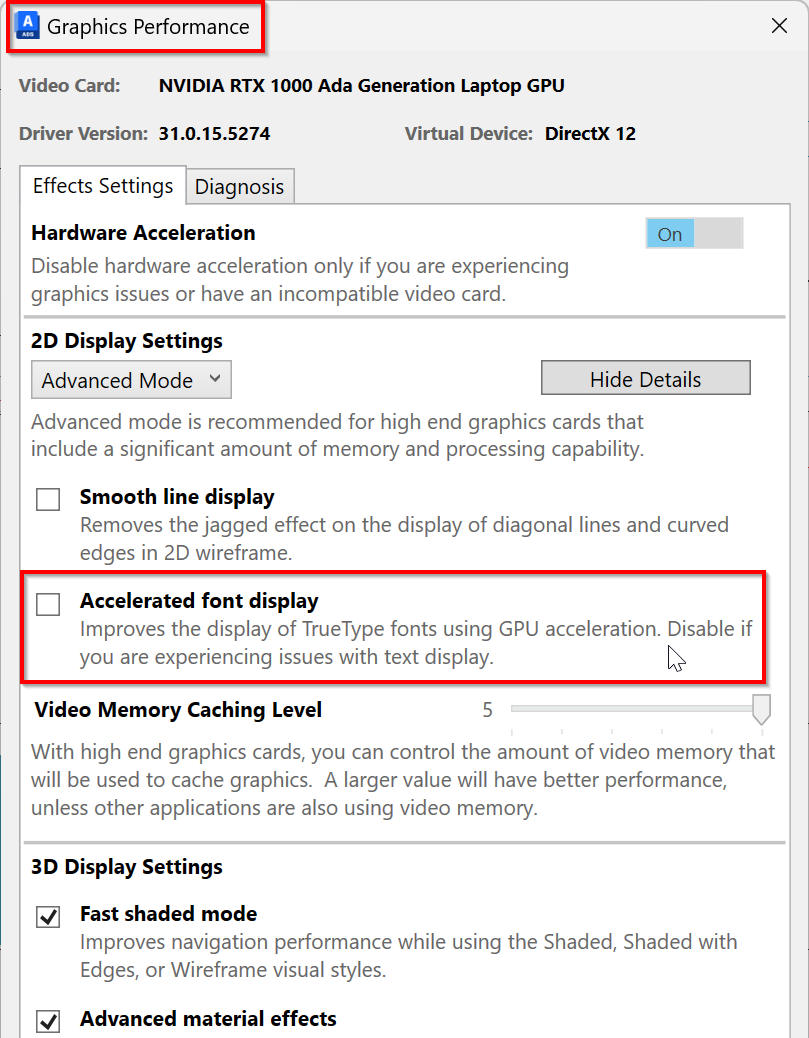
- Deactivate "Accelerated font display". Enter GPUTEXT2D to 0 on the command line, or in the Graphics Performance dialog:
- Type on the command line GRAPHICSCONFIG and press Enter.
- Deselect the check box for "Accelerated font display" then press OK
See Also:
- "One or more SHX files are missing. What would you like to do?" when opening a drawing in AutoCAD
- Some TrueType fonts are missing in text styles in AutoCAD
- To Specify a Default Alternate Font
- Block attributes do not display as expected in AutoCAD
- Wrong presentation of Arial font on specific computer in AutoCAD based product