
Issue:
While working in AutoCAD products, the autosave stops working as expected. One or more of the following is observed:
- The autosave feature keeps turning off.
- Drawing files stop being saved.
- Autosave (SV$) files cannot be found.
Environment:
- Windows
- macOS
Causes:
- A custom save location has been chosen.
- Visibility of file extensions is off so the SV$ files cannot be identified.
- The path assigned to the autosave option is not valid as a save location or is read only.
- A script or function has turned off autosave, and was not able to turn it back on.
Notes:
- Scripts may need to turn off autosave temporarily to prevent a disruption in the operation. They will normally turn it back on once the process is completed. For example, some LISP will turn autosave off at the beginning of the routine, run some commands, then turn it back on when finished. If the LISP routine does not complete or is interrupted, autosave will remain off.
- Some AutoCAD commands also disable autosave while executing the command (for example, in the Block Editor). Autosave will remain disabled if the program crashes while executing the command.
Solution:
Try to identify the problem
Click to expand
Check the location autosave files are being saved
Check the save path for the Autosave files and change if needed. See Change default location for automatic save files.
Note: The default location is C:/Users/[username]/appdata/local/temp
Make sure that file extensions are visible
If the file is not found or no extensions are visible, check that they are being displayed. See To Display File Extensions in Windows.
Verify that autosave is enabled and check if saves are occurring as designed
- Enter SAVETIME on the command line and set the value to 1 (minute).
- Perform an edit in a drawing (for example, draw or move a line).
- Wait 1 minute for the autosave to complete. A message may be displayed on the command line when the autosave occurs.
- Press F2 to display the command line history.
- Review the history for files with an SV$ extension.
Notes:
-
- Changing or toggling autosave time (SAVETIME command) will sometimes reset the feature to start working again.
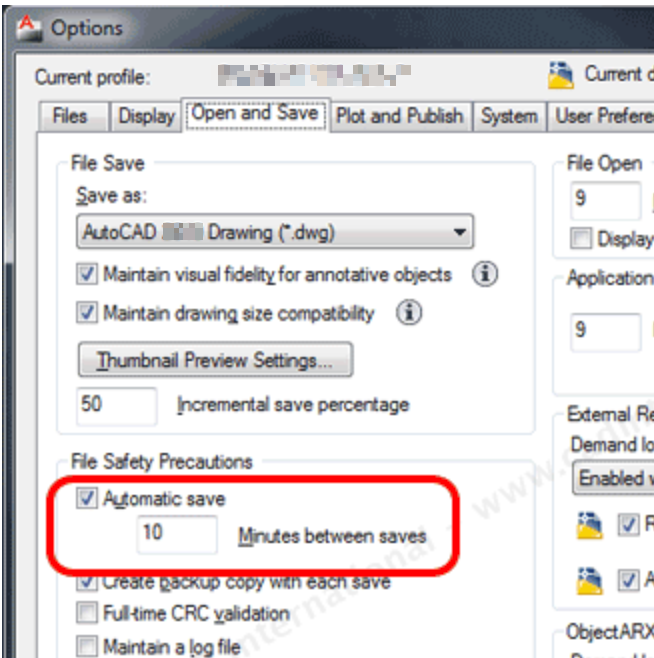
- Autosave and SAVETIME can also be set in OPTIONS on the Open and Save tab.
Troubleshooting steps when autosaves continues turning off
Click to expand
Monitor for any changes to the autosave setting
Configure the System Variable Monitor (SYSVARMONITOR) to show changes to the autosave setting:
- On the command line in AutoCAD, type SAVETIME and set it to the desired setting (the default is 10 minutes).
- Type the SYSVARMONITOR command to open the System Variable Monitor, and then click Edit List.
- In the left pane, search for SAVETIME in the Available System Variables list.
- Select the ">>" button to move the SAVETIME system variable to the Monitored System Variables list.
- Click OK twice.
Now if the SAVETIME variable is ever changed, the System Variable Monitor status bar icon will be displayed. Then, the monitored system variables can be reset back to their preferred values.
Notes:
- Also, set SYSMON to 2 to see a balloon alert notification whenever monitored variables change.
- Script command (not available in AutoCAD LT)
Use a LISP routine to automatically turn on autosaves each time AutoCAD starts up (Windows only)
- Create a text file using Notepad and paste in the following line of code:
- (setvar "SAVETIME" 15)
- Save and close the file and then rename it to acaddoc.lsp.
- Right-click and open Properties to see the full file name.
- Be sure it does not end with .lsp.txt after renaming.
- Put the acaddoc.lsp file in the AutoCAD support folder (e.g., C:\Program Files\Autodesk\AutoCAD 20xx\Support).
- Restart AutoCAD, the LISP will run each time the program is opened. It can be seen on the command line (press F2 to see the history).