
Issue:
How to migrate settings from an older version of AutoCAD to a newer version.Solution:
Important notes before migrating or transferring settings
- Avoid migrating or transferring settings across different AutoCAD products (for example, AutoCAD to AutoCAD LT, AutoCAD Architecture, or AutoCAD Mechanical or the other way around) as incompatibility problems can occur. The Migration Utility will only migrate across same product versions
- Avoid transferring settings across different language versions of AutoCAD products (for example English to German, French to Japanese, or the other way around) as incompatibility problems can occur. The Migration Utility will only migrate across same language versions.
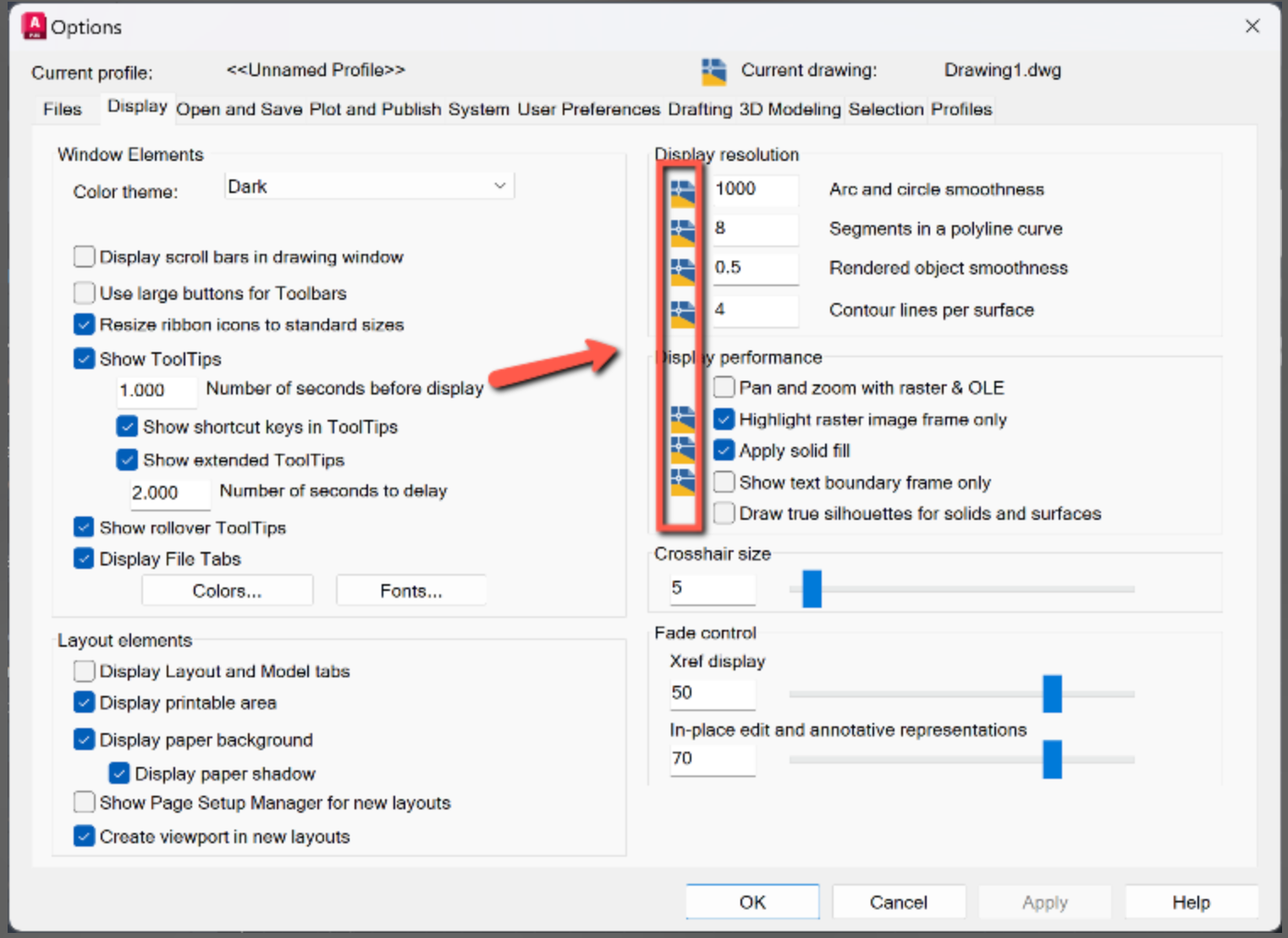
- All options, except those marked with the blue-yellow symbol, will be migrated or transferred. These options are saved directly in the drawing file, and should be configured in the drawing template.
Use the AutoCAD Migration utility to migrate settings on a single computer (Recommended)
The Migration utility is installed with AutoCAD products and runs automatically the first time starting the program after installation.
- Leave the previous install of AutoCAD on the computer (if upgrading computers, this is the old computer).
- Install the new version of AutoCAD on the same computer.
- Use the migration utility to transfer settings from the previous install of AutoCAD to the new one:
- Windows 10: Start > AutoCAD 20xx > Migrate From a Previous Release.
- Windows 11: Start > All > AutoCAD 20xx > Migrate From a Previous Release.
Use the Export and Import Settings functions to transfer settings from one computer to another
- Export settings from the older computer:
- Windows 11: Start > All > AutoCAD 20xx > Export AutoCAD 20xx Settings
- Windows 10: Start > AutoCAD 20xx > Export AutoCAD 20xx Settings
- Import the settings on the new computer:
- Windows 11: Start > All > AutoCAD 20xx > Import AutoCAD 20xx Settings
- Windows 10: Start > AutoCAD 20xx > Import AutoCAD 20xx Settings
Use the AutoCAD CUI editor (Alternative option 1)
The AutoCAD CUI editor can "migrate" (transfer) settings between different language versions of AutoCAD or between different AutoCAD products. This can also be usable for versions of AutoCAD that do not have a migration utility.
- Locate the CUIx file for the version of AutoCAD from which to transfer settings.
- In the new version of AutoCAD, enter CUI on the command line and click the Transfer tab.
- Load the CUIx file from step 1 into the right pane of the window.
- Move workspace and other settings to the left pane of the window per Drag and Drop.
Note: By default, CUIx files are installed in this location:
-
- C:\Users\<user>\AppData\Roaming\Autodesk\AutoCAD 20xx\Rxx.x\<language>\Support
Manual migration (Alternative option 2)
In this example the migration will be done from 2020 to 2023 in plain AutoCAD.
- Make a backup of all affected 2020/2023 folders.
- Start AutoCAD 2020 and open the options.
- Switch to tab "Profiles" and export the current profile as an ARG-file.
- Open Windows Explorer and go to these two folders and copy the content of these folders:
- C:\Users\<user name>\AppData\Roaming\Autodesk\Autodesk AutoCAD 2020\R23.1\<language code like "enu">
- C:\Users\<user name>\AppData\Local\Autodesk\Autodesk AutoCAD 2020\R23.1\<language code like "enu">
- Paste and replace content of these folders:
- C:\Users\<user name>\AppData\Roaming\Autodesk\Autodesk AutoCAD 2023\R24.2\<language code like "enu">
- C:\Users\<user name>\AppData\Local\Autodesk\Autodesk AutoCAD 2023\R24.2\<language code like "enu">
- Open AutoCAD 2023 and open the options.
- Switch to tab "Profiles" and import the formerly exported ARG-file.
Note:
- It is not possible to migrate between Windows and Mac.
- Be careful when migrating between different languages of your AutoCAD installation. Many paths are pointing to the specific language, for example C:\Users\<user name>\AppData\Local\Autodesk\Autodesk AutoCAD 2020\R23.1\<language code like "enu"> where you see at the end the language code. Each language has its own language code (enu for English, deu for German, ...). When exporting the profile from an English version to use it for a German version, those paths have to be adopted first. This is for experienced users only.
Migration using Windows shell (For advanced users Alternative option 3)
- The migration utility is called AdMigrator.exe and is in the AutoCAD program folder.
- Path: C:\Program Files\Autodesk\AutoCAD 20xx\AdMigrator.exe
-
For the versions of AutoCAD that do not have "Migrate From a Previous Release," double-click the AdMigrator.exe utility to see if it will allow settings to migrate.
-
It is probably necessary to designate a specific target for the utility by creating a shortcut.
- Right-click-drag AdMigrator.exe to the desktop (or other usable folder) and choose "Create shortcuts here.".
- Right-click the shortcut and choose Properties.
- At the end of the contents of the Target field, type in a /product parameter.
- AutoCAD = /product "ACAD"
- AutoCAD Architectural = /product "ACA"
- AutoCAD Electrical = /product "ACADE"
- AutoCAD Mechanical = /product "ACADM"
- AutoCAD Plant 3D = /product "PLNT3D"
- AutoCAD Map 3D = /product "MAP"
- AutoCAD Civil 3D = /product "C3D"
-
Other parameters.
-
"s" = silent mode
-
"i" = import
-
"e" = export
-
"language" = for example "de-DE" or "en-ENU"
-
- The entire Target field should read as follows, including quotes, using AutoCAD Electrical 2020, like an example German version.
- "C:\Program Files\Autodesk\AutoCAD 2020\AdMigrator.exe" /product "ACADE" /e /language "de-DE"
Note: Use at one's own risk. The preceding process is not supported and could damage an AutoCAD installation. Resetting AutoCAD to defaults should clear problems caused by migrating settings. See How to reset AutoCAD to defaults.
- In some circumstances, it is better to create a BAT file and execute that.
- A BAT-file is a TXT file, where the extension TXT is renamed to BAT. Clicking the BAT file will execute the scripts inside this file.
See Also:
- Unable to migrate custom settings in AutoCAD
- About Migrating and Transferring Custom Settings
- How to import, export, back up, and transfer settings to and from AutoCAD
- Transferring AutoCAD settings between different operating systems
- How to manually transfer AutoCAD settings
- How to install a font into AutoCAD
- How to install custom hatch patterns in AutoCAD
- Adding custom profile into an AutoCAD online deployment
- How to migrate custom settings in AutoCAD Mechanical
- How to migrate Civil 3D custom settings from older version to newer version or one computer to another