
Step-by-step guide for Autodesk Enterprise or Business admins and users.
On this page:
Introduction
If you are an Autodesk admin or a user with an Enterprise (EBA) or Business plan, you can request priority support for quick and effective help with your Autodesk products. This article explains who is eligible, how the support process works, and guides you through submitting a support request.
How Enterprise and Business priority support works
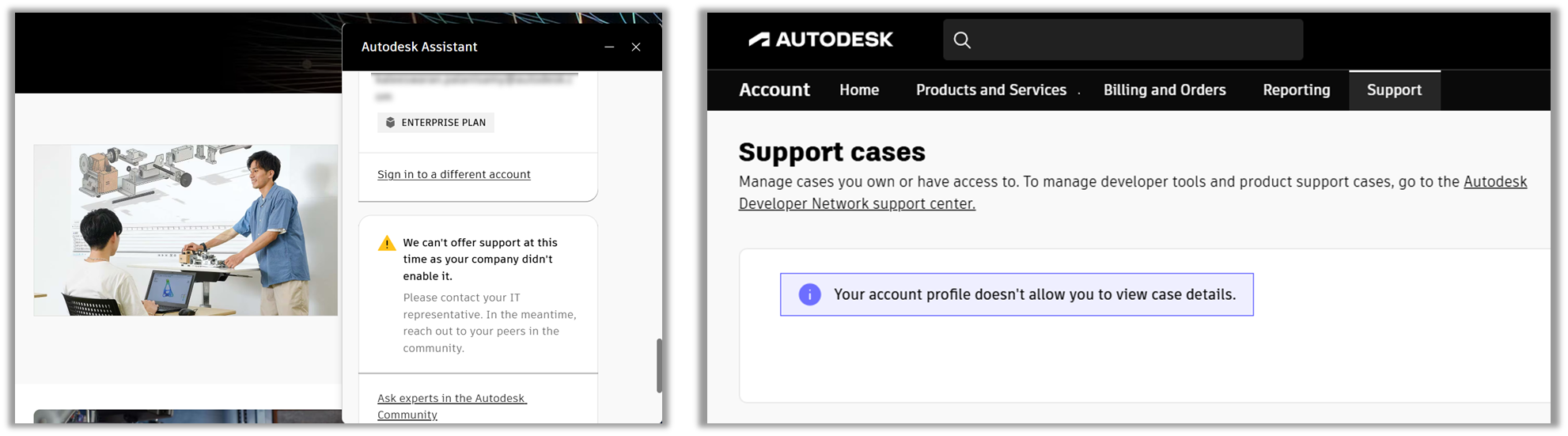
Enterprise and Business priority support is available to admins and users who are assigned to a product within your Autodesk account. Admins must also assign themselves to the relevant product. If these requirements are not met, you will not be able to submit a priority support request and may see an error message directing you to contact your company’s IT team.
Admin permissions and user access
As an admin, you decide who can create Enterprise or Business priority support cases by setting permissions in the User Management section under the By Permission tab. You can choose from the following options:
- Admins only
- Admins and all users
- Admins and select groups
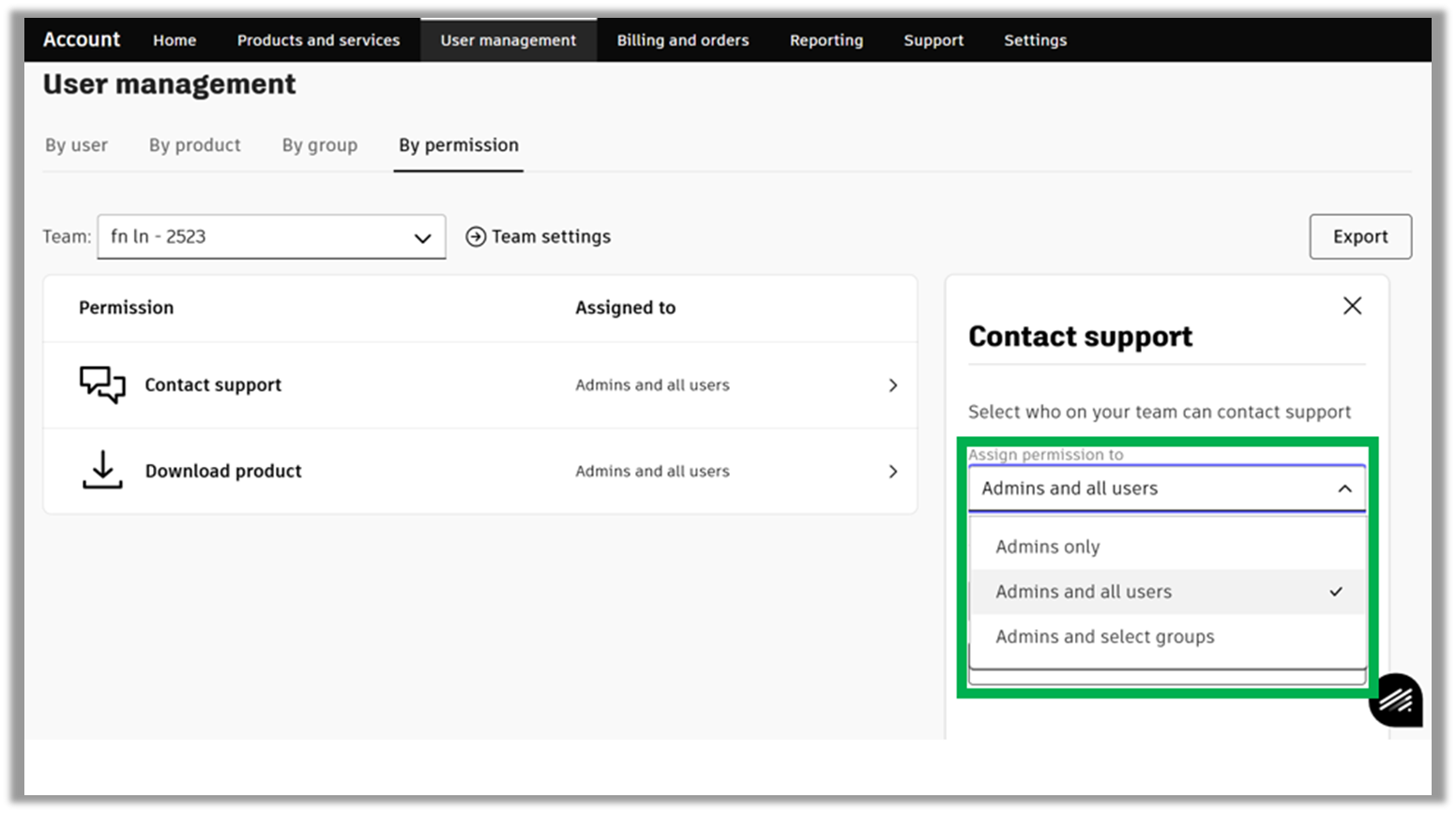
- If you select Admins and select groups, you need to specify which users belong to those groups.
- By default, all Autodesk account teams allow both admins and users to submit Enterprise or Business priority support cases.
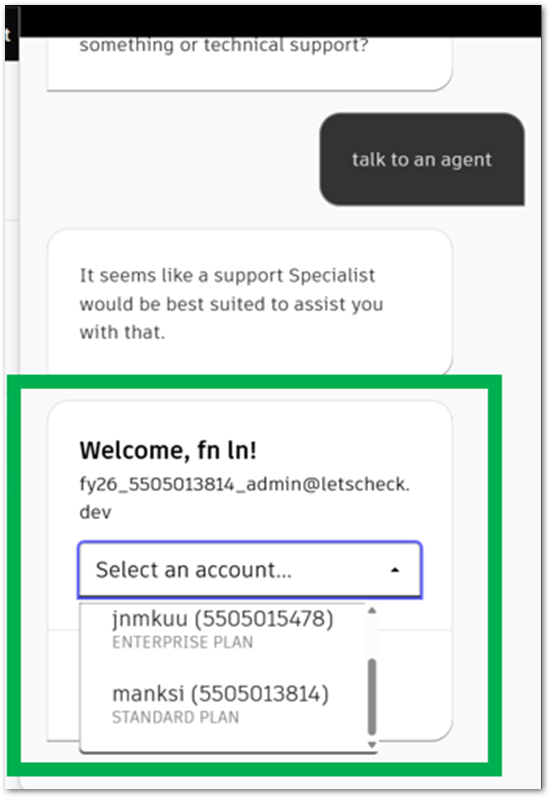
- Users assigned to multiple Autodesk account teams linked to different account CSNs (Customer Specific Number) can choose the relevant account and support level when creating a case.
Methods to submit a priority support request
Option 1: Use Autodesk Assistant on the Autodesk website
- Go to the Autodesk website and sign in.
- Select the Autodesk Assistant
at the bottom right.
- Describe your issue and ask to connect with an agent.
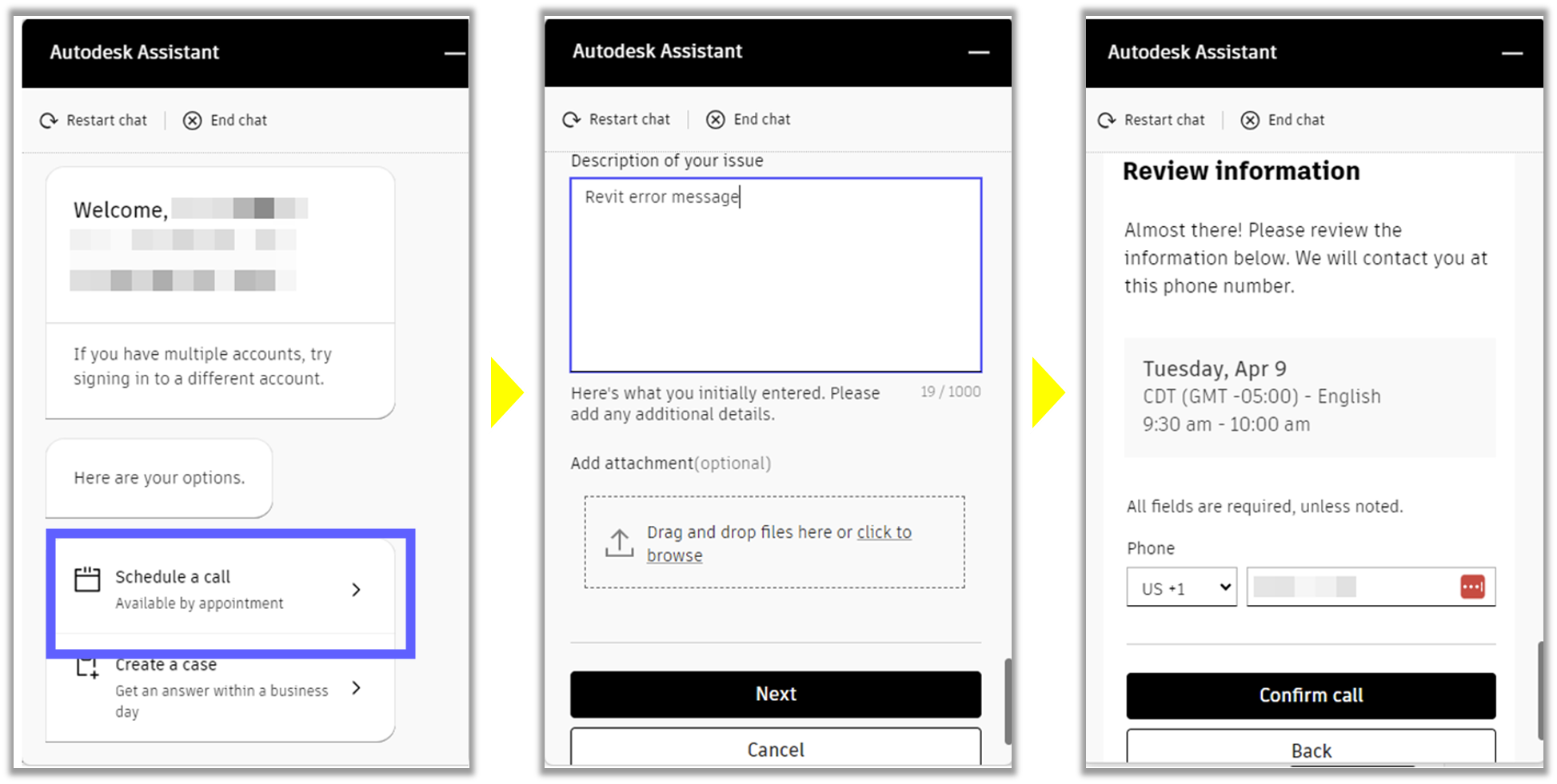
Contact options for support based on your role
There are different ways to contact Autodesk support, depending on your role:
- End users:
- Schedule a call (English only).
-
- Create a case.
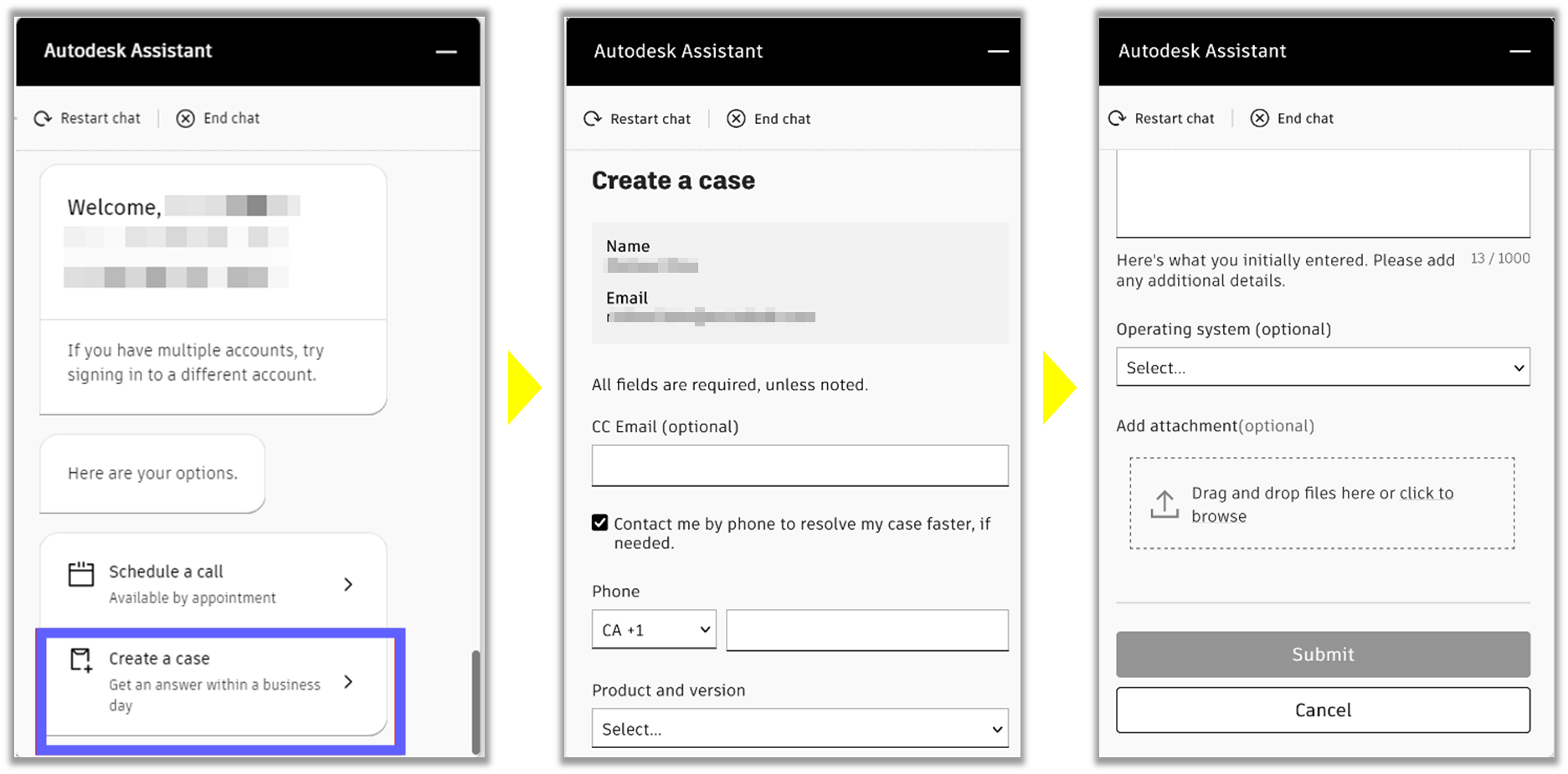
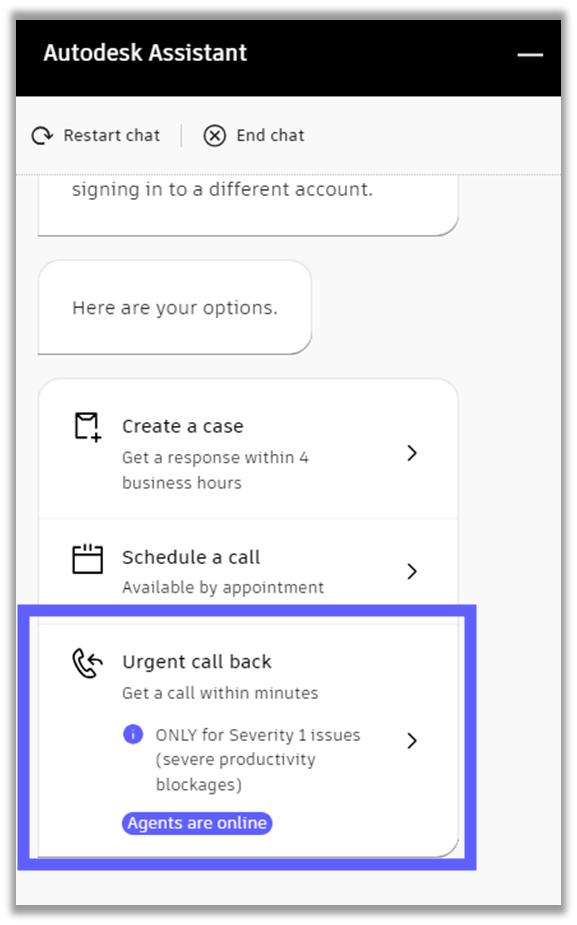
- Enterprise & Business Account Admins:
- Schedule a call (English only).
- Create a case.
- Request an urgent call back for immediate help with Severity 1 issues.
Option 2. Create a case in Autodesk account
- Go to your Autodesk account and open the Support tab.
- Select Create Case. A side window appears.
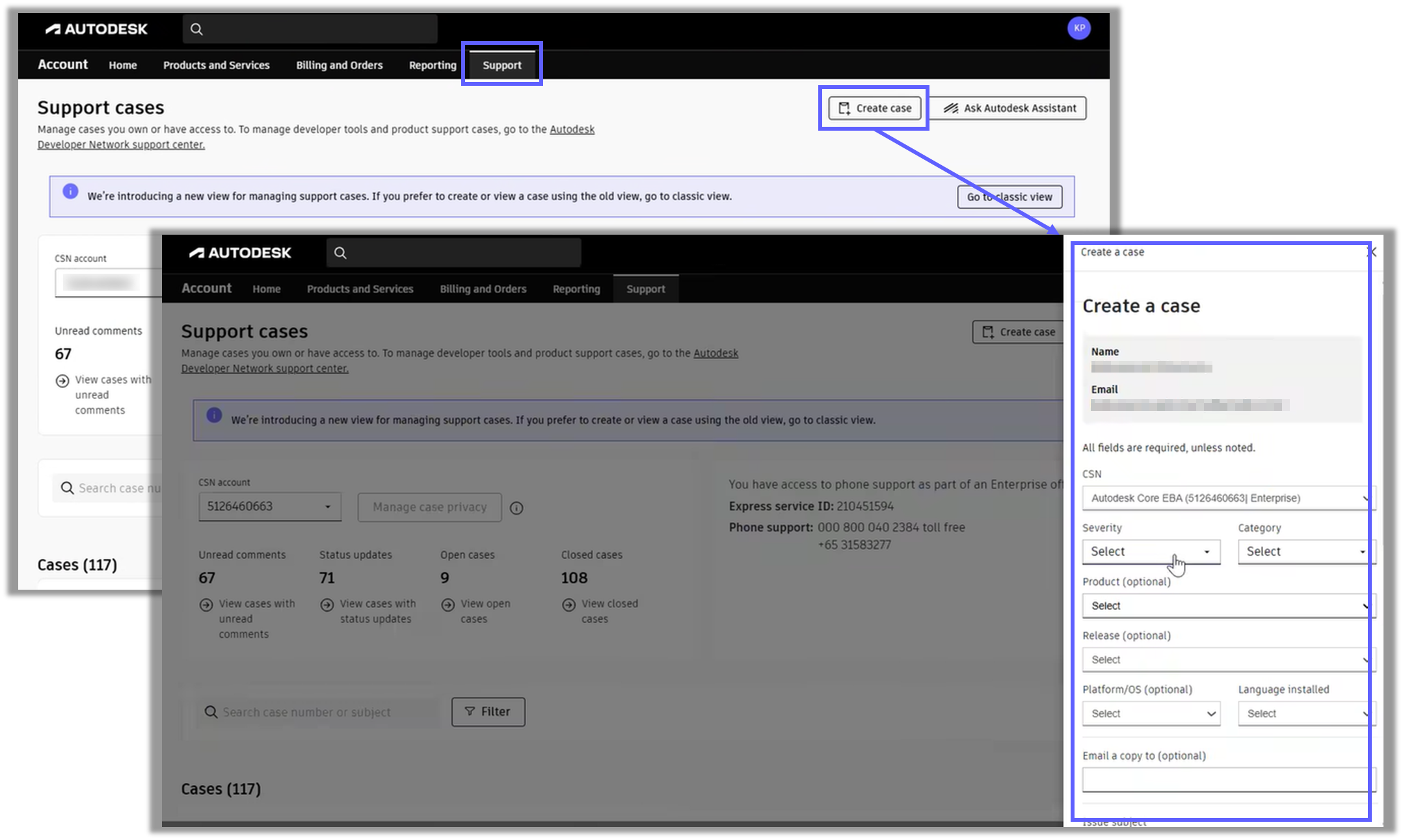
- Enter all required details. Attach files if needed.
- Select Continue to review your request.
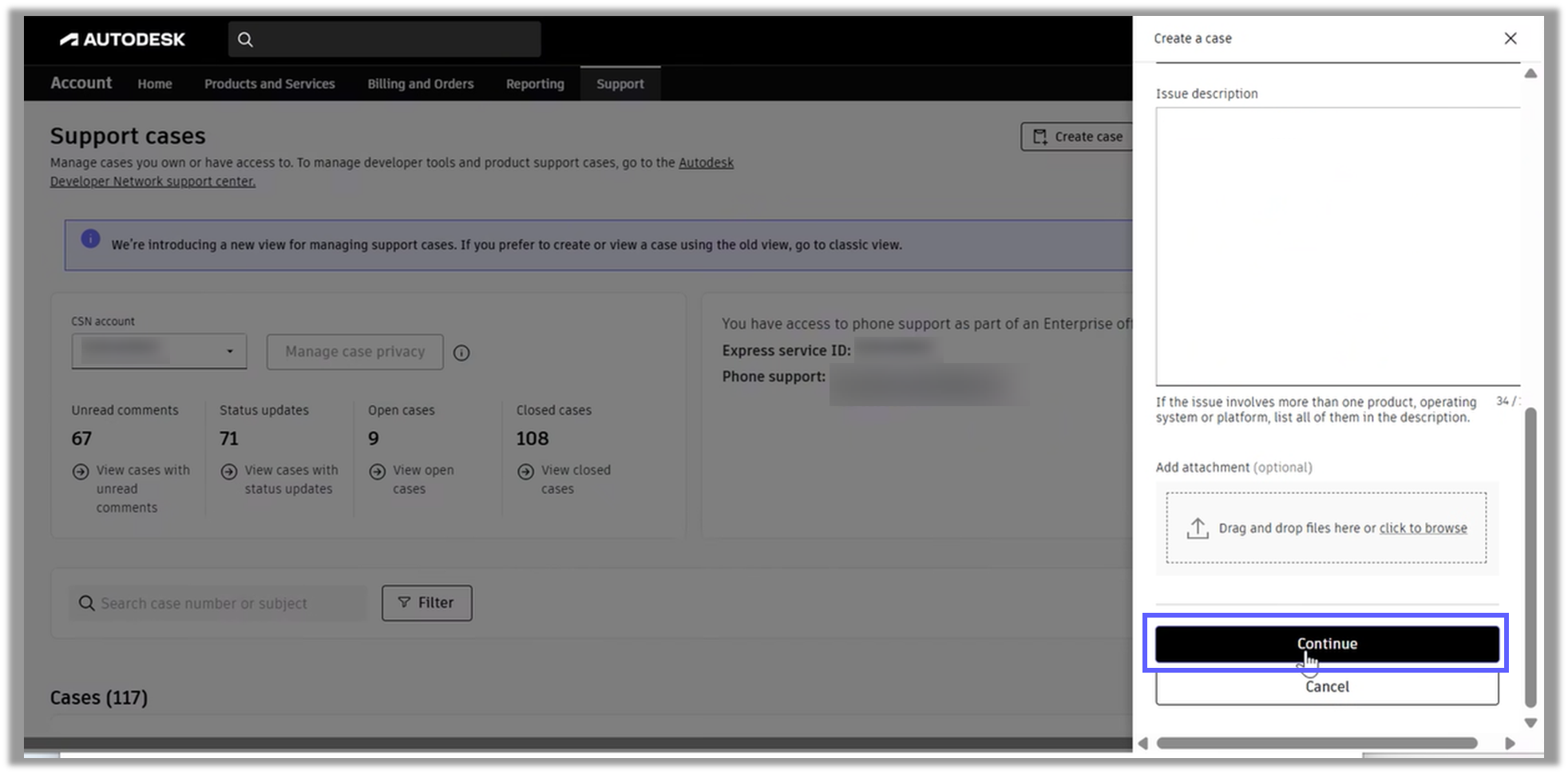
- If everything is correct, select Create. Use Back to make changes if needed.
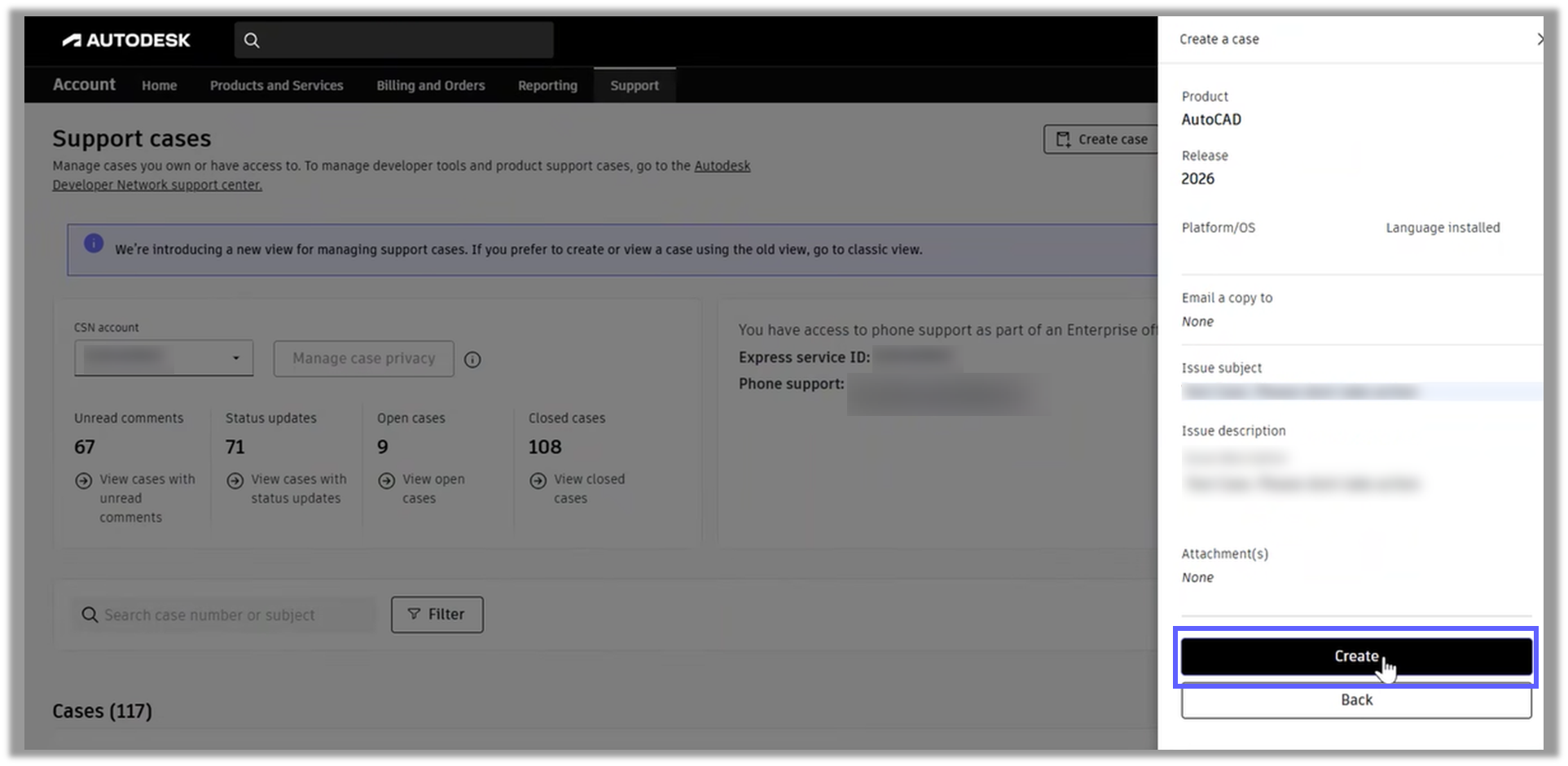
- You will see a popup with your case number once the case is created.

Troubleshooting: Support not enabled
If your company has set support access to Admins only and you are a user, you may see this message:
"We cannot offer support at this time as your company has not enabled it. Please contact your IT."
If you see this, reach out to your company’s IT team or Autodesk admin to assist you with your issue or request access.
Case creation and review
When you submit a case, make sure to fill in all details accurately. You can attach files to help Autodesk support understand your issue. Review your information before submitting. Once your case is created, you will receive a confirmation and a case number for tracking.