
Issue:
Users reported that when trying to use object snaps (OSNAP) to select a point on an object in AutoCAD drawings, the expected snap or grip markers are not showing. This may occur with:
Standard AutoCAD objects.
- Proxy Objects (coming from 3rd party applications).
Causes:
Snap configuration
- The object snap is not active.
- The specific osnap function is not be selected.
- Grid snap is On.
- The AutoSnap marker is turned Off.
Drawing settings and content
- The objects are on a different plane or axis, so only appear to cross each other, but actually do not.
- Polylines with superposed vertices (placed vertically above or one on top of another) in a visual style other than 2D Wireframe.
- Corrupted layout.
Software and and add-ons
- LISP routine or add-on software disabling the object snaps.
- Limitation of the specific proxy objects in the drawing.
Solution:
Snap configuration
- Press F3 to toggle osnaps On or Off.
- Press F9 to toggle grid snap Off.
- Check that the specific osnap function needed is selected in the OSNAP command dialog.
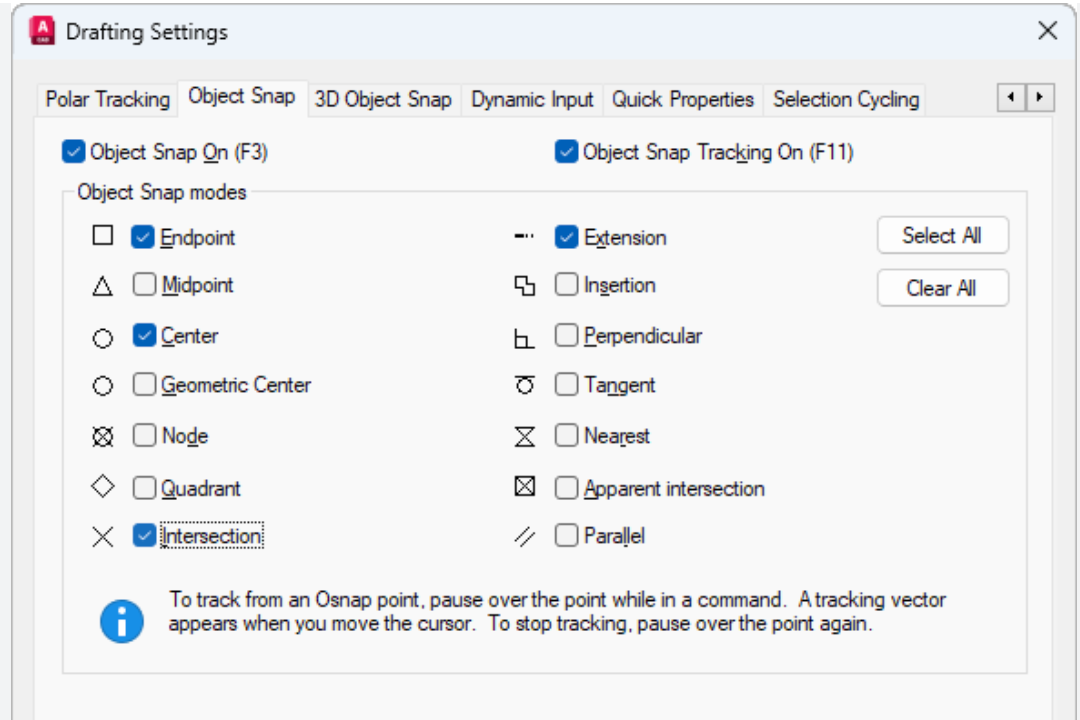
- Enter AUTOSNAP on the command line and verify that the value is an odd number. If AUTOSNAP is an even number, the AutoSnap marker is turned off, see AUTOSNAP (system variable).
- Change the Autosnap settings in Options:
- Enter OPTIONS on the command line.
- Open the Drafting tab.
- Ensure Marker, Magnet, and Display AutoSnap tooltips are all activated.
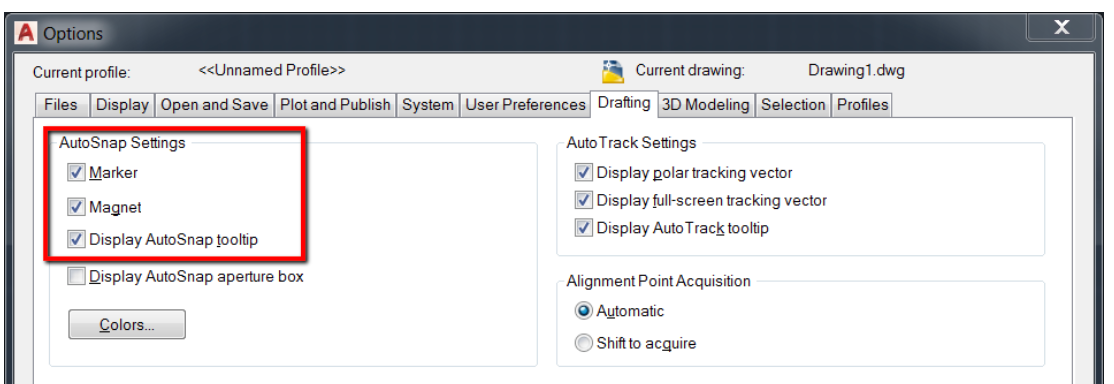
Drawing settings and content
- Flatten the drawing or make sure that all objects are on the same plane, or with the same Z value, see How to flatten a drawing in AutoCAD and AutoCAD LT.
Accordion summary...
Accordion body...
- Use OVERKILL command and select "Optimize segments within polylines" to clean up duplicate vertices, see Using OVERKILL to remove duplicate or overlapping objects in AutoCAD.
- Delete and recreate the affected layout.
- Copy and paste the drawing elements to a new drawing file, see Optimizing the AutoCAD drawing file: Windows Clipboard Copy and Paste.
Software and and add-ons
- Install missing Object Enablers (OE), see How to download object enablers for AutoCAD products.
- If the issue occurs on proxy objects after installing OE explode them:
Select the proxy objects.
- Enter EXPLODE on the command line.
- In the case of nested blocks, this may need to be performed more than once to fully explode the objects.
Check for any add-on software or modified LISP routines which may be turning off the object snaps.
- Reset AutoCAD to defaults, see How to reset AutoCAD to defaults.