
Issue:
Performance issues appear while working in AutoCAD products. The performance may degrade more when larger portions of drawing content/data are used, and it might cause a notable lag.
Causes:
- Older and low-end graphics cards.
- No support of the hardware acceleration by the graphics card.
- Outdated or corrupted graphics card driver.
- AutoCAD Products not updated.
- DirectX is not used by AutoCAD Products.
- When two graphics cards are installed, the less performant one is configured for AutoCAD.
- Hardware Acceleration is disabled.
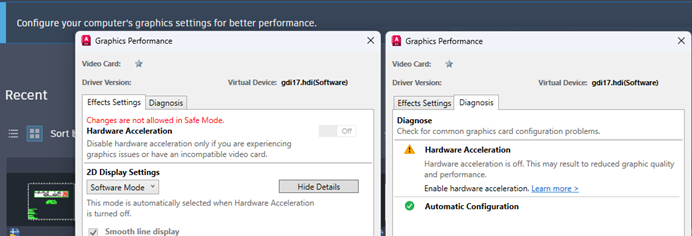
- The product is being started in Safe Mode where no graphics hardware acceleration is allowed.
Solution:
Do the following:
Modify or disable graphic settings in AutoCAD
- Some video cards may not work well with some of the newer graphic settings and graphic intensive palettes introduced in newer versions of AutoCAD.
- This is especially true in large drawings containing numerous text objects, hatches, and linework.
- Disabling or modifying these settings may improve performance. See: Improving AutoCAD performance with older or low-end graphics cards.
Enable or disable Hardware Acceleration
- The Hardware Acceleration setting may be disabled or may need to be disabled from Windows or Virtual device with Windows.
- Not all graphics cards support this feature which may cause performance and display issues. See: How to enable or disable hardware acceleration in AutoCAD.
DirectX not recognized as a Virtual Device
Add the GS_DEVICE Windows Environment Variable discretely. See: How to use a previous DirectX version in AutoCAD Products.
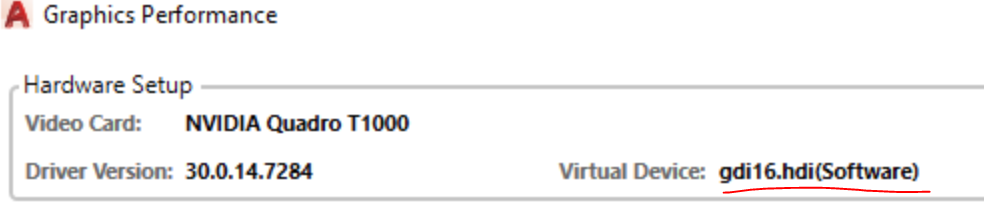
The driver for the graphics card may be corrupt or outdated
- Updating current video driver to the latest driver available can correct problems with graphic cards.
- It’s best to uninstall the current driver first. See: How to update your system to the latest certified video driver.
Missing updates for AutoCAD Products
Update AutoCAD Products. See: Installation for individuals | Update your software.
Configuring the system to always use the discrete graphics
- Newer laptops use both integrated and discrete graphics to save battery and boost performance when needed.
- Setting AutoCAD to use the discrete graphics adapter resolves many performance-related issues. See: How to configure Autodesk software to use high-performance graphics.
Run the product as standard, not in Safe Mode
The message "Changes are not allowed in Safe Mode" on the Graphics Tuner interface indicates that the program is getting started in safemode.
The safemode is only for testing when there are hardware issues. The shortcut icon used to start the program must be without the "/safemode" switch.
- Close the current session to exist the safemode.
- Start a new session without the "/safemode" switch:
- Check the Desktop shortcut icon > file properties > Shortcut tab > The Target field must contain now "/safemode" switch.
- Try to start the product from the shortcuts available on Windows Start Menu - product subfolder
Or, reset the product setting to default to restore the original shortcuts.
Incorrect AutoCAD settings
Reset AutoCAD to default settings. See: How to reset AutoCAD to defaults