
Issue:
Users reported that a drawing file (DWG) does not open completely or at all in AutoCAD products. One or more of the following may also occur:
- AutoCAD displays the message "Drawing file is not valid" when trying to open the drawing file.
- Drawings display a message that errors were found.
- Drawing files hang or crash during the opening process.
- The file opens, but freeze and have to be force closed.
- A drawing appears to open, but is blank or Drawing 1 opens instead.
Causes:
Drawing files and software
- Old drawings were used repeatedly over long time periods.
- AutoCAD Product terminated while saving the drawing.
- Outdated software version.
Third-party software or ad-ons
- Third-party software running inside AutoCAD Products.
- DWG files or objects created or saved by non-Autodesk or non-RealDWG products.
Hardware
- Storage media degradation (bad sectors on a hard drive).
- Defective or failing RAM.
Operating system, network, and environment
- Network anomalies (transmission errors, file locking, latent writing of data).
- Operating System issues.
- Power surges.
Solution:
Restore from an autosave (SV$) file
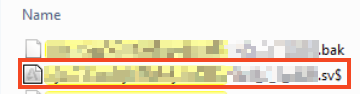
- Open the C:\Windows\Temp folder in Windows, or the location set in Options > File tab > Automatic Save File Location if configured to be stored in a folder other than the default location.
- Show hidden extensions, see How to turn on hidden filename extensions in Windows.
- Look for a file with an SV$ extension and a similar name as the corrupted file.
- Copy the file to a new location.
- Rename the extension to DWG.
- Open the file in AutoCAD Products.
- Restore from a back up (BAK) file, see To Restore a Drawing From a Backup File.
Recover the drawing file
- Open a new, blank drawing.
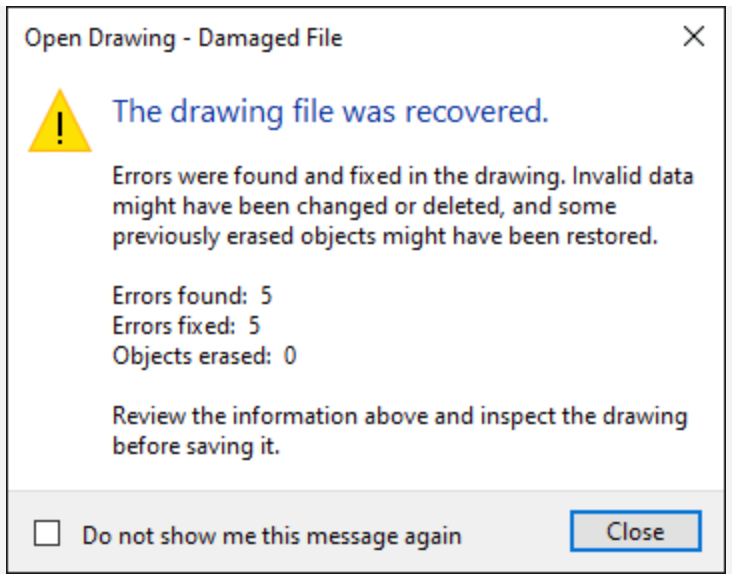
- Enter RECOVER on the command line, see Have You Tried: Restore, Repair, and Recover Drawings.
- When complete, a report will be displayed similar to below.
Insert the drawing in to a blank drawing
- Open a blank DWG template, such as acad.dwt.
- Enter INSERT or CLASSICINSERT on the command line.
- Select the problematic file.
- Press OK.
- Save the new file.
Other options
Convert the drawing version in DWG TrueView:
- Open the drawing using DWG TrueView, see
Autodesk DWG TrueView | DWG Viewer.
- Convert it to a previous DWG version, see Have You Tried: Restore, Repair, and Recover Drawings.
- Open converted drawing in AutoCAD.
- Open the drawing using DWG TrueView, see
If a PDF of the drawing exists, import the PDF using the PDFIMPORT (Command) to recreate the drawing.
- If a previous version of the file exists, reopen it.