
Issue:
AutoCAD Web App or AutoCAD Mobile App work slowly and unstable.It's not possible to make any standard modifications. The file freezes or crashes the app.
Solution:
Windows Graphics Settings
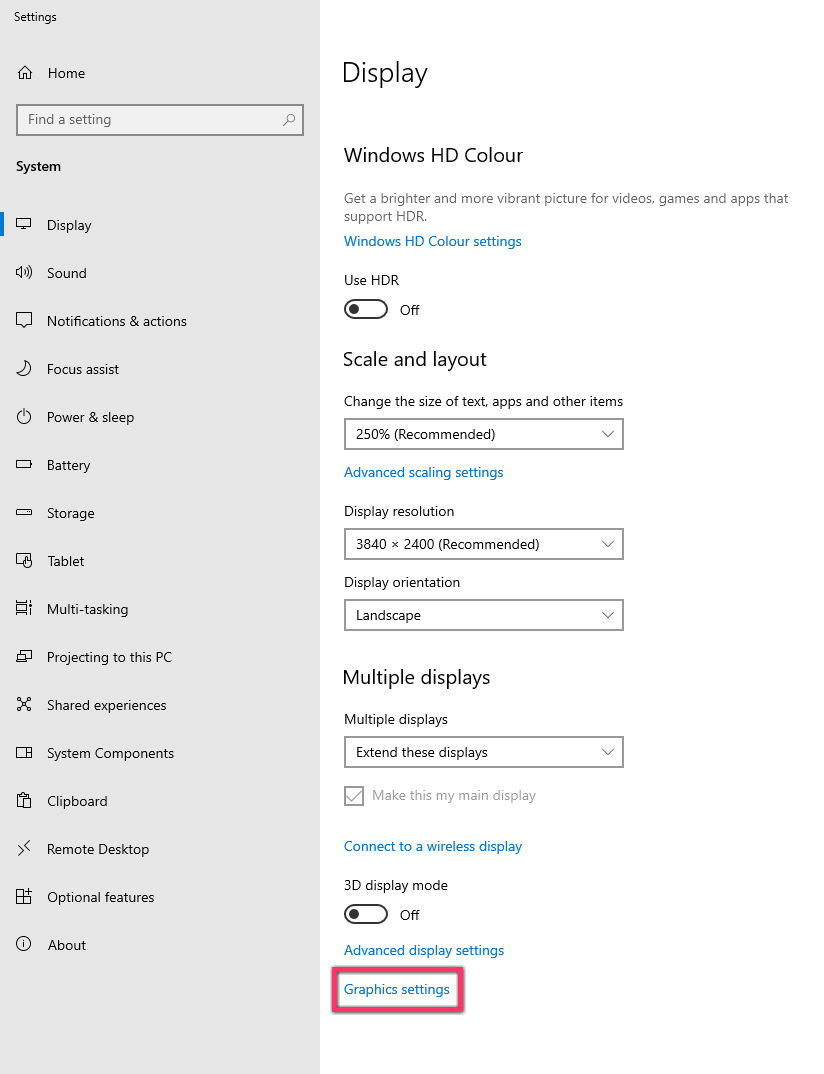
- Right-click the desktop and choose Display settings.
- Scroll down and click Graphics settings.
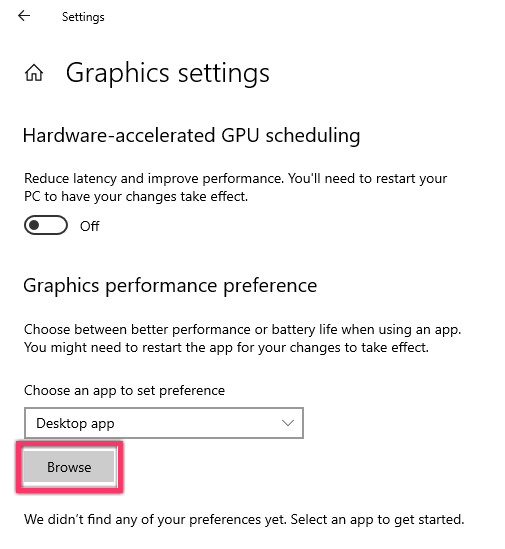
- Click Browse and then navigate to and select the software executable. As an example, for Google Chrome, this would be C:\Program Files\Google\Chrome\Application\chrome.exe. Double-click chrome.exe to add it to the list.
- Click the application (e.g. Google Chrome Application) to activate the Options button. Click it.
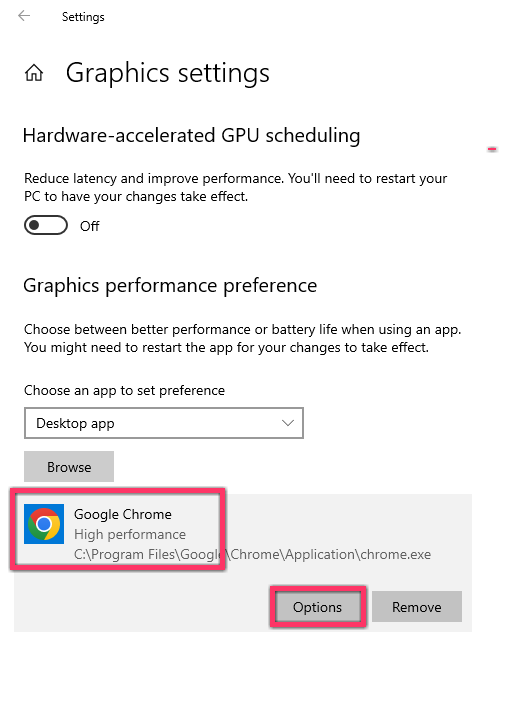
- Select the High-Performance option, then click Save and close the Settings panel.

- Relaunch or restart the broswer (if it was running) and look within the program to confirm that the high-performance device is enabled.
Note: For Microsoft Edge: "C:\Program Files (x86)\Microsoft\Edge\Application\msedge.exe" For Mozilla Firefox: "C:\Program Files\Mozilla Firefox\firefox.exe"
General troubleshooting
Check the requirements for AutoCAD Web App or AutoCAD Mobile App, especially the 64-bit environment:
- AutoCAD Web App: Supported Browsers and System Requirements
- AutoCAD Mobile App: System requirements for AutoCAD Mobile App