
Issue:
Users reported that after opening a drawing in AutoCAD products, some or all text does not display. The following symptoms have been observed:
- The text objects may or may not still be selectable, but no lettering or other characters are shown.
- The preview of certain text styles might be missing from the Style dialog.
- Only some drawings may be affected.
- The same text may show correctly on other systems.
- Text may display in a layout but not in model space.
- Text may display in model space but not in paper space .
- Text might display or disappear when zooming in and out.
- Text disappears right after creation.
Causes:
- Missing fonts.
- Corrupted product version.
- GPU incompatibility.
- Incorrect settings.
- Text is contained in a text boundary frame.
Solution:
Below are some common solutions depending on the cause of the issue. After each solution, test to see if the issue is resolved before moving to the next solution.Note: If you are not an administrator or you are working in a controlled or secure environment and receive errors while troubleshooting, you may need to contact a member of your IT team to help with the below solutions. |
Replace missing fonts
Click to expand
Solution: Try checking/making the following changes for fonts.
- Check for missing fonts: It's possible the font style is missing and needs to be installed. To do this:
- Enter the STYLE command and look through the text styles to see if fonts are missing.
- Obtain copies of missing fonts and install:
- TrueType (TTF) fonts in the operating system font folder: Path: C:\Windows\Fonts).
- Shape Files (SHX) fonts in the AutoCAD font folder: Path: C:\Program Files\Autodesk\AutoCAD 20xx\Fonts.
-
Note: A system restart may be necessary for the added font to display in the system folder and AutoCAD.
- Turn off Use Big Font: Turn off Use Big Font for affected text styles in the Text Styles dialog.
- Click Annotate tab > Text panel > Text Style
- Or in the Command prompt, enter style.
- Text Styles window and untick Use Big Font for affected text styles.
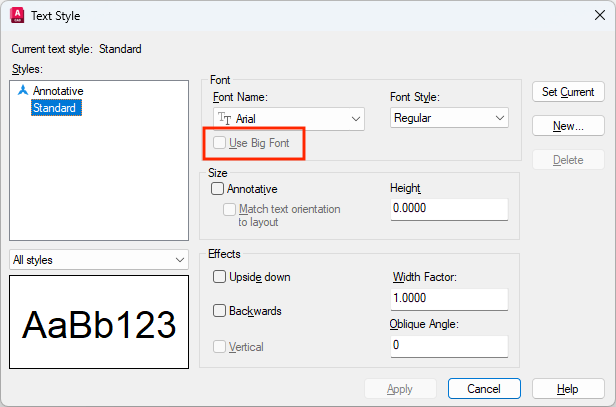
- Check Font Previews are correct: Within the Text Styles window, check if font previews are correctly shown for each text style. If the preview is blank, either:
- Change the font on the text style to a different one.
- If the style is using a default SHX font:
- Obtain one from a working system from the folder: C:\Program Files\Autodesk\AutoCAD 20xx\Fonts.
- Copy it to the corresponding folder on the system that shows the issue.
- Reboot the system.
- Add a path to the AutoCAD Fonts folder: This can be done by:
- Open Options and click the Files tab.
- Under Support File Search Path, add C:\Program Files\Autodesk\Autocad 20XX\fonts, or any other path that contains the necessary SHX files.
- Change the substitute font: See How to Specify a Default Alternate font.
Install Updates
Click to expand
Solution: Install the latest software update. See Update your software.
Graphic Card Compatibility Check
Click to expand
Solution: Try the following with your graphic settings.
- Change 2D Display Settings: In AutoCAD, enter GRAPHICSCONFIG and change the 2D Display Settings from Advanced to Basic.
- Turn Hardware Acceleration off: In AutoCAD, enter GRAPHICSCONFIG and turn Hardware Acceleration off.
- Disable GPUTEXT2D = 0.
- Set Hardware Acceleration to High Performance: See the article: How to configure Autodesk software to use high-performance graphics.
Annotative Objects
Click to expand
Solution: Try the following.
- Ensure that annotative objects are displayed by setting ANNOALLVISIBLE to 1.
- Change the Annotation Scale in model space to display missing text that is annotative.
- Turn off annotation on the text objects:
- Use the QSELECT command to select all text.
- In Properties, change Annotative to No. See Invisible Text.
Check the settings
Click to expand
Solution: Try the following.
- Reset AutoCAD to defaults: See How to reset AutoCAD to defaults.
- Text Scale settings: Check the text scale settings. For example text may be too small to be seen.
| Note: The dialog that warns about missing fonts can be turned off. Check Hidden Messages Settings to be sure it is enabled. See article: How to enable dialog and message prompts that are not displayed anymore in AutoCAD. |
Text is contained in a text boundary frame
Click to expand
Solution: Try the following.
- Go to the Options dialog box > Display tab.
- In the display performance, deselect the show text boundary frame only.
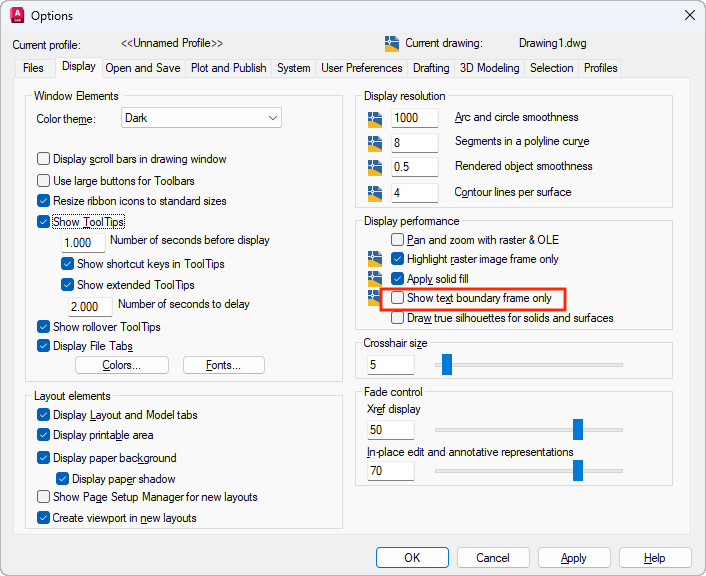
- Click OK.
- Enter REGEN on the command line to regenerate the drawing updating the display.