
Issue:
You have encountered one or more issues whilst attempting to use or set up your Two-factor authentication (2FA) settings to proceed with a login to an Autodesk product. Follow these troubleshooting steps to proceed with logging in using 2FA.Solution:
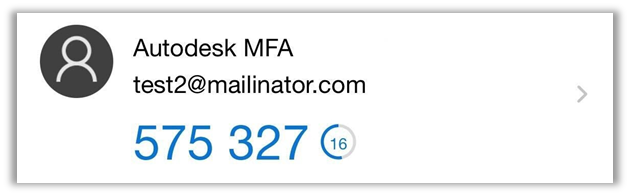
How to locate your settings in your configured authenticator app
- Open the authenticator app installed on your phone.
- Identify the settings with the name “Autodesk MFA” along with the email ID that is used for your account.
- Click on the “Autodesk MFA” settings name to view the verification code.
- Enter the verification code in your webpage to complete the setup.
If you do not see these settings, continue with the next troubleshooting step to perform a reset.
Resetting an incorrectly configured authenticator settings
- Open the authenticator application installed on your phone.
- Find the settings that were configured and delete it.
- Add new settings again by scanning the QR code displayed on your webpage.
- Make sure that the new settings name is set as “Autodesk MFA” along with the email ID that is used for your account.
- Click on the “Autodesk MFA” settings name to view the verification code.
- Enter the verification code in your webpage to complete the setup.
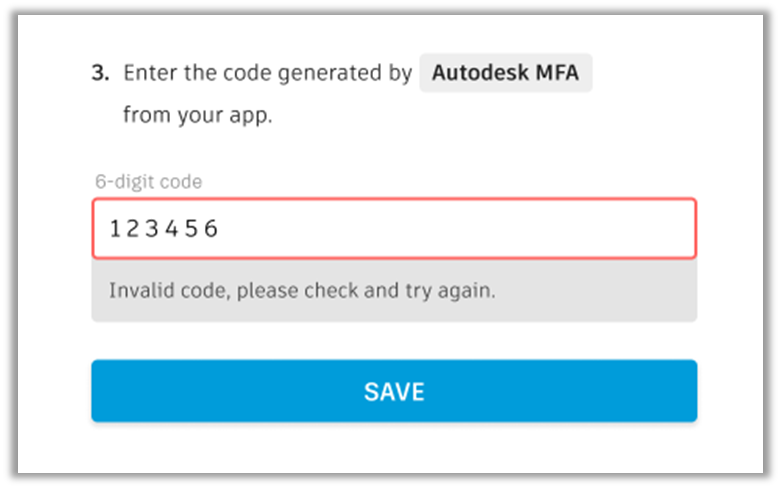
"Invalid code, please check and try again" when attempting to enter a one time passcode
Every authenticator application provides a verification code that will expire. You will need to enter the provided code before that time expires. You will be presented with the following error message if you are unable to enter the code in time:
Follow these steps to generate a new code and proceed with your login:
- Open the authenticator app installed on your phone.
- Identify the settings with the name “Autodesk MFA” along with the email ID that is used for your account.
- Click on the “Autodesk MFA” settings name to view the verification code.
- Wait until a new code is generated.
- Enter the new code generated in your webpage to complete the login.