Issue:
User reported that If the text in the drawing is garbled, shows question marks, or is not displayed correctly in AutoCAD Mobile App & AutoCAD Web App.Solution:
Follow these steps in order to add missing Font Files in AutoCAD Mobile App & AutoCAD Web App
For AutoCAD Mobile App in iOS devices
Click here to view
1. Open the SHX-file from your email, messenger, or storage application.
2. Hold on to the SHX file and Click on "Share"
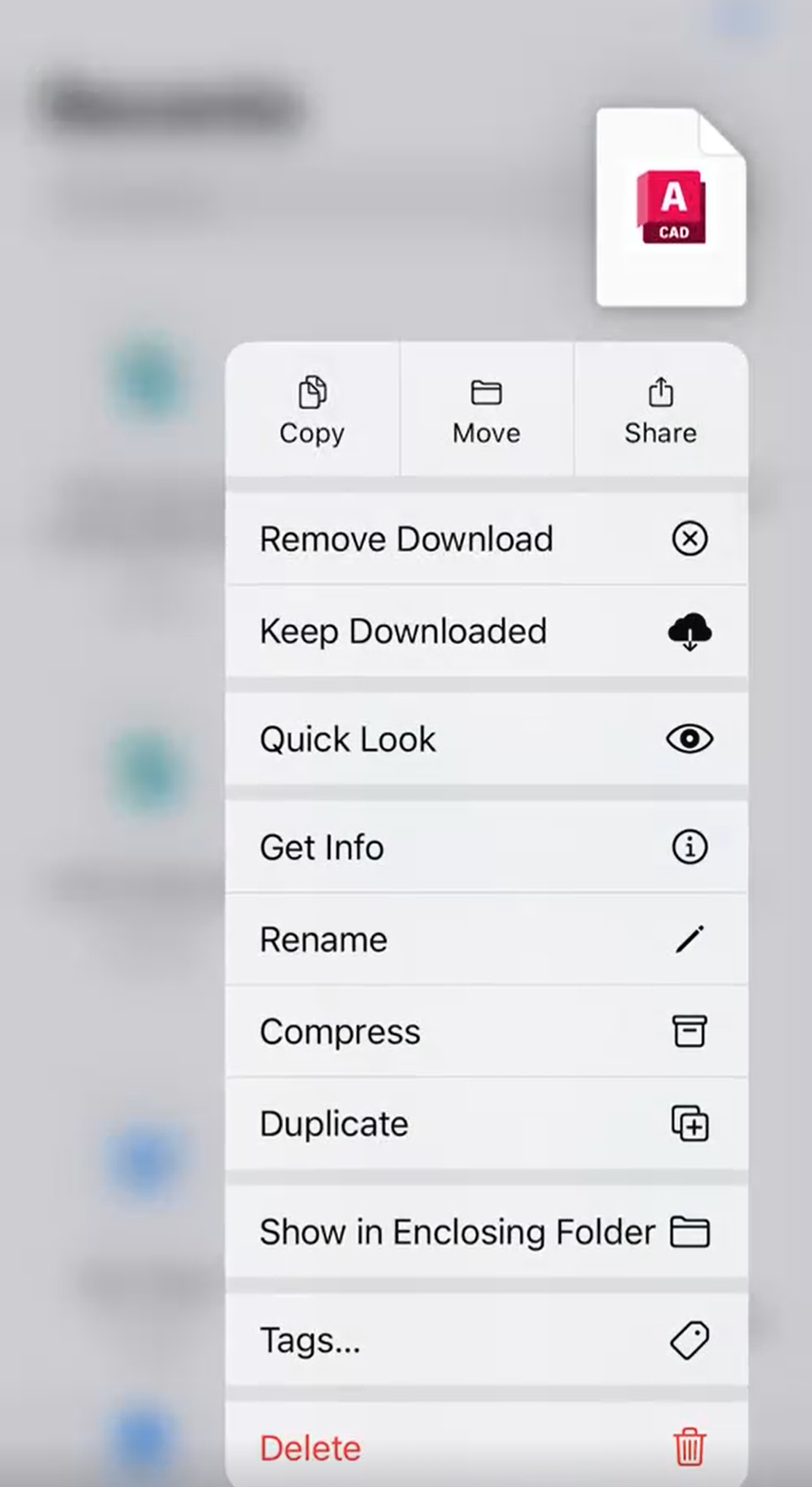
3. In the option Click the AutoCAD icon.
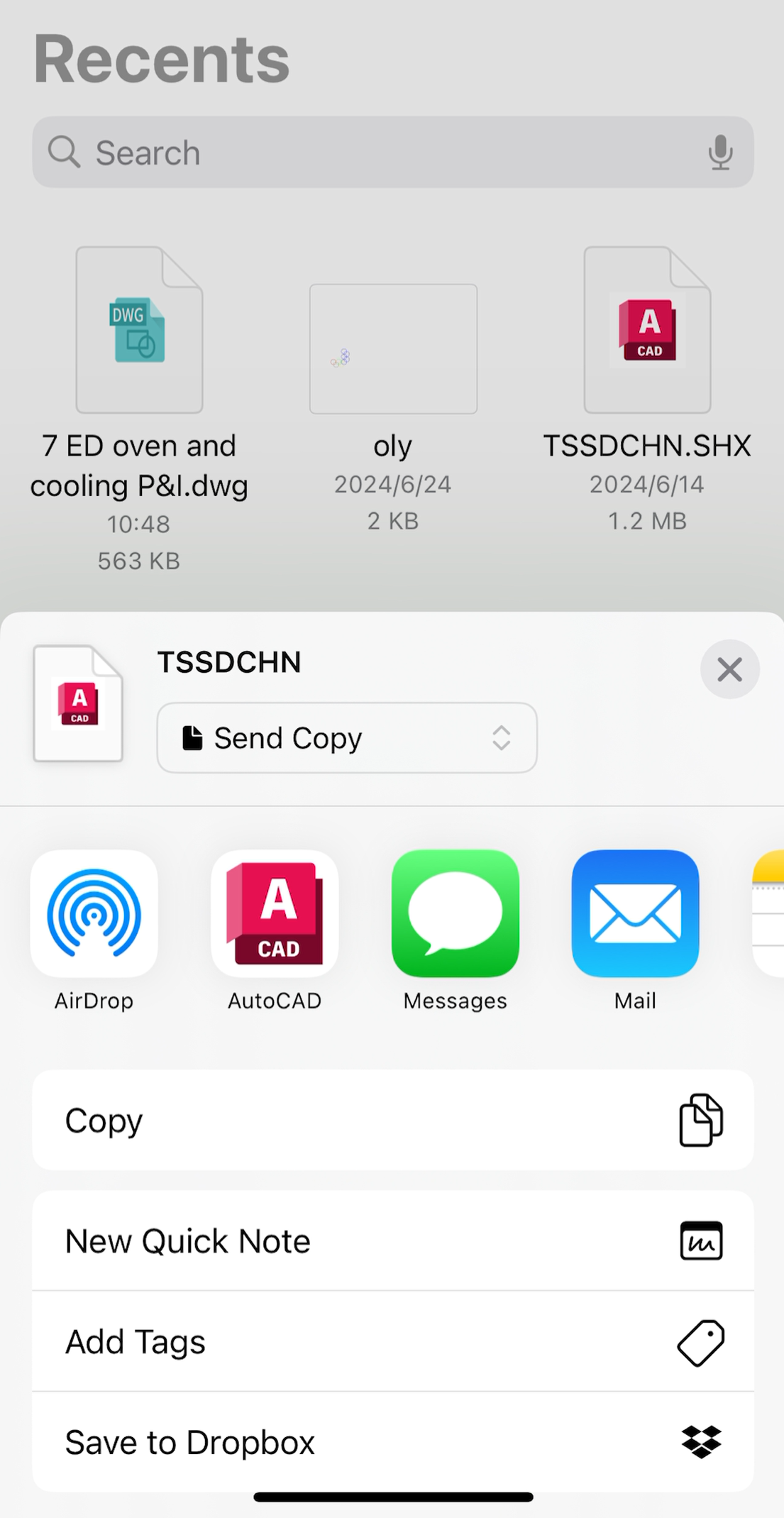
4. You will be returned to AutoCAD Mobile App with the fonts installed
Delete Uploaded fonts in iOS devices
Click here to view
1. Go to AutoCAD Mobile App Settings
2. Open Settings, tap on "Remove Local Files" under Device Storage.
a. Be aware that this action will delete all local files stored by the app (all fonts and synced files).

3. Slide the Font files and press Delete
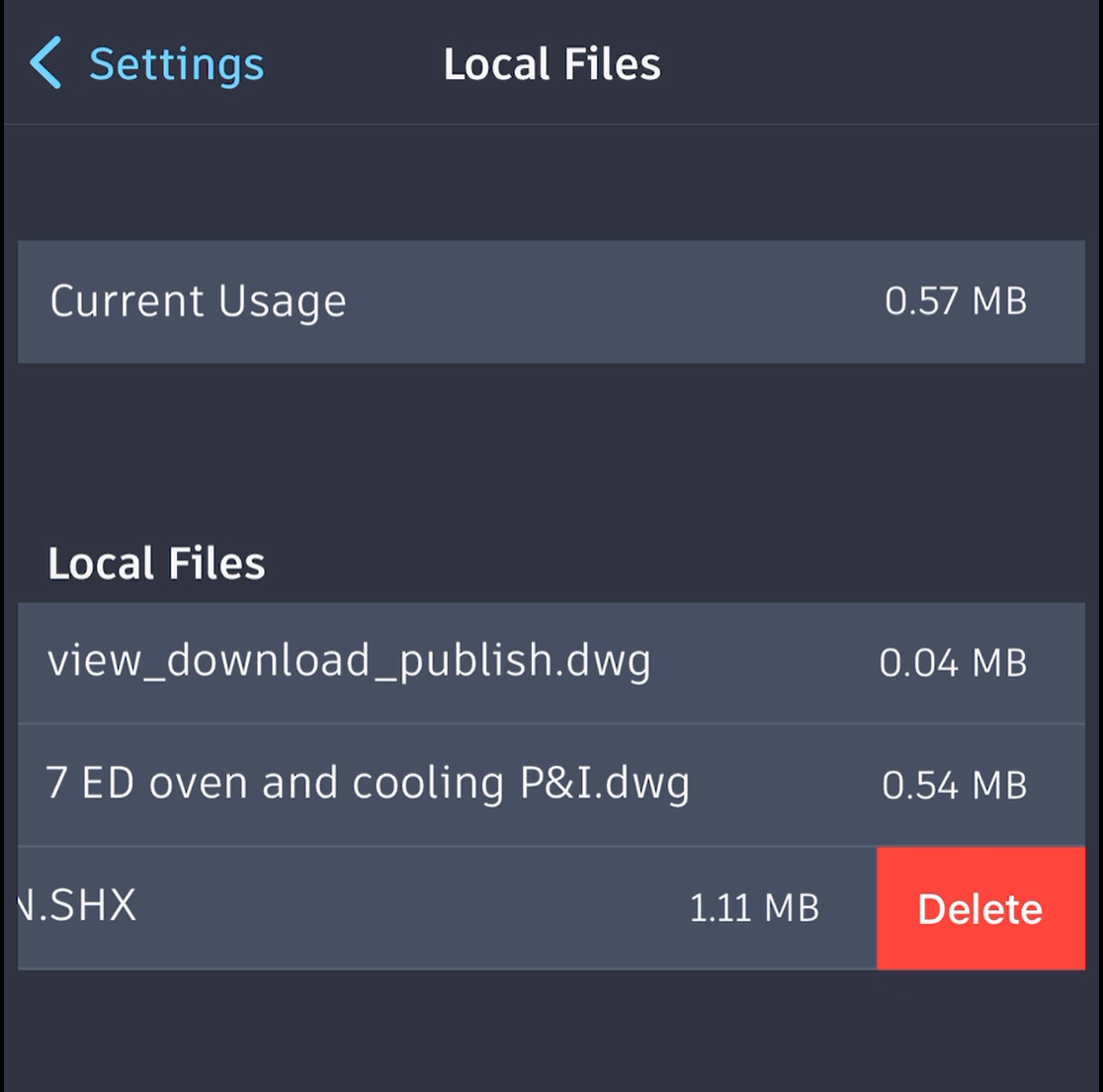
Note: Uploading of TTF & TTC fonts are currently not supported in AutoCAD Mobile App.
For AutoCAD Mobile App in Android devices
Click here to view
1. Open the DWG-file with missing fonts.
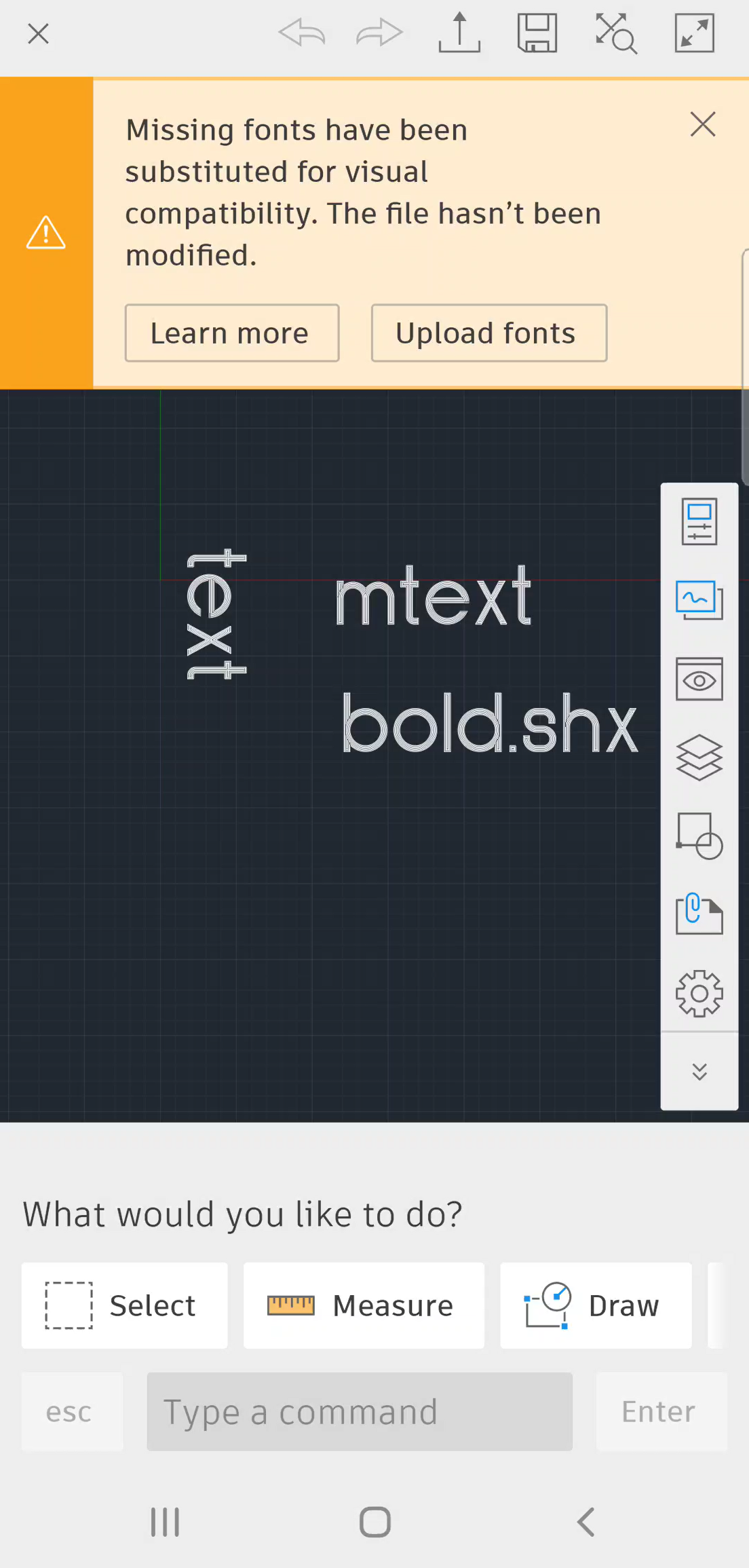
2. A banner informing about missing fonts appears at the top of the screen. Tap on the "Upload fonts" button.
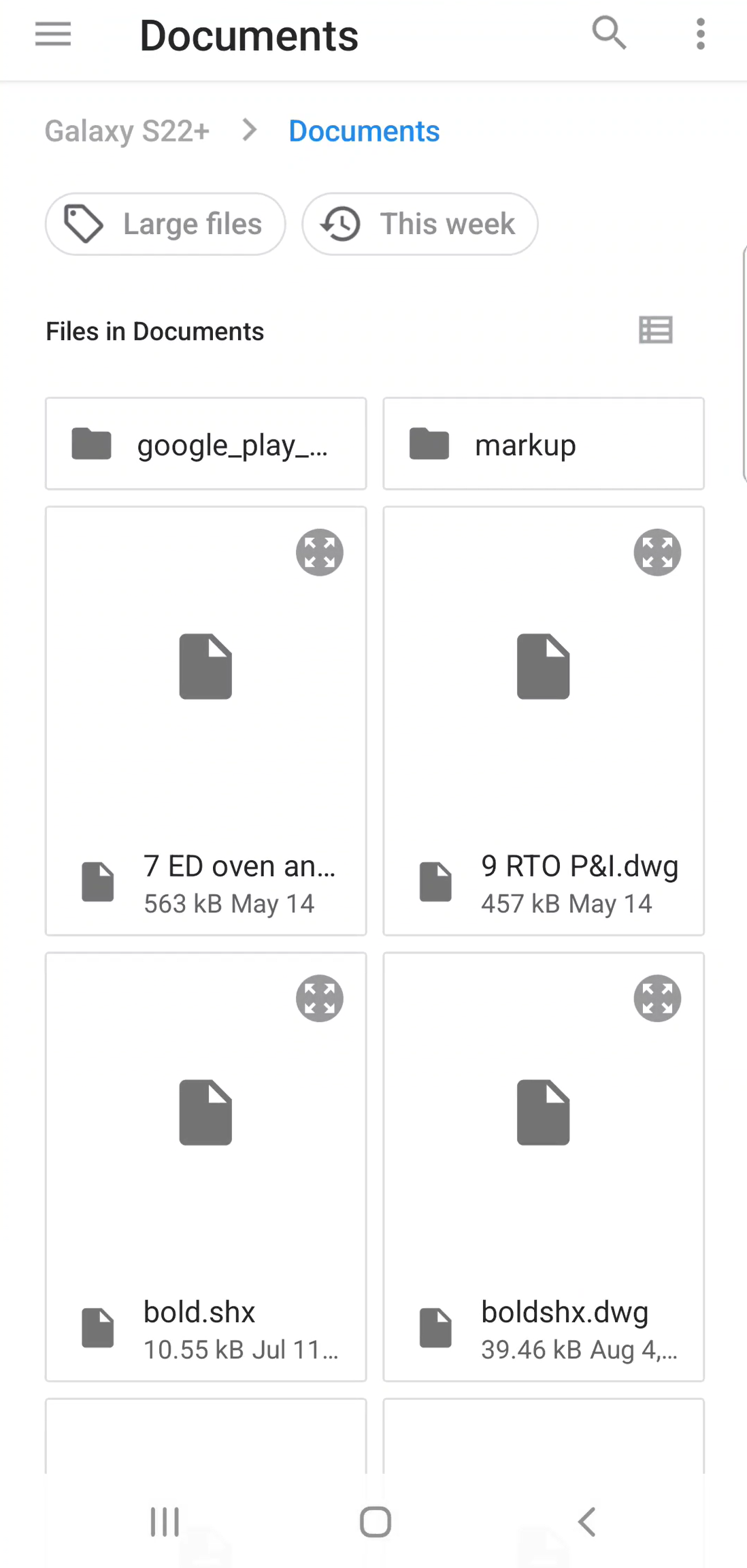
3. Find and select the SHX-fonts you want to upload. You can navigate through your local storage by tapping on three horizontal lines in the top left corner.
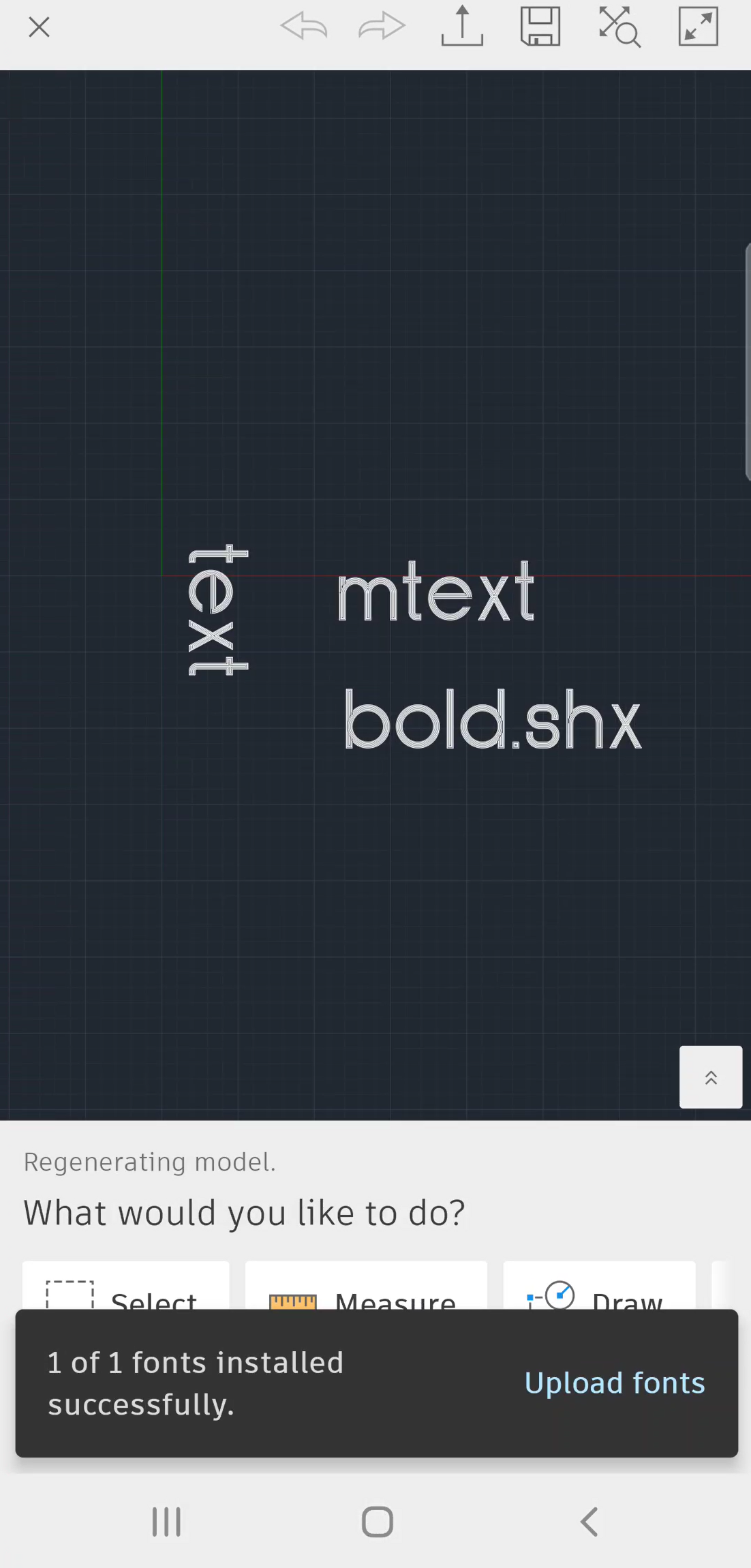
4. Once you tap "Select" button you will be returned to the app and fonts will be installed.
a. If the text in your drawing is still not displayed correctly you can add more fonts by tapping on "Upload fonts".
Delete Uploaded fonts in Android devices
Click here to view
1. Go to AutoCAD Mobile App Settings
2. Open Settings, tap on Device storage and select "Remove".
a. Be aware that this action will delete all local files stored by the app (all fonts and synced files).

Note: Uploading of TTF & TTC fonts are currently not supported in AutoCAD Mobile App.
For AutoCAD Web App
Click here to view
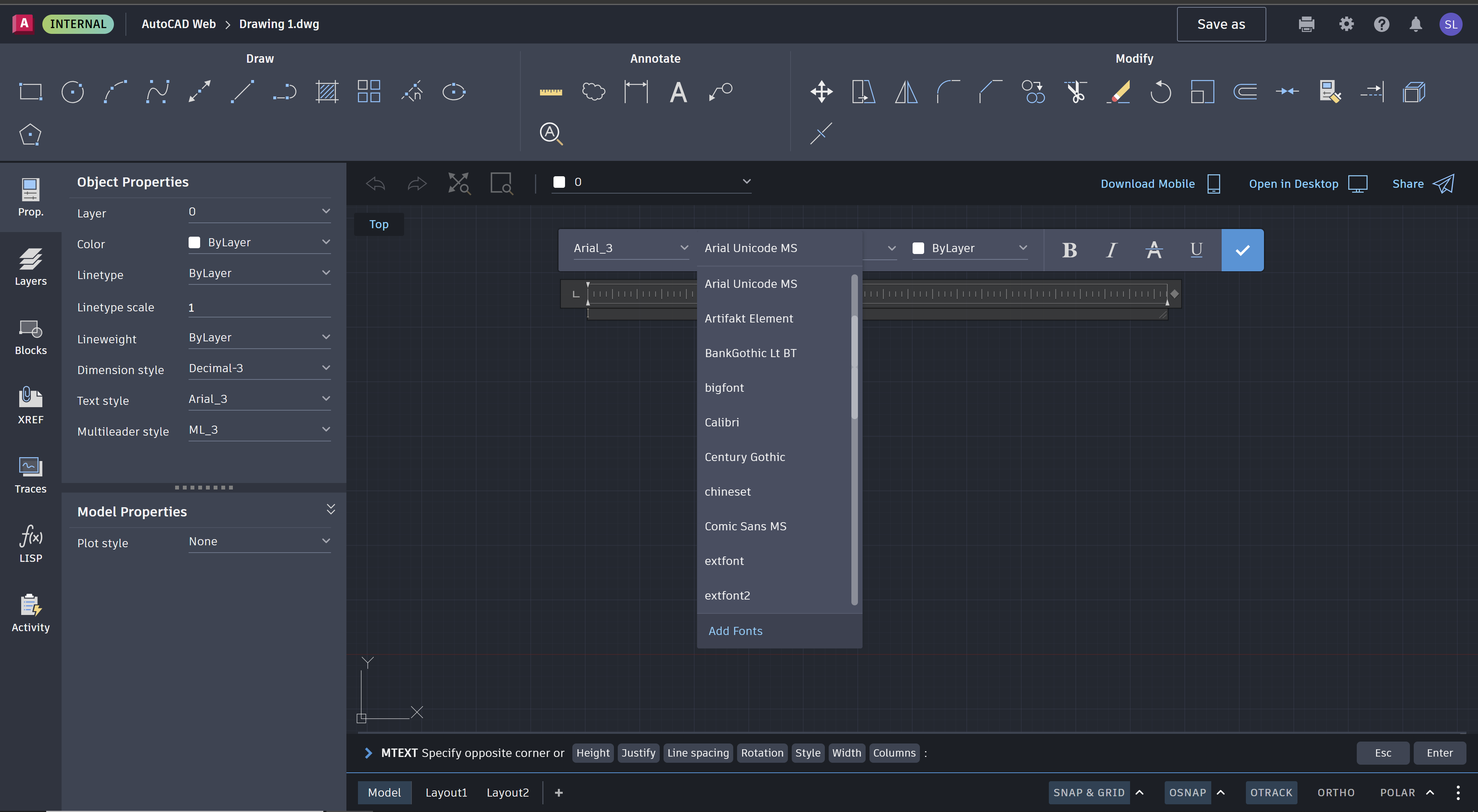
1. Create a MTEXT in AutoCAD Web App
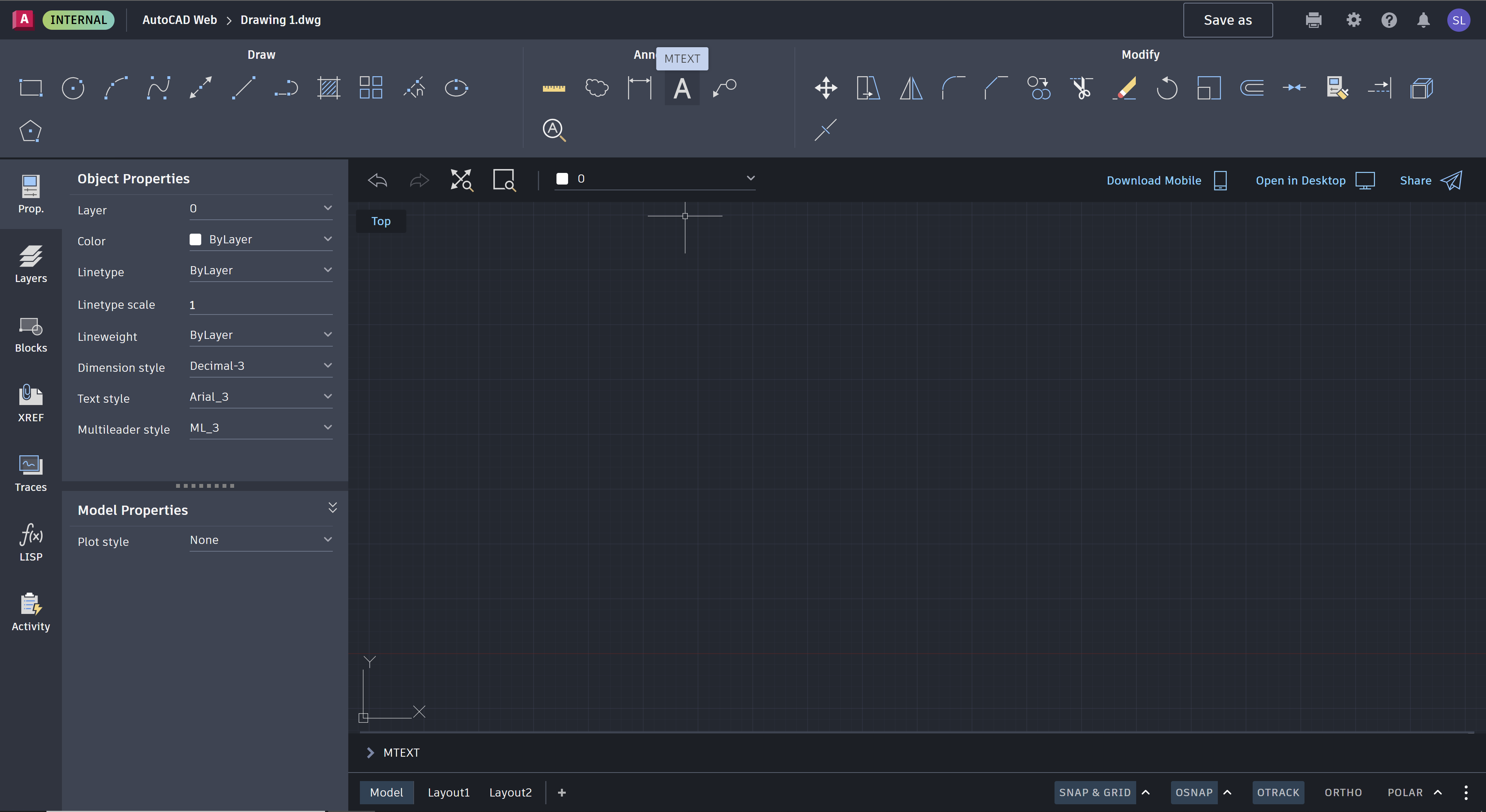
2. Select the Font Style drop down arrow and click "Add Fonts"
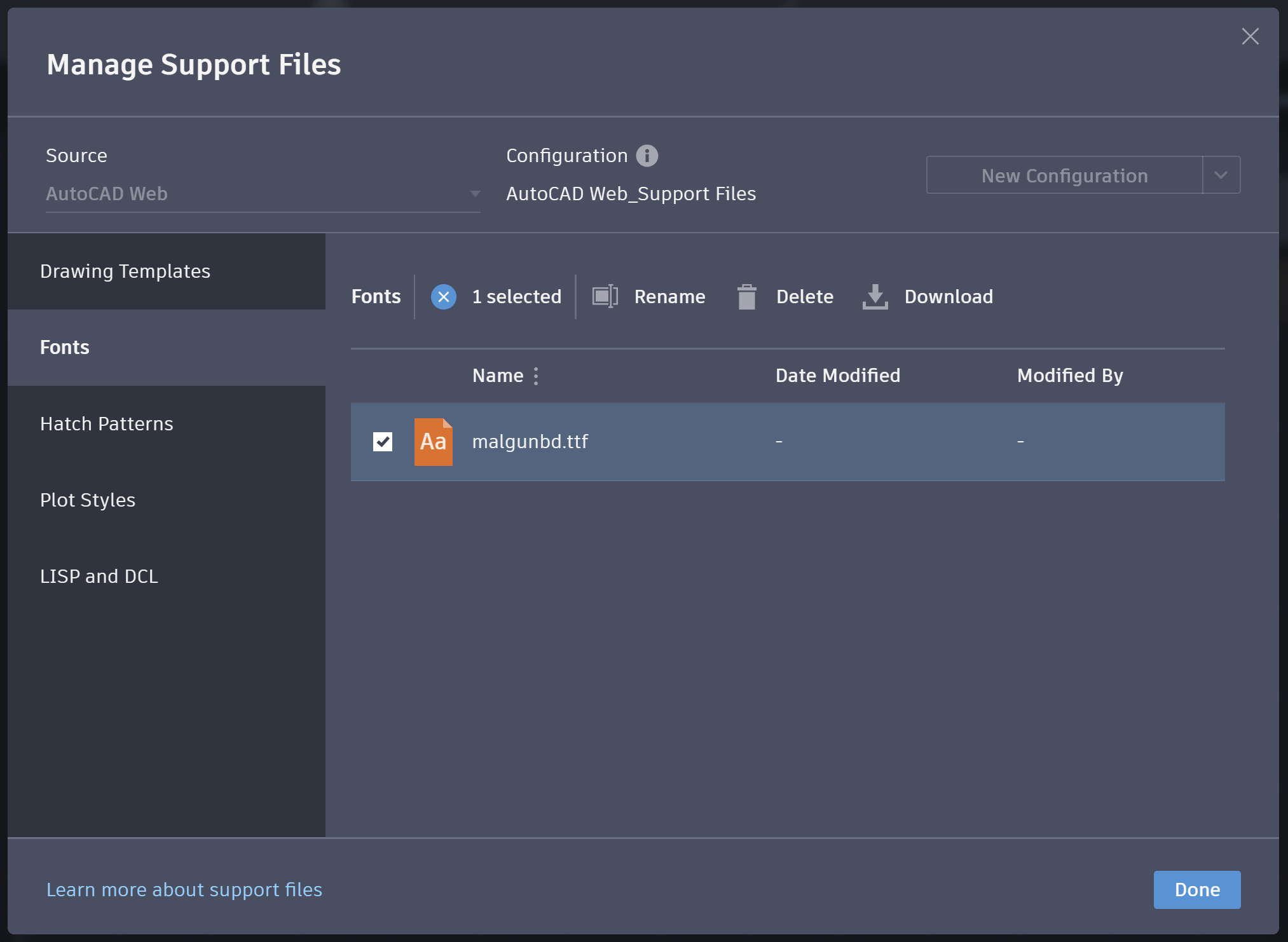
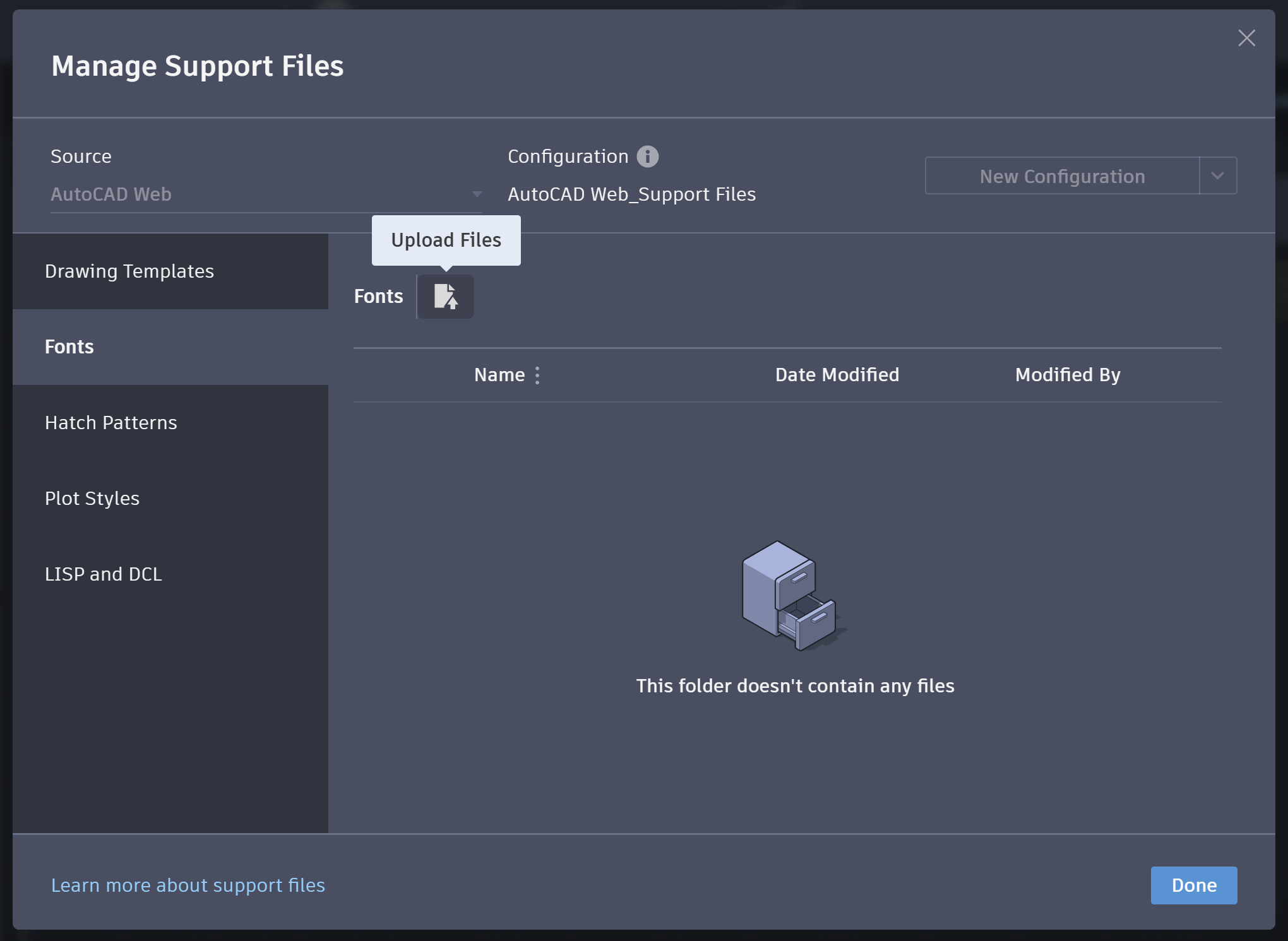
3. Click "Upload Files" and upload the TTF, TTC or SHX font files in the Manage Support Files Window
Delete Uploaded fonts in AutoCAD Web App
Click here to view
1. Select the uploaded Font File and Click "Delete"