
Issue:
Drawing file formats normally associated with AutoCAD products appear blank and generic, or with an incorrect software logo in Windows Explorer, Mac Finder, or Vault.
This can occur with any file format including DWG, DWT, DWF, DST.

Additionally, attempting to open or double-click on the file, may:
- Not open the drawing.
- Not start AutoCAD.
- Display a warning that the file or program cannot be found.
- Launch a different program altogether (for example, a PDF reader or an internet browser).
Note: Backup (BAK) files created by AutoCAD do not have a program association and are expected to have a blank icon in both Windows and Mac OS.
Causes:
The drawing file type is:
- No longer associated with AutoCAD.
- Associated with a different software.
Solution:
On Windows
Re-associate the filename extension type (see DWG file type associativity in Windows).
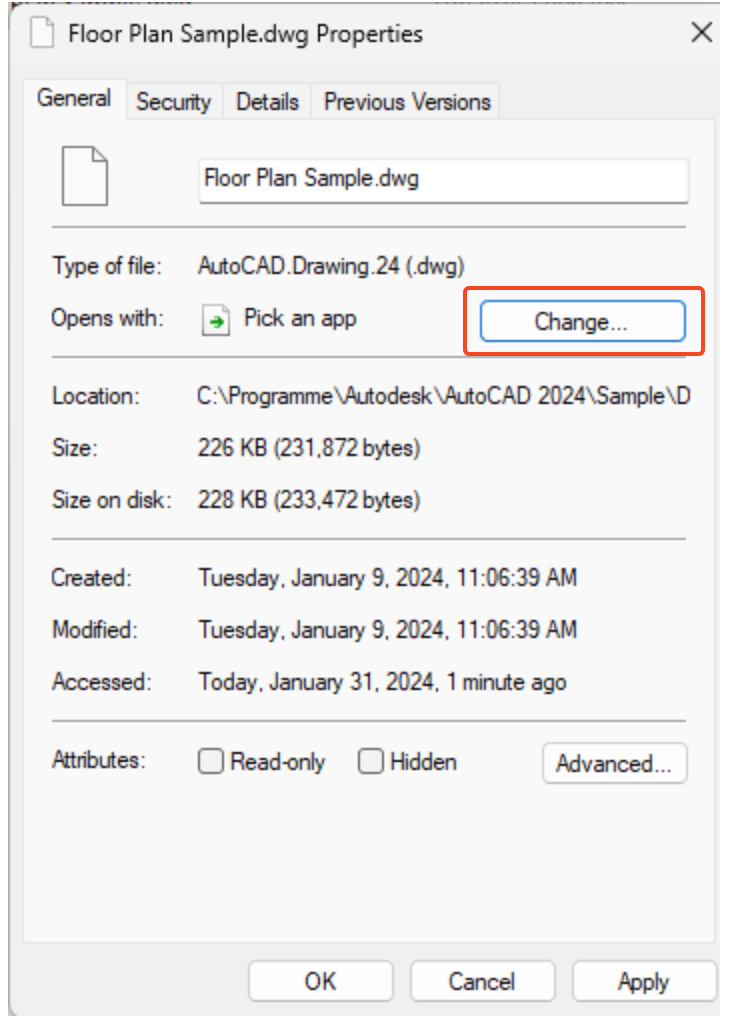
- In Windows File Explorer, right-click an affected drawing file and click 'Properties'.
- Click 'Change' near 'Opens with'.
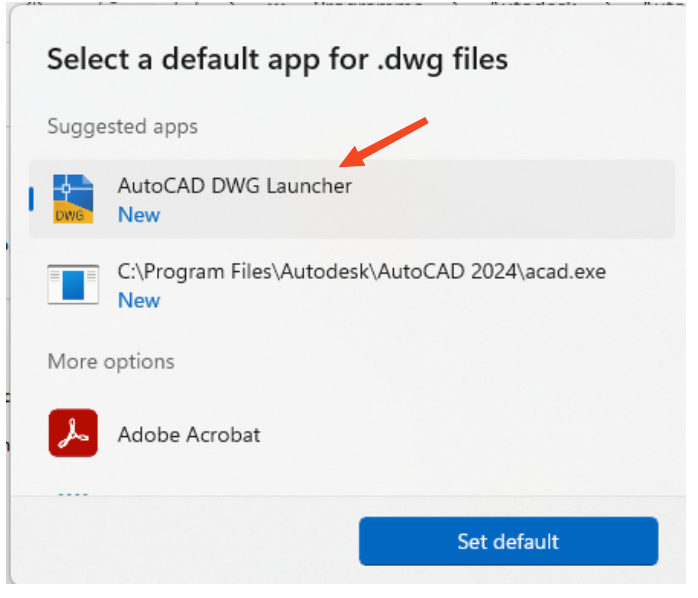
- In the next window, select 'AutoCAD DWG Launcher' and click 'Set default'.
- Press OK in the Properties windows.
On MacOS
Re-associate the filename extension type (see DWG file type associativity in Mac).
-
Right-click a drawing file and choose 'Get info'.
-
In the drop-down under the 'Open With:' section, select the desired AutoCAD program.
-
Click 'Change All'.
- Click 'Continue'.
Force a file association refresh
If the drawing files are already associated with the correct software or associating one time does not work, reset the file association:
- In Windows Explorer, right-click a drawing file file and choose Open With > Choose another app.
- In the next window, select 'AutoCAD Application for the installed AutoCAD'.
- Select the checkbox for 'Always use this app to open DWG files'.
- Click OK.
- In Windows Explorer, right-click again a drawing file file and choose Open With > Choose another app.
- In the next window, select 'AutoCAD DWG Launcher'.
- Select the checkbox for 'Always use this app to open DWG files'.
- Click OK.
For DST files
Edit the registry to remove the user-defined DST file association, see: Double-clicking a DST file opens a blank Sheet Set Manager in AutoCAD
Corrupt Windows profile
The Windows user profile may be corrupt. Create a user account, sign in to it, and test AutoCAD (see Create a user account in Windows (Microsoft)).
Reset file association - Registry edits
Reset file association (option 1)
Perform the following registry edit (see warning in the following):
- Press WINDOWS-R on the keyboard to open the Run window, enter REGEDIT, and click OK.
- Delete the following keys (not all of them may be present):
- HKEY_CLASSES_ROOT\.dwg
- HKEY_CURRENT_USER\Software\Classes\.dwg
- HKEY_CURRENT_USER\Software\Microsoft\Windows\CurrentVersion\Explorer\FileExts\.dwg
- HKEY_CURRENT_USER\Software\Microsoft\Windows\Roaming\OpenWith\FileExts\.dwg
- Close the Registry Editor.
- Reboot the PC.
- Start AutoCAD. A dialogue should come up (AutoCAD - DWG Association).
- Note: If the dialogue does not come up, close and restart AutoCAD.
- Choose Always reassociate DWG files with AutoCAD (recommended).
Reset file association (option 2)
Perform the following registry edit (see warning in the following):
- Press WINDOWS-R on the keyboard to open the Run window, enter REGEDIT, and click OK.
- Delete the following keys (not all of them may be present):
- HKEY_CLASSES_ROOT\.dwg
- HKEY_CURRENT_USER\Software\Classes\.dwg
- HKEY_CURRENT_USER\Software\Microsoft\Windows\CurrentVersion\Explorer\FileExts\.dwg
- HKEY_CURRENT_USER\Software\Microsoft\Windows\Roaming\OpenWith\FileExts\.dwg
- Close the Registry Editor.
- In Windows Explorer, double-click on a DWG file.
- When prompted to select a program, click More apps.
- Scroll down further and click Look for another app on this PC.
- Browse to and select C:\Program Files\Common Files\Autodesk Shared\AcShellEx\AcLauncher.exe.
Change Default Icon
The registry key for file associations can be found under the "HKEY_CLASSES_ROOT" hive.
- For DWG TrueView, the registry key would have "TrueView" or a similar instead of the key: "AutoCAD.Drawing.24" mentioned the following steps.
- You can do the same check for the DXF file type if it is showing the correct icon, and compare the key values. Check the DefaultIcon path it uses and specify the same value for the DWG key.
- Follow these steps:
- In the Registry Editor, navigate to the following key:
- HKEY_CLASSES_ROOT\.dwg
- In the right pane, you should see a value named (Default). This value represents the file type associated with the .dwg extension.
Take note of the value data for the (Default) value. It will be a string that represents the file type, such as "AutoCAD.Drawing.24" or “TrueView”…etc. - Now, navigate to the key that corresponds to the file type you noted in the previous step. For example:
- HKEY_CLASSES_ROOT\AutoCAD.Drawing.24
- In this key, you should see a subkey named DefaultIcon. This subkey contains the path to the icon file associated with the file type.
- Double-click on the (Default) value in the right pane to modify it.
- Enter the path to the icon file you want to use as the new icon for the DWG file extension. For example:
- C:\Program Files\Autodesk\AutoCAD 2024\en-US\acadficn.dll,49
- Make sure to replace above path with the actual path of your desired AutoCAD product or icon file.
- Click OK to save the changes. / Close the Registry Editor.
- In the Registry Editor, navigate to the following key:
- After making these changes, the icon for the DWG file extension should be updated to the new icon you specified.
Note that you may need to restart your computer or log out and log back in for the changes to take effect.
Warning
Problems caused by improperly editing the Windows registry could render the computer operating system unusable. Microsoft provides a wealth of critical information about the registry in the Microsoft Knowledgebase. Use the Microsoft Registry Editor only at your own risk and only after backing up the registry as outlined for the operating system in the Microsoft article. How to back up and restore the registry in Windows and in the related solution. How to backup the system registry . Additional information about the registry is also contained in the Help topics in the Microsoft Registry Editor.