
FIND (Command)
Finds the text that you specify. 
Type FIND at the command line. The Editor bar will be displayed.

This is where you change settings, enter the text you want to find in the drawing, and specify where to find the text in the drawing.
Enter text to find
Specifies the text string you want to find. Enter a text string, including any wildcard characters. The X clears the search field.

Find Where
Specifies whether to search the entire drawing, the current space or layout, or the selected objects.

Find
Finds the text entered in the Enter text to find field. Found text is zoomed to using the find next and find previous navigation arrows along with the number of found instances.

Settings
Click the settings icon to display the Include objects and Matching requirements options. 
Include objects
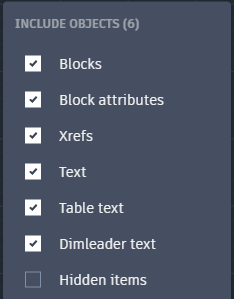
The following options are displayed.
Blocks
Includes text in blocks.
Block Attributes
Includes block attribute text values.
Xrefs
Includes text in externally referenced files.
Texts
Includes text objects such as single-line and multiline text.
Table texts
Includes text found in table cells.
Dimleader texts
Includes dimension leader object text.
Hidden items
Includes hidden items in search results.
Hidden items can include but are not limited to:
Text on layers that are frozen or turned off.
Text in block attributes created in invisible mode.
Text in visibility states within dynamic blocks.
Exit
Exits the system variable.
Matching Requirements
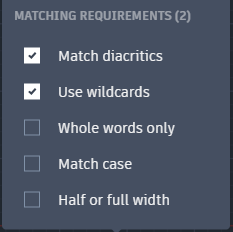
The following options are displayed.
Match diacritics
Matches diacritical marks, or accents, in search results.
Use wildcards
Allows the use of wildcard characters in searches.
| Character | Definition |
|---|---|
| # (Pound) | Matches any numeric digit |
| @ (At) | Matches any alphabetic character |
| . (Period) | Matches any non-alphanumeric character |
| * (Asterisk) | Matches any string and can be used anywhere in the search string |
| ? (Question mark) | Matches any single character; for example, ?BC matches ABC, 3BC, and so on |
| ~ (Tilde) | Matches anything but the pattern; for example; ~ABmatches all strings that don't contain AB |
| [ ] | Matches any one of the characters enclosed; for example, [AB]C matches AC and BC |
| [~] | Matches any character not enclosed; for example, [~AB]C matches XC but not AC |
| [-] | Specifies a range for a single character; for example, [A-G]C matches AC, BC, and so on to GC, but not HC |
| ` (Reverse quote) | Reads the next character literally; for example, `~AB matches ~AB |
Whole words only
Finds only whole words that match the text in the Enter text to find search box.
For example, if you select Find Whole Words Only and search for “Front Door”, FIND will not locate the text string “Front Doormat”.
Match case
Includes the case of the text in the Enter text to find search box as part of the search criteria.
Half or full width
Matches half and full-width characters in search results.