Registry-based settings reference
Registry-based settings give you granular control over manual update behavior on individual Windows devices. Use them for update scenarios that Scheduled Updates doesn't cover. For help choosing between the two methods, see About controlling updates in Autodesk Access.
Registry-based settings apply only to users who are not assigned to an update policy. For users assigned to an update policy, the policy settings take precedence over any manual update behavior configured through registry keys.
Registry settings available
- AllowSystemContextInstall - Enables users without install permissions on their devices to install Autodesk product updates through Autodesk Access. Users cannot install updates through Autodesk Account.
- DisableManualUpdateInstall - Prevents users from installing updates through Autodesk Access. Users can still view available updates and the features they include, which allows them to identify updates they may need.
Methods for applying registry settings
You can apply registry settings on Windows devices using several methods, including:
- Group Policy
- Logon scripts
- Other supported management platforms
For registry key locations, values, and implementation guidance, refer to your organization's IT documentation.
User scenarios
The following scenarios describe how administrators can manage user update permissions based on different install permission levels:
Users with install permissions on their devices
You can allow users with install permissions to install product updates as needed. This option lets users manage updates independently. No registry settings are required for these users.
Users without install permissions on their devices
You can allow users without install permissions to install Autodesk product updates through Autodesk Access. This helps centralize update installation in a single, managed experience while still allowing users to apply updates as needed.
This behavior is configured using the AllowSystemContextInstall Windows registry setting. For instructions on how to configure this registry setting, see Control features using the registry.
- Files are updated in user-specific folders
- Updates are done with legacy install technology
- Updates are accomplished with full product installers
To learn more and to view a list of unsupported products, see Unsupported products using system context installs via Access.
Users who should not install updates
You can prevent users from installing updates by removing Autodesk Access from their devices or by limiting its functionality. When Access functionality is limited, users can still view available updates and the features they include, but can't install them. This allows users to identify updates they may need and inform you when a specific feature or fix is required.
This behavior is configured using the DisableManualUpdateInstall Windows registry setting. For instructions to configure this registry setting, see Control features using the registry.
Control features using the registry
You can apply registry settings on Windows devices using several methods, including:
- Group Policy: Microsoft's Group Policy allows you to apply registry settings to users at the group level. This provides an easy secure way to apply settings.
- Logon scripts: You can use logon scripts to write registry settings during the logon process.
- Other supported management platforms: A variety of other management platforms provide similar capabilities for all supported operating systems.
To enable Access updates for users without install permissions
Create a new string value under HKEY_LOCAL_MACHINE\SOFTWARE\Autodesk\ODIS:
- Value name:
AllowSystemContextInstall - Value type:
REG_SZ - Value data:
1
Users won't see a User Account Control (UAC) prompt when installing updates, even if UAC is enabled.
To prevent users from installing updates in Access
Create a new string value under HKEY_CURRENT_USER\SOFTWARE\Autodesk\ODIS:
- Value name:
DisableManualUpdateInstall - Value type:
REG_SZ - Value data:
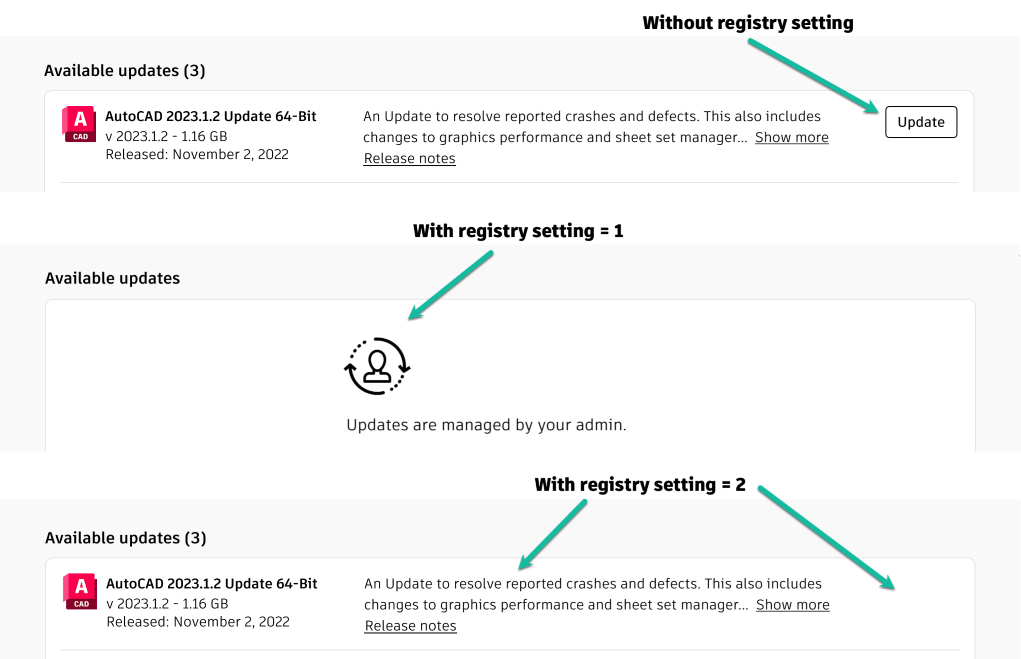
1: Users see a view of Access without available updates. Access won't start automatically during device startup and the Access icon won't appear in the system tray. Users can still launch Access from the Start menu. When they close it, the application quits and the icon disappears from the system tray.2: Users see the normal view of available updates without the Update button, so they can't initiate updates.
The following diagram illustrates the way Access appears to users with and without registry settings.