
Modeling Improvements (2027)
Alias 2027 introduces a fully re-engineered Combine Surfaces tool, with new features that enhance surface quality and provide greater control and flexibility when rebuilding NURBS surfaces from existing geometry, including subdivision models. Updates to the Soft Proportional Modification tool add a Preview Original mode for inspecting unmodified geometry, along with a Discard All Changes option to quickly reset a session. The release also includes targeted improvements to core modeling tools such as Curve Offset, Birail, and Planarize Hull.
Combine Surfaces Improvements
The Combine Surfaces tool has been completely re-engineered to provide more control and improved output geometry when rebuilding NURBS surfaces from existing topology, particularly subdivision (SubD) models. The tool creates a single NURBS surface from multiple adjacent surfaces while maintaining full construction history for continued refinement, even after exiting the tool.
The primary use case is combining SubD limit surfaces into a single, smoother NURBS surface that can achieve G3 continuity, improving on the G2 continuity typical of SubD limit surfaces. This capability pushes SubD models further into the design process by enabling smoother, more refined surface quality.
Click on a rectangular set of inputs to generate a single surface from subdivision faces. Add or remove additional surfaces by LMB-clicking directly on the surface(s) or Shift +
In-canvas manipulators now give you direct control over surface degree, allowing you to adjust U or V degree interactively as you refine the result.
Auto Smooth system
Fine‑tune surface quality using Smoothing options. Use Auto Smooth to automatically adjust CV layouts based on optimal smoothing values within your specified tolerance. A new Max Smoothing Deviation option controls the accuracy and smoothness tradeoff. This allows you to control the deviation of the resultant surface from the original input surface. Max Smoothing Deviation replaces the previous Iterate to Tolerance option with more flexible control.
You can also use the Manual U Smooth and V Smooth sliders for explicit smoothing control independent of Auto Smooth.
In-canvas manipulators and feedback
- Degree manipulators allow interactive adjustment of U and V degree
- Edge labels display Edge 1 through Edge 4 on boundaries to identify each edge.
- Deviation display shows an in-canvas line visualizing maximum fit error between the resultant surface and the original input surfaces when Show Deviation is enabled.
- Extend manipulators provide visual control for extending edges beyond boundaries.
Enhanced control
- A new CV Guide Edge option lets you specify which boundary edge (Edge 1-4) drives CV distribution for straighter hulls.
- Extend controls for all four edges with Lock U/V options for symmetrical extension. Use the in-canvas manipulators or enter values in the control window to extend edges in the U or V direction.
- Manual U Smooth and V Smooth sliders for explicit smoothing control independent of Auto Smooth.
- Create Metadata option to save tool settings with the result surface.
Construction history
Results now support full construction history for continued refinement after exiting the tool. Select the result surface and reopen Combine Surfaces to edit with previous settings.
 For detailed information, see Combine Surfaces.
Soft Proportional Modification Improvements
We've made several improvements to the Soft Proportional Modification tool, including:
- A new Preview Original button displays the original, unmodified geometry in grayscale. In this mode, Alias disables all manipulators and CV editing, while undo operations remain available. Select Hide Original to return to the transformed geometry. Use this option to compare transformed geometry with original positions without losing your work.
- A new Discard All Changes option that removes all modifications applied during the current session by:
- Restoring all CVs to their initial pre-transformation positions.
- Clearing all modification history.
- Preserving your active and passive CV selections.
- Preserving falloff values and factors for passive CVs.
- The Preview Original and Discard All Changes buttons only appear in the viewport after you have made at least one modification. These features are only available in files created in Alias 2027.0 or later. Files from older versions, such as Alias 2026.1 do not support these operations. The buttons will only appear if your file supports the feature.
For detailed information, see the Soft Proportional Modification topic.
Apply Shaders by Name for Reference Files
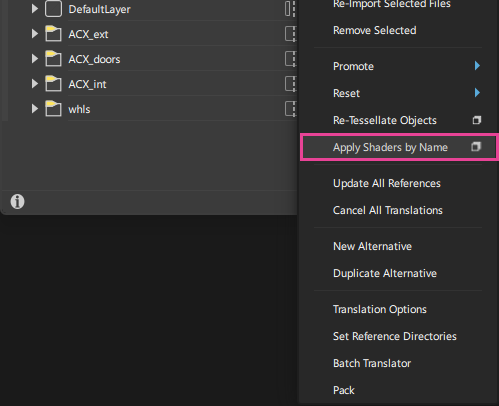
A new Apply Shaders by Name option for reference files is now available in the Reference Manager's More menu, simplifying how shaders are applied and managed when working with referenced geometry.
You can now replace or apply shaders by matching shader names directly on referenced files, reducing the need to manually promote shaders, merge duplicates, and remap materials. This capability aligns with the existing Replace Shaders by Name workflow in the Shader Lister and uses the same shader library path defined in General Preferences.
Apply Shaders by Name supports common reference formats such as .wire, .catia v5, and .fbx. It helps ensure consistent shader assignment across references while minimizing duplicate shader creation during promotion.
Curve Offset Improvements
New in‑canvas manipulators allow independent COS Start and COS End types on multi COS curves. This means that when working with multiple COS curves, you can assign different Start and End types, allowing more control across complex offsets. Note that when you set different Start or End types on multiple curves, the tool control window does not display the COS Start and COS End option types.
Tubular Offset Improvements
You can now create multiple tubular offset surfaces when you select multiple curve-on-surface in the same operation. After you create the surfaces, you can adjust the values for each surface simultaneously. For example, you can now adjust the Radius using the in-canvas manipulator to interactively update the multiple tubular offset surfaces you created at the same time instead of editing them individually.
There is also now an option to create Periodic surfaces. When Periodic is toggled on, you change the Seam Angle as well as V Degree and V Span values of the offset surface.
Periodic Surface Improvements
We've made several improvements to existing modeling tools to add and improve periodic surface support, including:
- Birail - Periodic input curves now generate periodic surfaces consistently.
- Planarize Hull - Now supports periodic surfaces with options to planarize a single hull or entire U/V rows.
- Symmetrical Modeling - Symmetrical modeling now provides improved results when working with periodic surfaces.
- Tubular Offset - Turning on Periodic in the Surface Structure options now lets you create tubes from periodic geometry.
History Visualizer Updates
You can now update the Surface Extrude tool history commands, including support for creating presets and the ability to revert history on Extrude commands.
Other Modeling Updates and Improvements
- Curve & COS Trim - The tool now retains the name of the original curves when Keep Originals is off. This is consistent in behavior with similar tools such as the Curve Section tool.
- Trim and Untrim tools - We've improved trimming and untrimming performance.
- Profile tool - We've changed the default setting for Profile Orientation from Surface Normal to Natural. This removes the advanced Select surfaces for profile orientation prompt line message, helping beginners get results more easily when creating simple profiles.