
Issue:
Users reported that when attempting to link files that are hosted on BIM 360 or Autodesk Construction Cloud (ACC) into a Revit model, the links show as "Not Loaded" or "Not Found" in the Manage Links dialog.
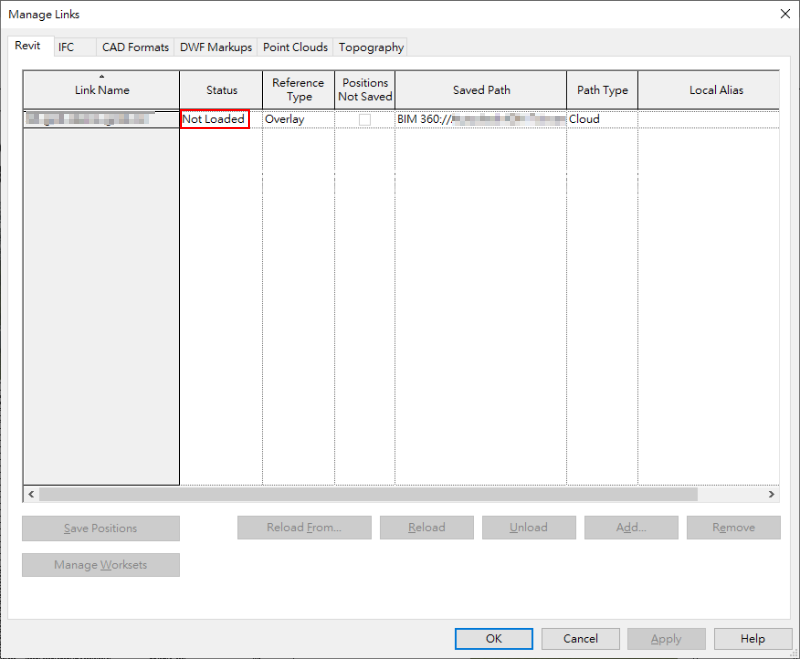
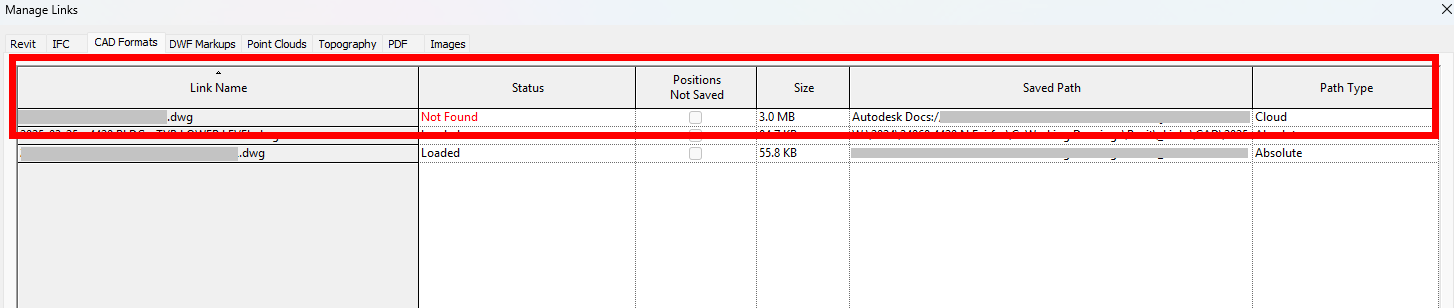
Note: The file path listed in the Manage Links dialog (BIM 360://...) might not be accessible from the BIM 360 web application either.
Causes:
- User does not have access to the location of the file.
- Computers on the project run obsolete or different Revit and Desktop Connector versions/updates.
Solution:
To resolve this issue, use one of the following solutions:
- Verify that Desktop Connector is running.
- Install the latest Revit update, and be sure that all team members have the same version installed.
- Install the latest Desktop Connector update (if possible). Ideally, all team members run the same version.
- Deselect and reselect the project.
- Ensure that the user encountering the error can access the linked files directly.
- Non-BIM 360 Location: Verify that the user can browse to the path of the linked DWG and open it in AutoCAD.
- BIM 360 Docs: Verify that the appropriate Folder Permissions are granted to the folder containing the files on BIM 360.
Notes:
- At least "View + Download" permissions in BIM 360/ACC are necessary to link in Revit.
- In a controlled worksharing environment, different teams may not have the necessary access to each others' folders for linking, and it may be necessary to move the links to a location that everyone has access to.