
Issue:
Users reported that a broken icon or a "Processing failed" message appears after uploading a PDF to BIM 360 or Autodesk Construction Cloud (ACC) Docs.
In some instances, the following message is displayed:
"Processing Failed"
One of the following can occur:
The file name appears but displays a broken icon symbol.

Uploading the file again results in an orange exclamation sign and the message "Processing failed".
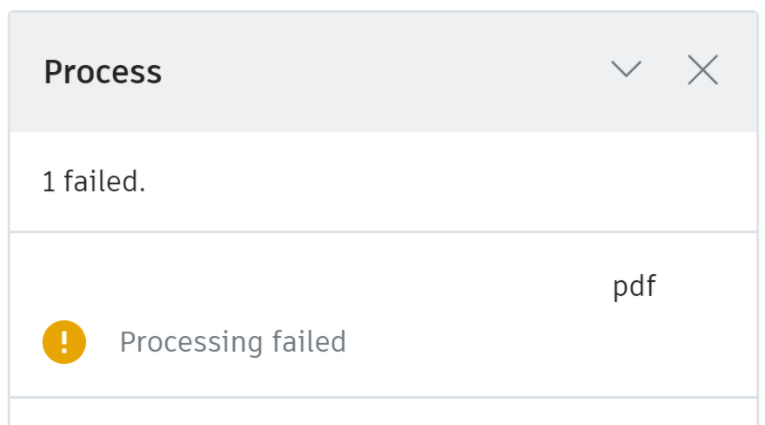
Next to the file name is a yellow triangle exclamation mark.

At first, the file might look like is stuck on loading with a blue spinning circle.

Causes:
There are a few possible causes for this issue:
The PDF exceeds the page limit size.
The PDF file is password-protected or encrypted.
The PDF file has elements (markups, comments) added from an unsupported software, or has been created by merging pages, sometimes of different sizes or orientations.
The PDF is a 3D PDF, which is not supported.
PDF has vector graphics, especially when originating from Bluebeam.
PDF is corrupted.
Solution:
To address this behavior, try one or more of the following:
PDF exceeds the page limit size
PDF files have limits to the number of pages.
For the Plans folder, a PDF file can have no more than 500 pages.
For the Project Files folder, a PDF can have no more than 2,000 pages.
Placing the impacted files in the Desktop connector folder, and it syncs back to BIM 360.
If the issue persists, the PDF needs to be split up into smaller and equal page sizes.
To be done through either the authoring design product (AutoCAD, Revit) or the PDF authoring software (Bluebeam, Adobe Acrobat)
PDF file is password protected
Export or save the PDF file again from its source software without password protection.
Note: BIM 360 processing requires that the file is not password protected. BIM 360 must have "Read" and "Edit" access to the content.
PDF file is encrypted
If the file was manually encrypted, make sure to avoid that, as such PDF files can't be opened in BIM 360.
If the encryption was automatic, verify the PDF Export settings in the authoring software that created the document.
Make sure that the file is allowed for page extraction - otherwise, it will result in failure in publishing.
If the PDF is in a zip.-ed or compressed folder the upload also does not work. (Uploading entire zipped folders is supported in BIM 360).
PDF file has added elements or is made up of different merged pages
Reprint the PDF as a new PDF file, and upload this document instead.
Flatten the PDF file and reupload the file.
Note: This could affect official seals and signatures.
Viewable only in the browser
If it is a digitally signed, encrypted, or password-protected PDF file, the broken icon is showing that the file cannot be edited or handled in BIM 360. But it can be stored in the platform and the file can be downloaded, from the browser.
These files can be viewed using the Browser viewer option in BIM 360. This can be set as default by folder: Control PDF Viewing
Note: protected files cannot be viewed or downloaded in BIM 360 App.
