
Collaborative Cash Flow Workflow
The Collaborate functionality in the Cash Flow tab of the Forecast tool allows suppliers to be invited into the system to create or update the distribution of Forecast final costs throughout the project.
Administrators can manage access using a Cash Flow collaborative setting within the Settings menu. This ensures that suppliers only see actual and forecast final costs, keeping all other sensitive budget information private.
Settings
To enable the collaborative access for Cash Flow, do the following:
Select the Settings tool from the left navigation.
Switch to the Permission tab.
Turn the toggle button to On in the Cash Flow column. This will enable the collaborative process in the Forecast tool.
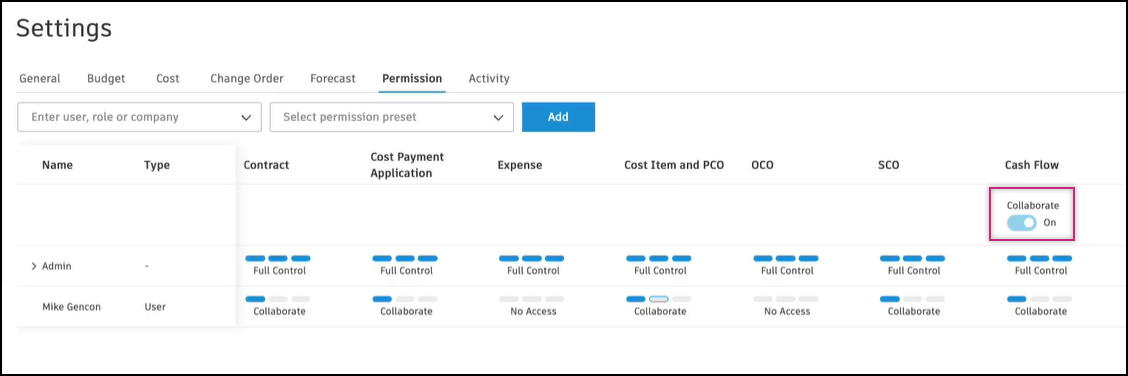 Note: This setting cannot be turned off once any distribution item is created.
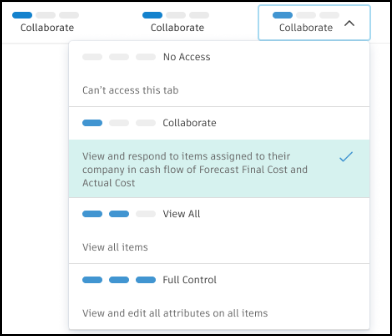
Choose the Collaborate permission for the supplier role. This will allow collaborators to view and respond to items assigned to their company in cash flow of Forecast Final Cost and Actual Cost.
Distribution Items Review Workflow
Sending distribution items for review
After setting up permissions, administrators and general contractors can send distribution items to suppliers for their input.
To send distribution items to a collaborative access member asking for input:
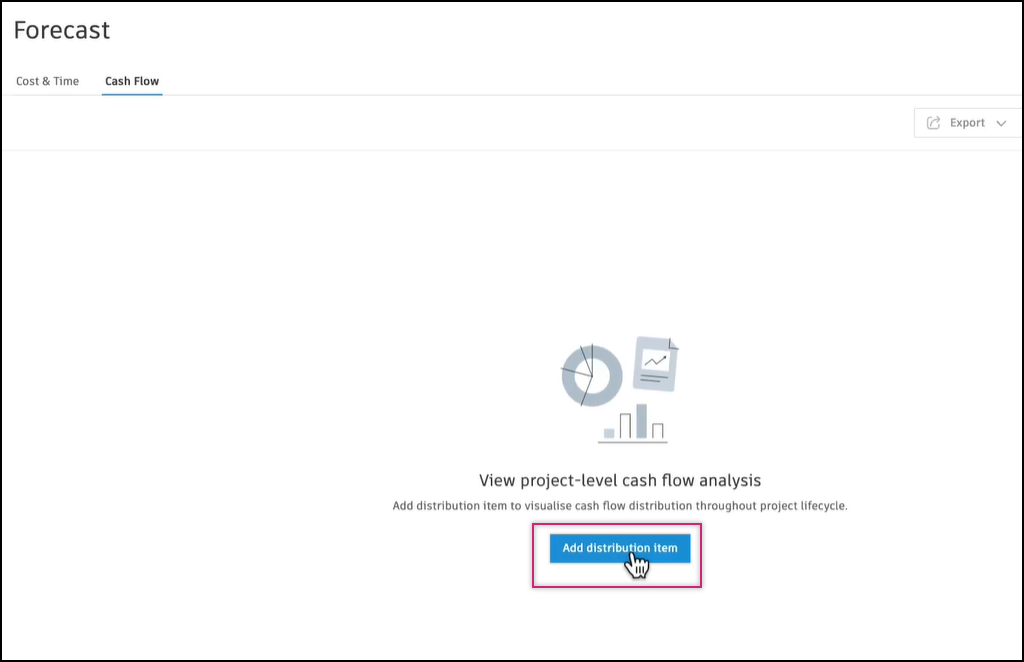
Go to the Forecast tool from the left navigation and open the Cash Flow tab.
Click Add distribution item.
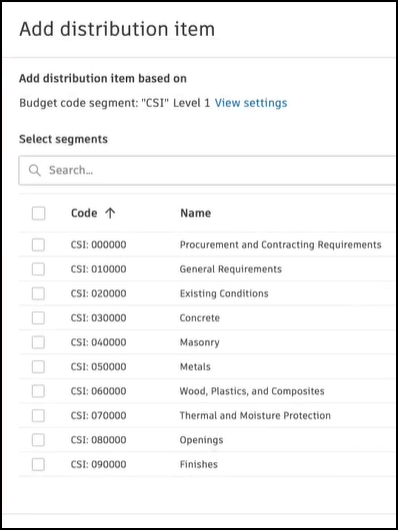
Select budget segments from which you want to add items. Click Add.
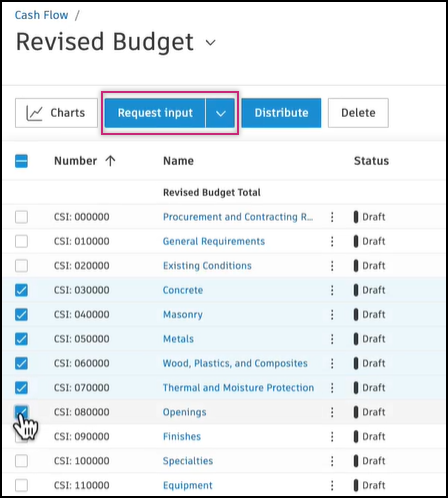
Select all the distribution items that you want to send to the supplier and click Request input.
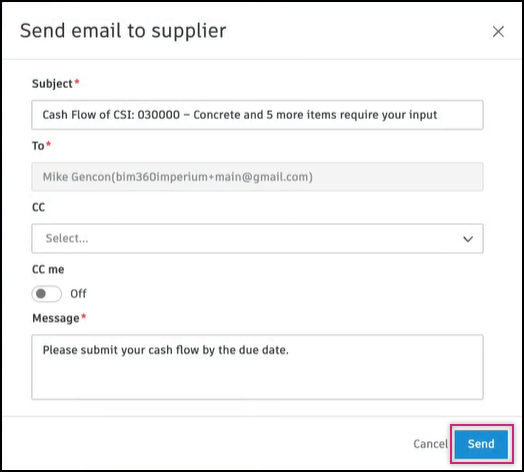
The pop-up window shows the email to the supplier. You can write your message and click Send.
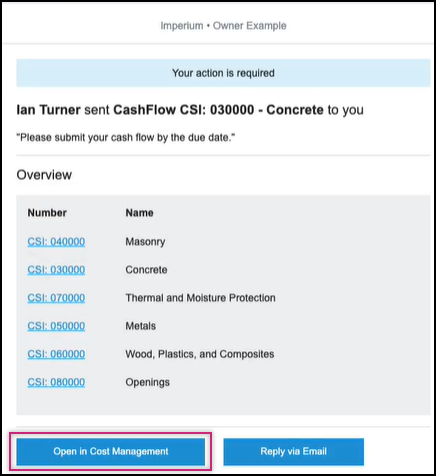
Now, the supplier receives the email notification.
Supplier Input
A supplier receives an email requesting their input. To respond and provide the input, the supplier can do the following:
Click the Open in Cost Management button in their email or go directly to Cost Management, choose Forecast tool and then the Cash Flow tab.
Here, only their distribution items are visible for forecast final and actual cost.
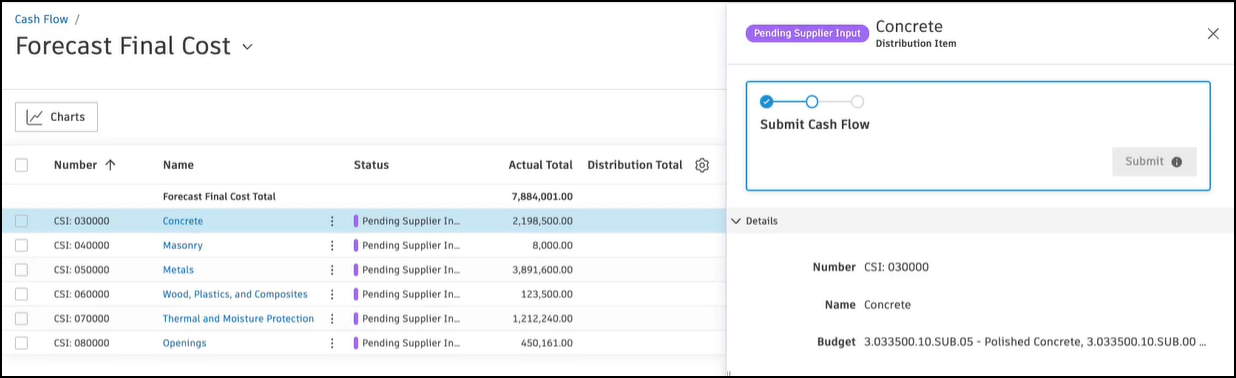
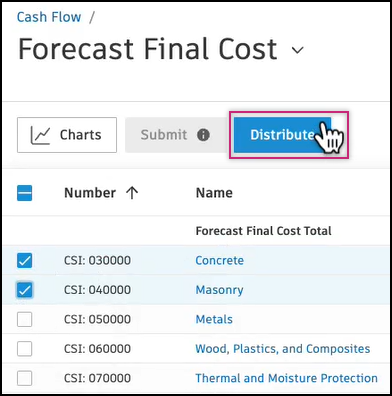
Select the items that need input and click Distribute.
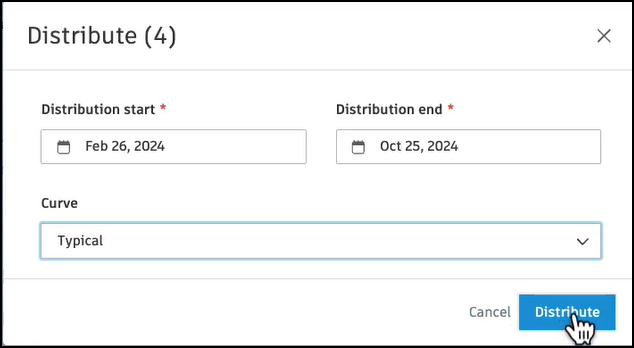
Select distribution start and end dates, and set the Curve from drop-down list. Confirm with the Distribute button.
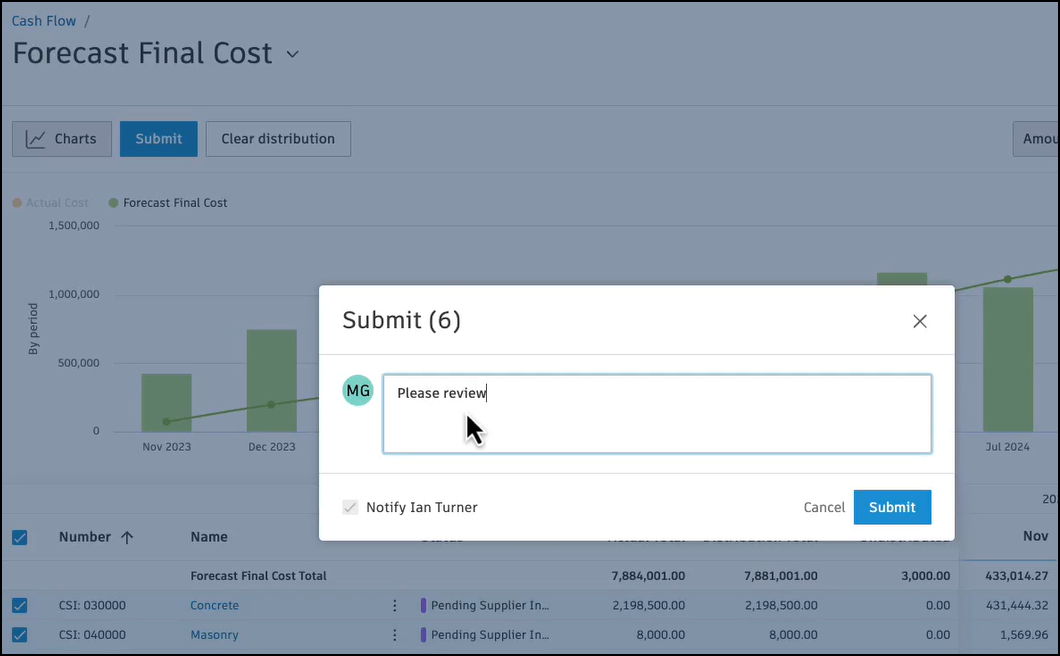
Click Submit to send for review, write a message, and confirm with the Submit button.
Revision of Supplier Input
The general contractor or administrator can now review the distribution items. To do so:
Go to Forecast tool, Cash Flow tab.
Select the distribution items that you want to accept or request revision for, click Accept, or Request revision.
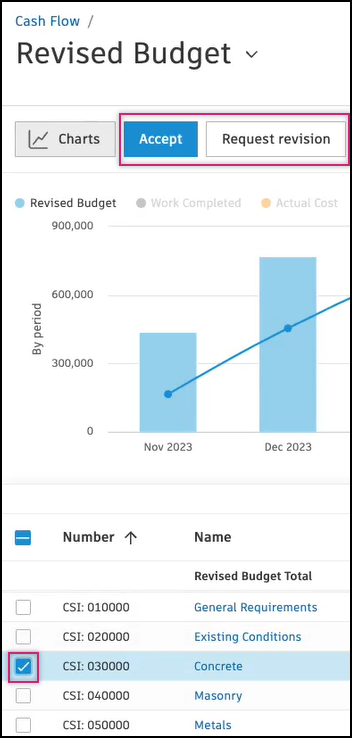
Write a comment in pop-up window and confirm.