
Install Desktop Connector
Download the latest version of Desktop Connector.
To see the latest release notes and learn about what's new, visit our Latest Release and Notes page.
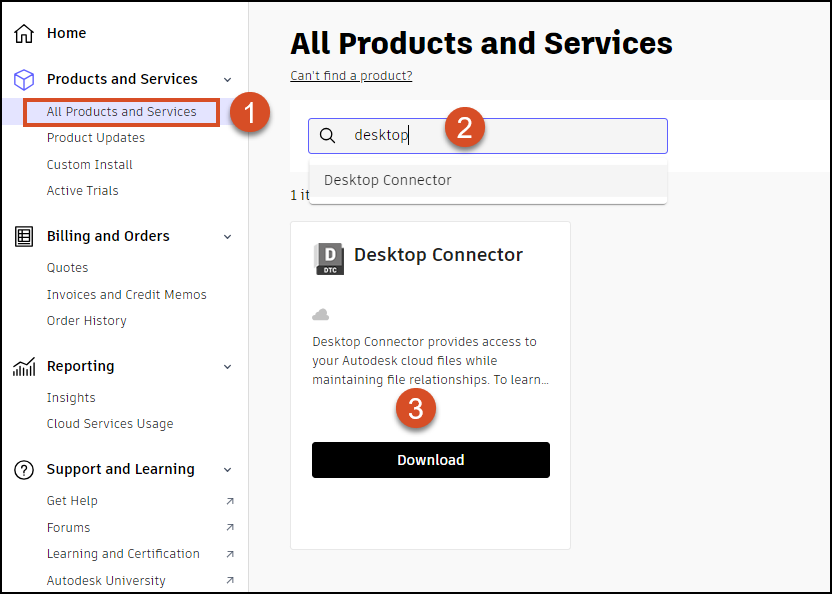
You can also download Desktop Connector through your Autodesk Account Products and Services. Desktop Connector displays with other products as a benefit of your current contracts and subscriptions. Follow the steps as shown:
- Go to All Products and Services
- Search Desktop Connector
- Download and install
 Note:
Note:Desktop Connector's language is determined by your operating system's language settings. Even if you select a different language during download, Desktop Connector will use your system language.
You can also create Custom Install packages through your Autodesk Account on manage.autodesk.com. For more information, view the Admin Deployment Guide.
Update Desktop Connector
If you already have Desktop Connector installed and want to upgrade to the latest version, refer to Update Desktop Connector.
Administrators can update Desktop Connector version 17.1 and above through Autodesk Access.
Install Stopped
If you tried to install Desktop Connector and received a warning that Desktop Connector is still running, follow these steps:
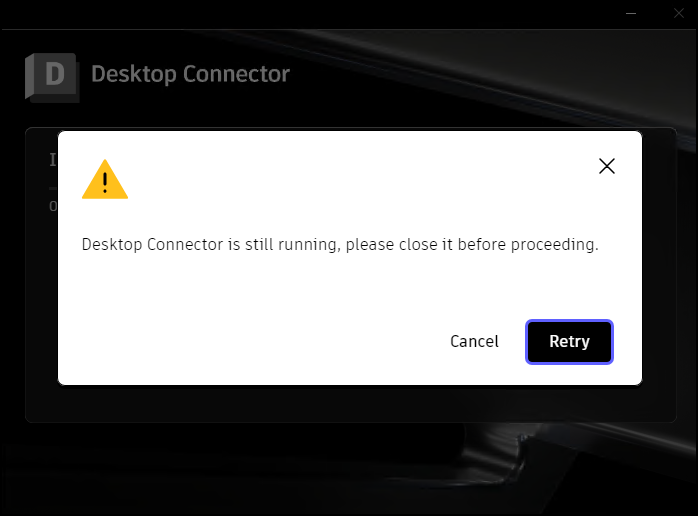
- Cancel the install.
- Exit Desktop Connector by selecting the tray icon
 , right-click, and exit the program.
 - Once you Exit, rerun the Desktop Connector installer.
Install Walk-Through for Version 16.9 and Above
Download Desktop Connector as detailed previously in Download Installation Files.
Double-click the
.exefile to install/upgrade Desktop Connector.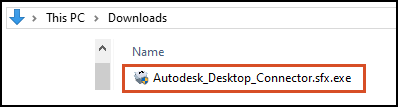
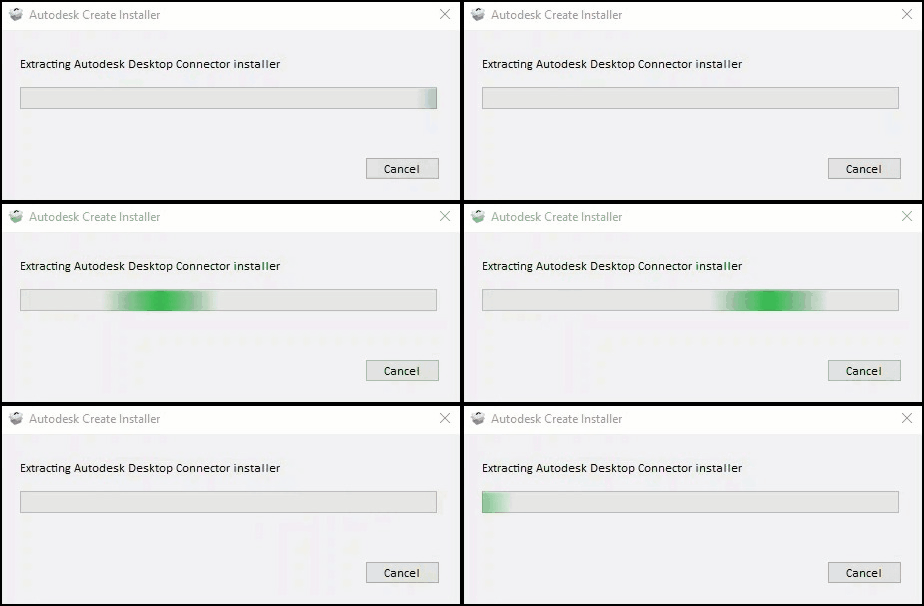
The installer will unpack and prepare your files for installation.
Once your download is complete you will be presented with a dialog to Open in Folder or Run Installer.
- Open in Folder: This will open up the folder in File Explorer
 where the install files are located.
 - Run Installer: Starts the install of Desktop Connector.
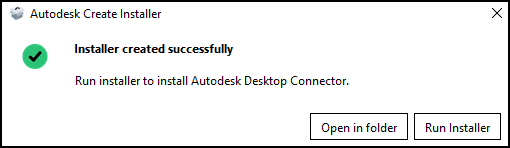
- Open in Folder: This will open up the folder in File Explorer
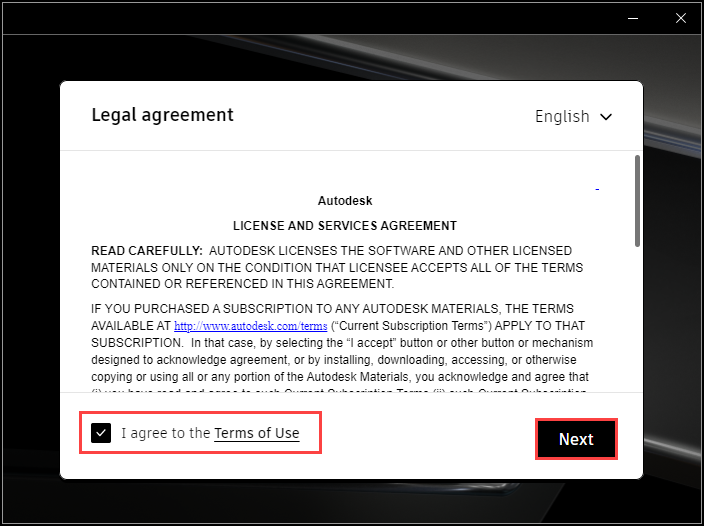
Read and check I agree to Terms of Use and select Next.
You can use the default program file location: C:\Program Files\Autodesk\Desktop Connector or change the location.
Note: Changing the location during an install update (installing newer version over an already installed one) will lose the setting of whether Desktop Connector was in online or offline mode. If new files are added to the workspace while Desktop Connector is in offline mode and before going online, the location of the install is changed through an upgrade install.- Best practice is to go offline and then back online to confirm that those files are uploaded to the data source.
Important: Changing this location will not change the location of where the Desktop Connector workspace is stored.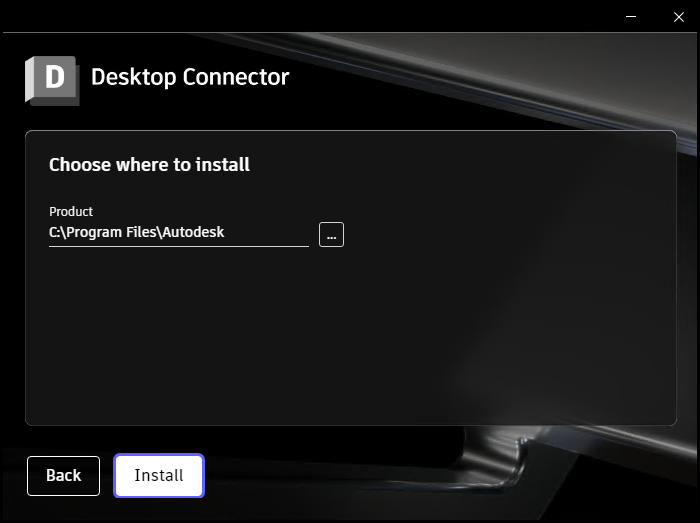
Select Install.
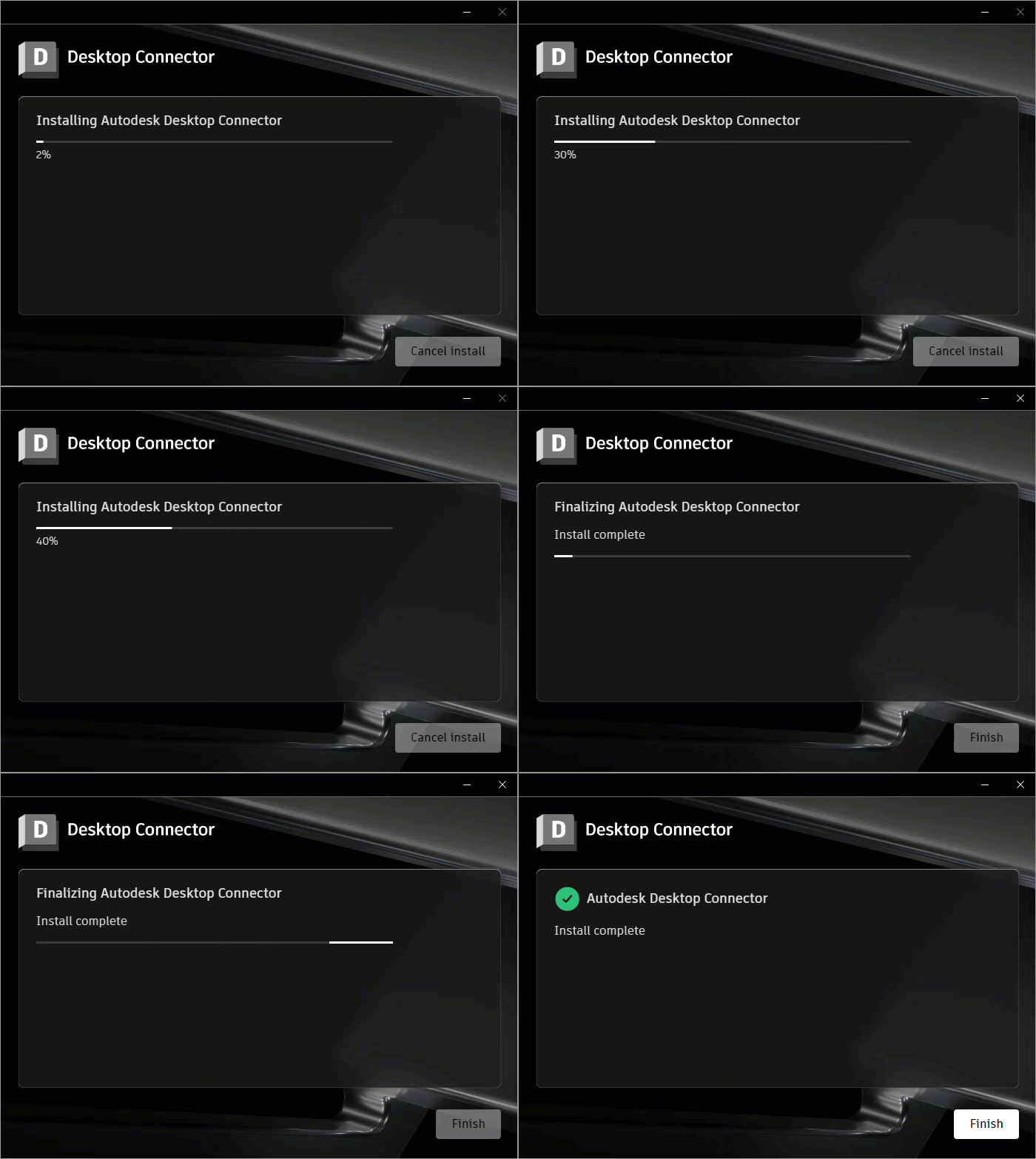
You are now ready to use Desktop Connector.
When the installation finishes, Sign in to get started.
Related Concepts: