
Bring Your Own Data overview
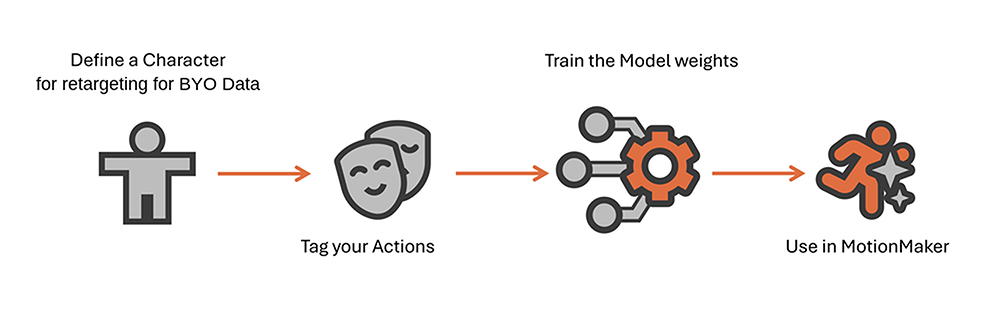
Bring Your Own Data (BYO Data) lets you train MotionMaker on your own animation data and use the trained model to generate motion for custom characters and action styles.
Source animation can come from motion capture or hand-keyed scenes. The source animation must be retargetable to a MotionMaker standard character, typically through HumanIK or a custom retargeting workflow.
Bring Your Own Data workflow
The Bring Your Own Data workflow includes these stages:
- Set the MotionMaker Library location.
- Create a standard character.
- Define an action style.
- Set up scenes.
- Tag actions.
- Export training data.
- Train the model.
- Use the custom model.
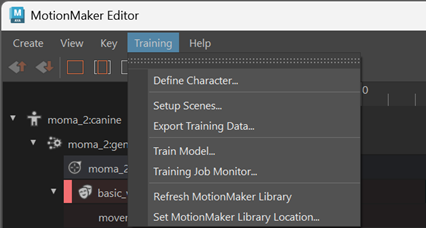
MotionMaker Library
The MotionMaker Library contains the files MotionMaker uses to find standard characters, action styles, rig files, and ML model packages.
Custom resources must be stored in a configured MotionMaker Library location before they are available in the MotionMaker Editor. After adding or editing library files, refresh the MotionMaker Library so the updated resources are available.
Standard characters
A standard character defines the character structure MotionMaker uses for training, retargeting, and generation.
A standard character definition includes joint and contact information, such as across pair joints, gaiting joints, terminal joints, skip joints, and contact joints.
For best results, use a character rig with a HumanIK characterization. HumanIK enables automatic retargeting during scene setup. If the source rig cannot be retargeted through HumanIK, advanced workflows can use a custom retargeting system.
When you save a standard character definition, MotionMaker creates a character definition file and a corresponding rig scene file. The rig scene file namespace must match the character definition namespace.
Action styles
An action style defines what a character can do and organizes motion into action groups.
Action groups contain mutually exclusive actions. For example, a movement group can include actions such as default and jump. Actions from different groups can be combined, such as a movement action and an emotion action.
Action styles are associated with a specific standard character name and version.
Setup scenes
Scene setup prepares source animation scenes for tagging.
During setup, MotionMaker connects the source animation to the selected standard character and creates new scenes ready for action tagging. If HumanIK is set up on the source character and animation, retargeting can happen automatically.
Action tagging
Action tagging identifies the action clips where specific actions or styles occur in the prepared scenes.
An action clip is the frame range where an action tag is valid. Each action clip has a start frame, an end frame, and an assigned action tag.
Use the MotionMaker Editor to tag each action clip. For example, tag the beginning of a jump with Jump, then tag the frame where the character returns to baseline motion with Default.
Tags are used when exporting training data so the model can learn which motion belongs to each action.
Training data
Exporting training data converts tagged scenes into data used to train an ML model. The export evaluates each tagged scene and writes motion data and metadata for the selected standard character and action style.
Set the model frame rate during export. For best training quality, use the same frame rate as the source scene. For best generation performance, use the frame rate at which the motion will be generated. For example, if the production scene will generate motion at 24 fps, export the training data at 24 fps.
Only integer-based frame rates are supported.
Training data quality affects model quality. Include the range of motion the model needs to generate, such as turns, straight movement, acceleration, deceleration, backwalks, sidewalks, and transitions between actions.
Model training
Training creates the ML model package that MotionMaker uses to generate motion from the custom data.
MotionMaker training jobs appear in Maya's Job Manager. Use the Job Manager to track training progress and access the output model folder when training is complete.
MotionMaker saves model checkpoints during training. Each model package uses the .mldf file extension.
Checkpoint model packages use the following naming pattern:
<action_style>_<training_id>_e<epoch_count>.mldf
In the filename, e indicates the epoch count. For example, western_horse_001_e049.mldf is a checkpoint model package for the western_horse action style at epoch 49.
Custom models
After training, store the ML model package in a configured MotionMaker Library location and refresh the MotionMaker Library.
Use the generator node ML Models section to assign the model to an action style. Click Edit to open the ML model mapping dialog, select the model for the action style, and click Apply.
The selected model is used the next time MotionMaker generates motion.
ML models are identified by character name, character version, action style name, generator name, and model name.
Updating training data
Existing training data may need to be rebuilt after changes to a standard character, source setup, or action style.
Use a new standard character version when a change affects motion generation or training data compatibility, such as changes to joint count, joint order, default joint pose, gaiting joints, across pair joints, skip joints, root joints, or retargeting settings.
After a breaking change, update the retargeted and tagged scenes, then re-export the training data and retrain the model.
MotionMaker includes script modules that can scan and rebuild training scenes. These modules can be useful when you need to update existing tagged scenes after changing scene data, such as the action style definition, standard character type, or standard character version.
You can also use the scan and rebuild workflow to update training scene information before re-exporting training data. For characters with HumanIK characterization, this workflow can also be used to generate mirrored animation.