
This example shows you how to delete an intersection in a hole. Starting with this model:
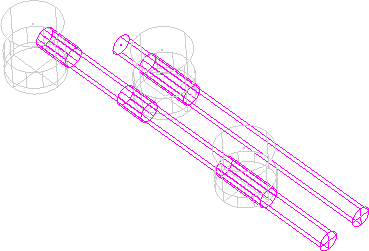
The holes are in two hole feature sets: the three white holes in one hole feature set and the two magenta holes in another (currently active) hole feature set.
Note: To create the intersections from the Hole Feature Sets context menu, select Find hole intersections.
- Select the hole with three intersections.
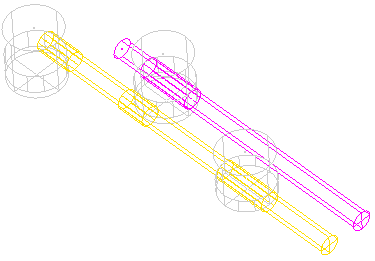
- From the individual Hole Feature Set context menu select Edit Holes to display the Edit Holes dialog.
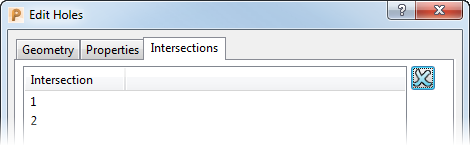
- Click the Intersections tab.
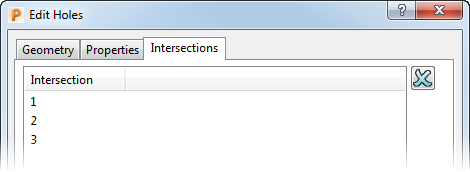
This shows there are three intersections with the selected hole.
- Select intersection 1 in the left side of the dialog.
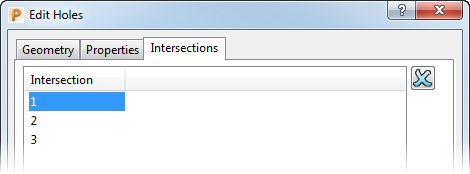
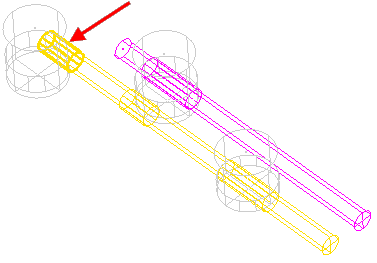
This displays the selected intersection with a thicker outline:
- Click Delete
 to delete the intersection.
This deletes intersection 1 and renames the remaining intersections from 2 and 3 to 1 and 2.
This updates the hole feature set to remove one intersection:
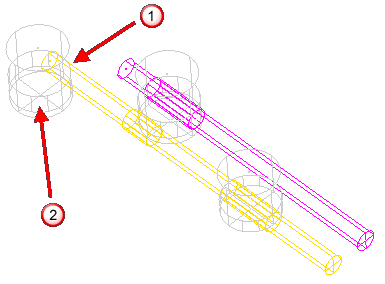
 The deleted intersection.
 The intersection with the other hole remains.