
How to Archive and Reactivate a Project
With few simple steps, you can archive and reactivate a project in AutoSpecs. The project will be removed from your project's Active page and will be sent to the project's Archive page. You can reactivate the project again when necessary from the archive page.
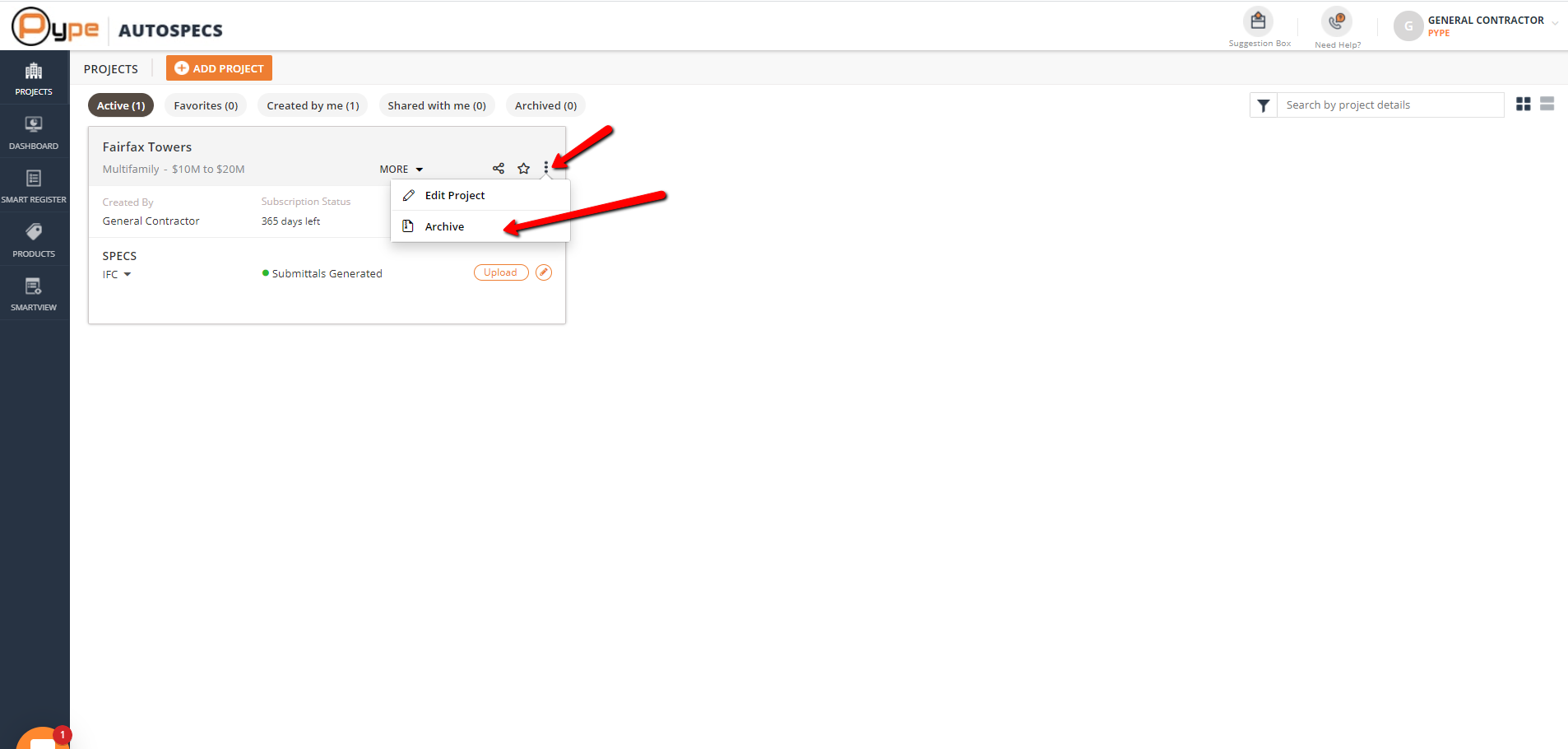
Step 1:
Selection of project to be archived. Search for the project you want to archive and click on the "Vertical Ellipses" icon (3 vertical dots) of that project. Then click the "Archive" icon.
Step 2:
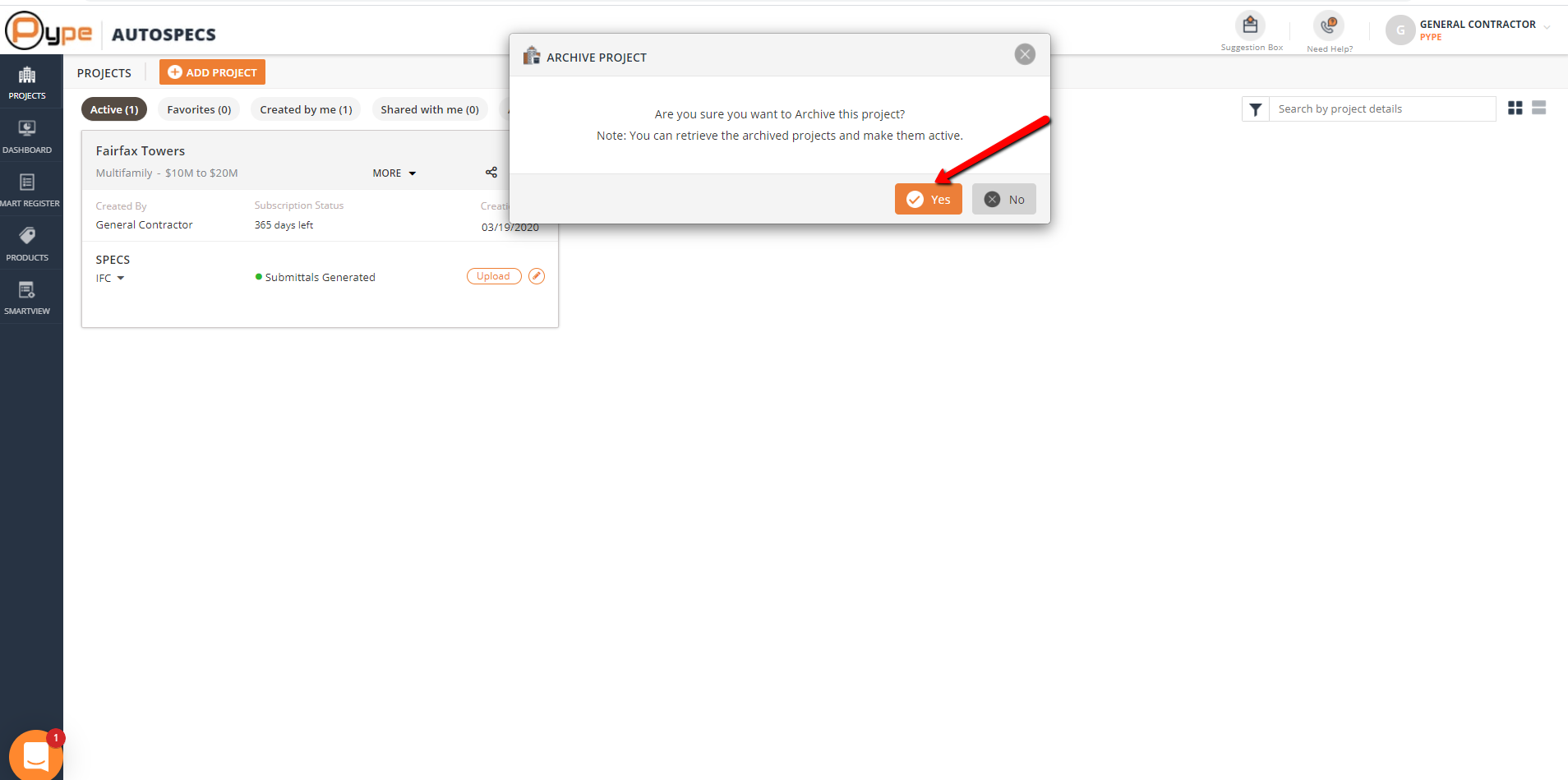
Click on 'Archive' option.
In the popup, click on 'Yes' icon to archive the project. You can always retrieve the archived projects and make them active again.
Step 3:
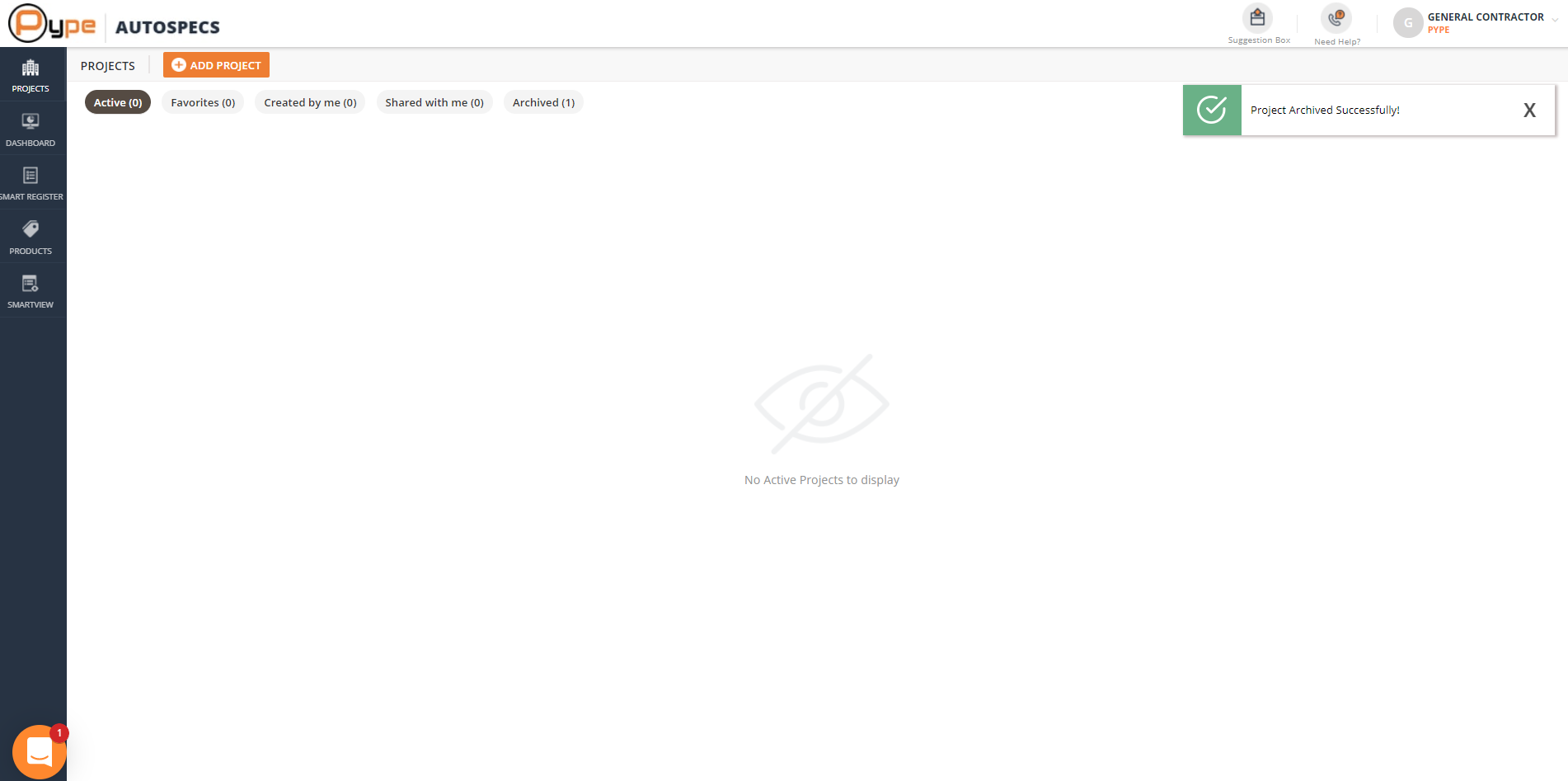
Project successfully archived.
Once confirmed, your project will be deleted from the projects page and a confirmation message saying 'Project Archived Successfully' will be shown.
Step 4:
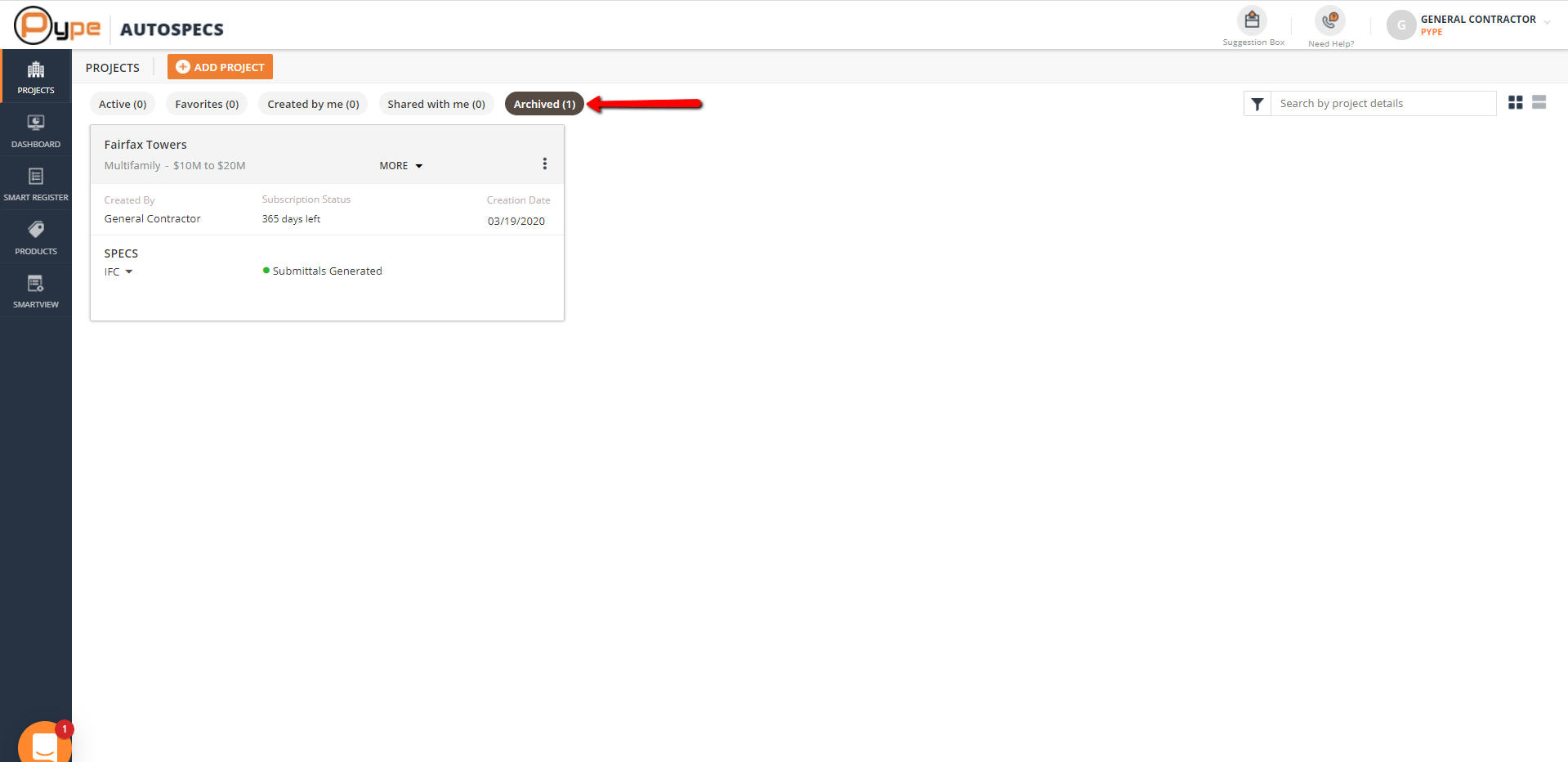
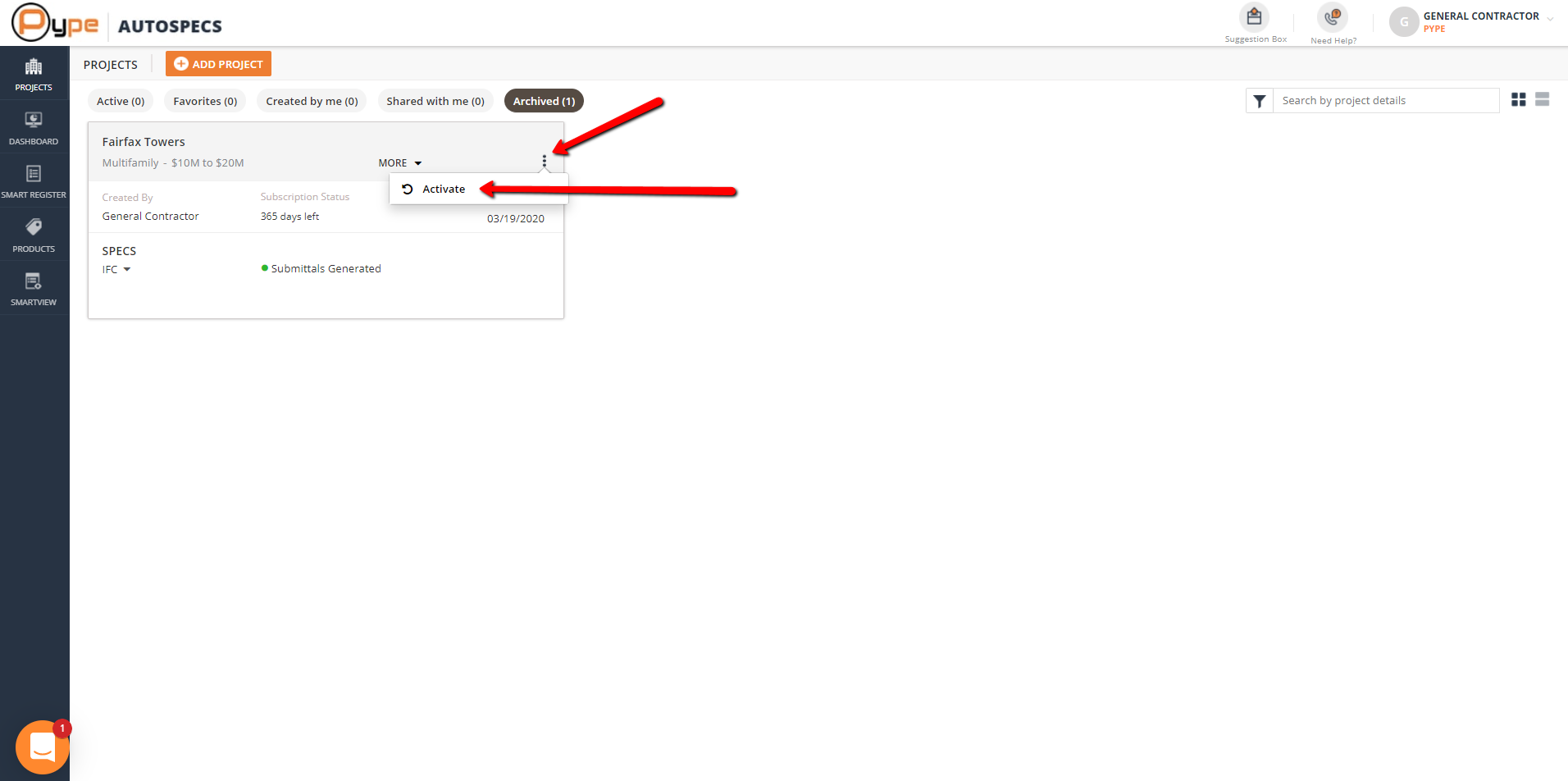
To reactivate the project, click on the Archived filter icon (Icon with Numeral Showing). The archived view will let you see all the projects that have been archived.
Step 5:
Click on the "Vertical Ellipses" icon (3 Vertical Dots). Then click "Activate"
Step 6:
Click on the 'Yes' icon and confirm that you want to reactivate the project.
Step 7:
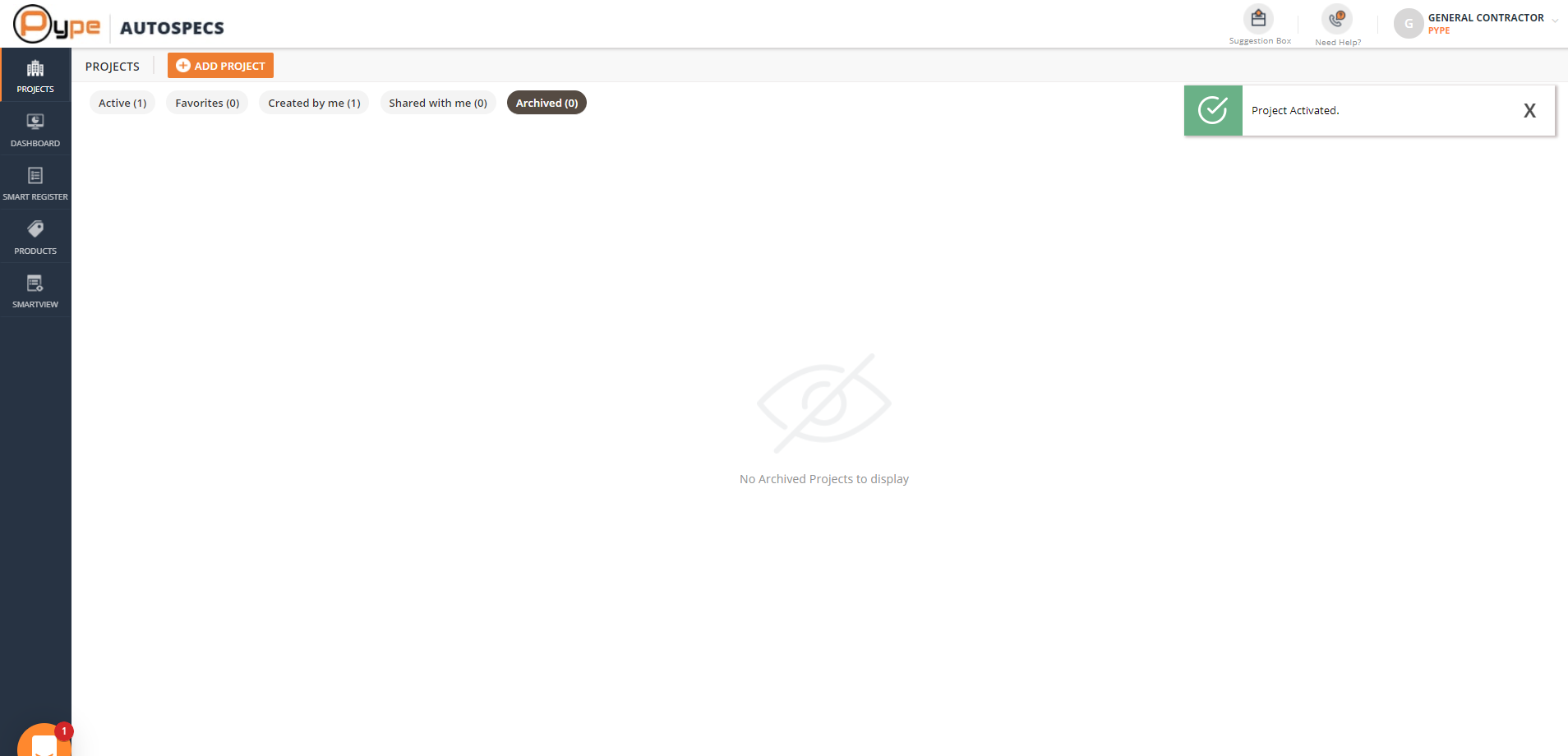
You will receive a confirmation message of project activation.
Step 8:
Your project is successfully reactivated and you can see it in the projects page.
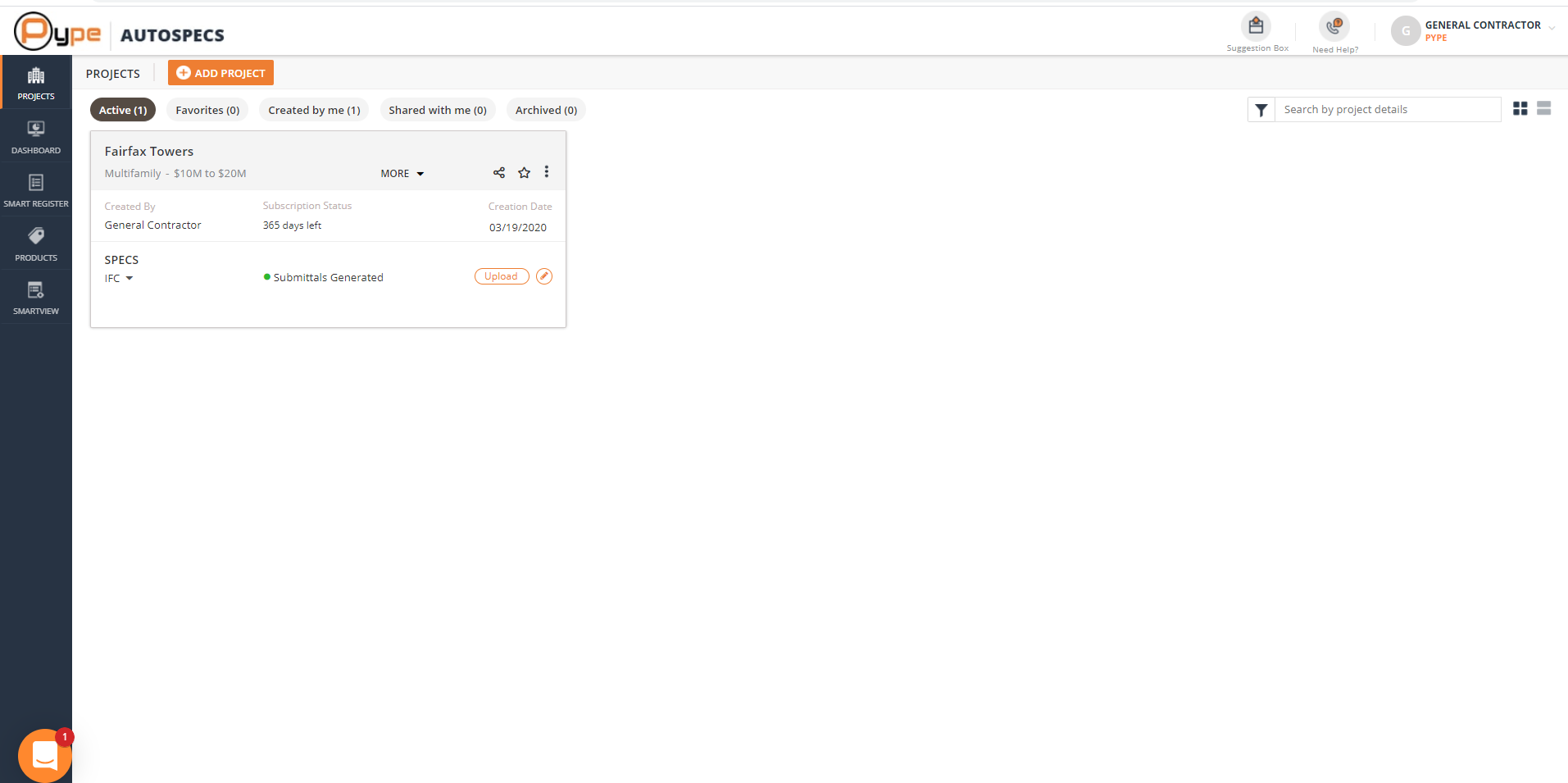
Once you see the project in projects page, you can access all the information of the project as before.