
Welcome to TruFiber learning
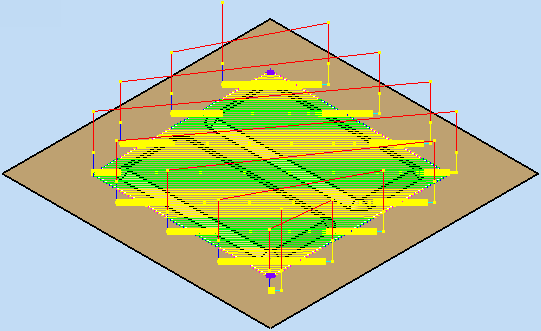
Autodesk® TruFiber is designed to support composite manufacturing processes such as Automated Fiber Placement (AFP) and Automated Tape Laying (ATL) using data from Autodesk® TruPlan. It enables you to manage multiple processes and generate tool paths with their associated NC codes for manufacturing.
To learn more about TruFiber, use the panel on the left to browse the table of contents. To get back to this home page at any time, in the upper-left corner, click the TruFiber logo.
TruFiber release notes
2019
See the latest readme for information on known issues and more.
- Support for editing rollers that are in use.
- Edit Laying Points: Tilt angle will be kept even if Update Collisions fails, more accurate results for Show Collisions.
2018.2 Update
See the latest readme for information on known issues and more.
- Snap collision points: When creating a collision point, hover over geometry to highlight it, then click to snap the collision point to it.
- View head and roller: When editing a toolpath, show the machine head and roller from the ribbon so you can check tool motion and collision avoidance.
- Point triads: Move, rotate, and translate rosette points and linking points using click-and-drag on point triads.
- Process table: Create and apply views, copy and paste values, and import and export data.
- Fiber Placement dialog box Strategy tab:
- Course Processing > Automatically Break Courses: If a course has a range along it where no tows are laid longer than the Minimum Course Break Distance, TruFiber can break the course into smaller courses.
- Course Processing > Normal vector smoothing: Enable normal vector smoothing to smooth vector transitions in cases where there are sharp changes in normal vector angles.
- Point Tolerances > Minimum and Maximum Point Separation and Point Chord Tolerance: Control distance allowed between points in the tool path.
- Point Tolerances > Additional buffer distance: Set a buffer area around the ply to make sure that the tool path follows the surface.
- Browser: Drag-and-drop and copy and paste to reorder items.
- File size: File size has been greatly reduced.
2018.1 Update
See the readme for information on known issues and more.
- Collision avoidance: Create collision points in the head and roller, then customize collision avoidance in the Laying Points dialog box. Also, collision avoidance can be enabled or disabled in the Strategy tab of the Fiber Placement dialog box.
- Probing operation: Create at least three probing points, then use them to create a probing operation. The probing toolpath can be included in the output (.aptsource) file.
- Layup direction-based tool path: The toolpath is adjusted based on the positive or negative layup direction you use.
- Re-compute tool path: After you make changes to fiber placement, the toolpath will be in a "stale" state, meaning it needs to be re-computed for it to be up-to-date.
- Lock and unlock toolpath: Lock toolpaths that you do not expect to change. This happens by default after editing the toolpath. Lock Toolpath is implemented as a context menu command for the toolpath node.
- Process zones: You can now create areas with customized manufacturing parameters.
- Process table: View, compare, and batch edit operations. Adjust filters within the table to show only certain types of operations.
- Document Settings, Contextual and Detailed Info, and the Collision Inspector have all been implemented.
- Save as, Save Copy As, and Save Copy As Template are now supported.
- Find in window: This has been implemented in the context menu for several browser nodes. It finds the corresponding object in the application window and zooms in automatically.
- Browser tree : Expand/collapse status is now persistent when closing and re-opening files.
Version 2.0
- Equipment Creation: Set up equipment that matches what you use to manufacture your parts. Start by creating probes, rollers, and heads, then create a machine that uses these elements.
- Toolpath Generation: Once you have set up program operations, you can generate a toolpath.
- Process Zone: Create process zones so you can use specific manufacturing parameters for an area.
- Toolpath Editor: Once your toolpath is created, you can modify it.
- Edit courses, including parameters such as approach and retract values, feed rate, order and direction, and so on.
- Edit laying points.
- Edit links, including linear and safety planes, and rapid approach and retract distance.
- Edit linking points.
- Post-Process: Once you have generated a toolpath, you can post-process your project to generate NC codes for manufacturing.
Version 1.0
- First release of TruFiber on Inventor