
Issue:
The Autodesk Fusion hub admin is no longer with the company. The company/current Autodesk Fusion team members would like to do the following:
- Change access to files in the hub.
- A new team member needs to be added.
- The hub admin rights need to be reassigned to another individual.
- Projects need to be transferred from the former employee's team hub to another.
- Shared files are from inactive Autodesk Fusion Education version.
Solution:
To proceed, the Autodesk Account credentials of both the former hub admin and the new desired hub admin are required. See the following steps to restore access:
-
Restore access to the credentials of an Autodesk account with a company email domain.
- Contact the company IT Department to confirm access to the former employee's mailbox.
- If the email account has been deleted, re-enable the account.
- Attempt to sign in to Fusion Team using the email of the former employee who is the hub admin.
- Use the option to recover the password.
- In the former employee's mailbox, use the recover password email to change/recover the account password.
- Sign in with the former employee's account and the recovered password.
- Contact the company IT Department to confirm access to the former employee's mailbox.
- Note: If credentials are not recovered/restored, manually export and reimport the projects into the Autodesk Fusion Hub.
Reassign the hub admin:
- Navigate to the Fusion web client.
- Sign in with the credentials of the former employee, recovered in above section if needed.
- Click the profile icon in the top-right corner.
- Access the Admin portal.
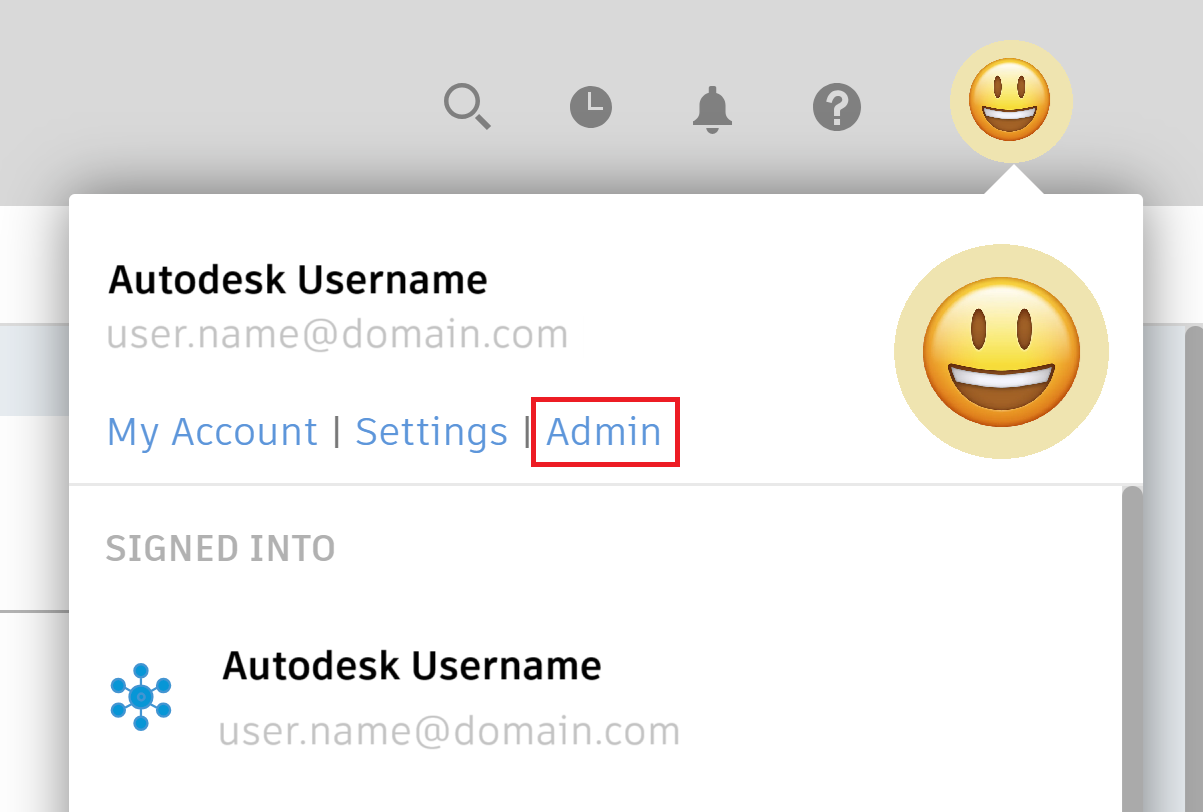
- Assign a new hub admin:
- If the intended hub admin is not already a member of the hub, work through the following: Invite and manage members.
- If the intended hub admin is a member of the hub, work through the following: How to add a hub admin in a Autodesk Fusion Team Hub.
- Once the new hub admin has been assigned, sign out of the current account.
- Log back into the Fusion web client with the credentials of the newly assigned hub admin.
- Work through the "deactivate and activate hub members" section in the Invite and manage members page to deactivate the previous hub admin. (Note: This will not remove them from the member list, but will set them as an inactive member.)
Transfer the data from Single User Storage to Hub:
If the data is stored in Single User Storage where the owner is inactive:
- Navigate to the Fusion Hub at Fusion Hub's Dashboard.
- Sign in with the credentials of the former employee, recovered in above section if needed.
- Follow the steps from this article: How to transfer Autodesk Fusion projects from Single User Storage to Hub.