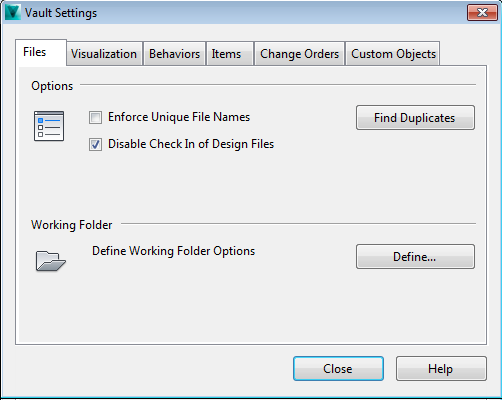
The Files tab on the Vault Settings dialog contains options for enforcing unique file names, disabling design file check in, specifying working folder options, and locating duplicates.
Note: In Autodesk Vault Basic, you can create and modify properties on the Files tab as well.
Access the Files tab on the Vault Settings Dialog
- Click Tools
 Administration Vault Settings.
 - Select the Files tab.
Options
- Use Find Duplicates to locate duplicate file names in the vault to help resolve any file name conflicts before enforcing unique file names.
- As a best practice, all CAD design data should be added to a vault using the add-in client for the corresponding CAD application so as to retain and maintain file relationships. CAD data cannot be dragged and dropped into a vault or added through the vault client. By default, this practice is enforced. Turn off the Disable Check In of Design Files check box to allow CAD files to be added without using the corresponding add-in client. By doing so, file relationships will not be maintained.
Working Folder and Inventor Projects
- Click Define to enforce a consistent working folder for all clients or allow clients to define their own working folder. You can also enforce a default Inventor project file for all clients or allow clients to use last Vault controlled project file.
Properties (Autodesk Vault Basic Only)
Note: Properties management for Autodesk Vault Workgroup and Vault Professional is located on the Behaviors tab.
Click Properties to manage user-defined properties. All of the extracted properties being tracked by the vault can be managed using the Property Definitions dialog box.