Use this dialog box to enter traverse data, to select an adjustment method, and to review the adjusted data.
Entry Tab Icons
-
Create a New Traverse

- Creates a new traverse in the dialog box.
-
Open an Existing Traverse File

- Opens an existing traverse file. You can open a TRV2 file (the current file format) or a TRVX file (an earlier file format created in the previous coordinate geometry editor tool). When the file is opened, the dialog box is populated with the traverse data, and a preview of the traverse is displayed in the drawing.
-
Load Traverse From Existing Graphics

- Loads traverse data from a polyline, automatically creating traverse sides between each polyline vertex.
-
Save the Current Traverse

- Saves the traverse to a TRV2 file.
-
Save a Copy of the Traverse

- Saves a copy of the traverse to a TRV2 file.
-
Refresh

- Refreshes the display of the traverse in the drawing.
-
Create Polyline From Traverse

- Creates a polyline from the traverse. Polyline vertices are created at the beginning and end of each traverse side.
-
Add COGO Points to Drawing

- Creates COGO points at the beginning and end of each traverse side. If there is an existing COGO point that is used in the traverse at the beginning or end of a traverse side, an additional COGO point is not added at that location.
These COGO points are dynamic to the traverse. If you edit data in the COGO Editor so that the traverse is changed, the COGO points that are derived from the traverse will move accordingly.
Note: Points that are created are listed in the COGO Point column on the Entry tab of the COGO Editor.
Entry Tab
Use the Entry tab to enter traverse data.
- Side
- Specifies the type of traverse side to create: Point, Line, Arc, or Side Shot. The first side type of the traverse must be a point.
- Point - Line - Chord
-
Use these columns to enter data for points, lines, and chords.
Note: To enter chord data, select Arc as the Side type and enter the angle and distance in the Point - Line - Chord section of the dialog box, and enter the radius in the Arc section of the dialog box.- Angle: Specifies the angle for the traverse side.
You can enter angles using several methods. Letters in entries may be capitalized or lower case.
Angle Entry Types Angle Entry Type Example/Description Directions N S E or W Note: North, South, East, and West can also be used.Directions and angle N30W (bearing) or N45 (azimuth) Quadrant and angle 1..45, where 1 is the quadrant and 45 is the angle. Right or left turned angle R45 or L45 Note: This angle is turned from the foresight.Degrees, minutes, and seconds 63 51 25 or 63.5125 Note: This angle is turned from the backsight. Entering minutes and seconds is optional.The angle between two COGO points 1 to 2 where 1 and 2 are the COGO point numbers or PT1 to PT2 where PT1 and PT2 are COGO point names. 1...2 where 1 and 2 are the COGO point numbers or PT1...PT2 where PT1 and PT2 are COGO point names.
Selected locations Click  and select two points to define a direction in the drawing.
Mathematical equations (1 to 2)/2 Note: The following operators are valid:- +
- -
- /
- *
- ( )
Tip: You can also define the angle and distance for side by right-clicking a row in the COGO Editor and selecting Pick Bearing and Distance on the context menu. After selecting the command, define the bearing and distance by selecting a point in the drawing. - Direction: Displays the direction of the traverse side (read-only).
- Distance: Specifies the distance of the traverse side.
You can enter distances data using several methods.
Distance Entry Types Distance Entry Type Example/Description Numeric 100, 100m, or 100' Note: The unit of measure calculation depends on the parameters specified on the Units and Zone tab of the Drawing Settings dialog box. For more information, see About the COGO Editor.COGO points 1 to 2 where 1 and 2 are the COGO point numbers, or PT1 to PT2 where PT1 and PT2 are COGO point names. 1...2 where 1 and 2 are the COGO point numbers or PT1...PT2 where PT1 and PT2 are COGO point names.
Selected locations Click and select a two points to define a distance in the drawing.
Mathematical equations 100 + 25 or (1 to 2)/2 Note: The following operators are valid:- +
- -
- /
- *
- ( )
- Length: Displays the length of the traverse side (read-only).
- Location: Specifies the location of point data.
You can specify locations data using several methods.
Location Entry Types Location Entry Type Example/Description COGO points Enter 1 where 1 is a COGO point number, or PT1 where PT1 is a COGO point name, or click and select a COGO point in the drawing
Coordinates Enter 200,200, or click , enter
X at the Command line, and then and select a location in the drawing.
- Reverse: When selected, specifies that the direction of the traverse side is reversed.
- Angle: Specifies the angle for the traverse side.
- Arc
-
Use these columns to enter data for arcs.
- Angle: Specifies the angle of the arc. For information about methods for entering angles, see the Angle Entry Types table above.
- Radius: Specifies the radius of the arc. A positive value turns the arc to the right. A negative value turns the arc to the left. For information about methods for entering radius data, see the Distance Entry Types table above.
- Δ Angle: For a tangent curve or radial curve, specifies the central angle, measured from the center of the curve, from the beginning of the curve to the ending point of the curve. A positive delta angle indicates the arc goes clockwise while a negative delta angle indicates the arc goes counter-clockwise. For information about methods for entering angles, see the Angle Entry Types table above.
- Length: Specifies the length of the arc. For information about methods for entering length data, see the Distance Entry Types table above.
- Center: Specifies the center point of the arc. For information about methods for entering center point data, see the Location Entry Types table above.
- Flip:
When selected, flips the angle of a chord.
Note: This check box can only be selected for arcs that are defined by specifying chord data.
About Arc and Chord Definition and Graphical Appearance
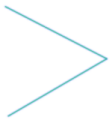
When you define an arc in a traverse, two radial segments will be displayed as temporary graphics in the drawing, as shown in the following illustration.
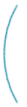
When you define an arc using the chord method (select Arc as the Side type, enter the angle and distance in the Point - Line - Chord section of the dialog box, and enter the radius in the Arc section of the dialog box), the arc segment will be displayed as a temporary graphic in the drawing, as shown in the following illustration.
- COGO Point
- Displays the numbers of the COGO points that have been inserted into the drawing by using the
Add COGO Points to Drawing
option.
- Context Menu
- You can right-click to access commands in a context menu.
- Pick Bearing and Distance: Defines the bearing and distance from a point you select in the drawing.
- Insert Row Before: Inserts a new row before the selected row.
- Insert Row After: Inserts a new row after the selected row.
- Delete Row: Deletes the selected row(s).
Note: You can select multiple rows to delete by holding down the Shift or Ctrl key while selecting the rows.
- Move Up: Moves the selected row up.
- Move Down: Moves the selected row down.
- Import Graphics: Loads traverse data from a polyline, automatically creating traverse sides between each polyline vertex.
- Show Column: Provides the ability to control the display of columns in the COGO Editor. After selecting the columns to display or hide, click Apply on the Show Column menu.
Balance Tab Icons
-
Refresh
- Refreshes the display of the traverse in the drawing.
-
Create Polyline From the Balanced Traverse
- Creates a polyline from the balanced traverse. Polyline vertices are created at the beginning and end of each traverse side.
-
Add Balanced Points as COGO Points to Drawing
- Creates COGO points at the beginning and end of each side of the balanced traverse. If there is an existing COGO point that is used in the traverse at the beginning or end of a traverse side, an additional COGO point is not added at that location.
Note: These COGO points are not dynamic to the traverse.
Balance Tab
Use this tab to define a control point, to specify an adjustment method to use, and to review the adjusted data.
- Selection Drop-Down
-
Specifies the adjustment method to use.
Note: The adjustment method drop-down list becomes enabled when two control points are defined for the traverse. The first control point is automatically copied from the Entry tab. Enter the second control point on the last segment row (the row above the Totals row) in the Control Point column.- No Balance: Does not balance the traverse.
- Compass Rule/Bowditch Adjustment: A method of corrections where the closing errors are assumed to be as much due to errors in observed angles as by the errors in measured distances. The closing errors in latitude and departure are distributed according to the ratio of the length of the line to the total length of the traverse.
- Transit Rule: A method of balancing a traverse where the closing errors are assumed to be caused less by the errors in the observed angles than by the errors in measured distance. Corrections are distributed according to the ratio of the latitude and departure of each leg of the traverse to the sums of the latitude and departures of the entire traverse.
- Crandall Rule: A method of balancing a traverse where all the angular error is distributed throughout the traverse and all adjustments to the traverse are due to modifying the traverse distances. The modification distance made to each leg is such that the sum of the squares is a minimum. Corrections corresponding to the closing errors assume that the closing errors are random and normally distributed, and that all the angular error has been adjusted prior to the adjustment routine.
- Rotate and Scale to a Known Line: A method of balancing a traverse where the line between the start and end of the traverse is scaled and rotated to match a known line that is defined between two control points. To use this option, the first and last sides of the traverse must have control points defined.
- Side
- Displays the type of traverse side: Point, Line, or Chord.
- Control Point
-
Specifies the COGO points to be held as control points. The first control point is automatically copied from the
Entry tab. Enter the second control point number or name on the last segment row (the row above the Totals row) in the
Control Point column.
Note: The adjustment method drop-down list becomes enabled when two control points are defined for the traverse.
- Side
-
Displays the data for each traverse side. The data contains the adjustments when an adjustment method is applied.
- Direction: Displays the direction of the side from the start of the side to the end of the side.
- Distance: Displays the distance of the side. For arcs, this value is the chord distance.
- Length: Displays the length of the side. For arcs, this value is the arc length.
- Latitude: Displays the difference between the Y coordinate (northing) at the end of the side and the Y coordinate (northing) at the start of the side.
- Departure: Displays the difference between the X coordinate (easting) at the end of the side and the X coordinate (easting) at the start of the side.
- Azimuth: Displays the North azimuth from the start point of the side to the end point of the side.
- Turned: Displays the turned angle between the previous side and the current side. The reference line (or baseline) from which the angle is turned is formed by the start and end points of the previous side, and the angle is measured by turning right from the reference line to the current side.
- Adjustment
-
Displays the changes applied to each traverse side when an adjustment method is applied. If no adjustments are made, the values are zero or the fields are blank.
- Δ X: Displays the difference between the original X (easting) value and the adjusted X (easting) value at the end of the side.
- Δ Y: Displays the difference between the original Y (northing) value and the adjusted Y (northing) value at the end of the side.
- Δ Direction: Displays the difference between the original North azimuth and the adjusted North azimuth of the side.
- Δ Distance: Displays the difference between the original distance and the adjusted distance of the side.
- Δ Angle: Displays the difference between the original turned angle and the adjusted turned angle of the side.