The first house, which we will call Facade1, is based on a single photograph, adjusted in the way described in Some Pointers: Preparing a Photo Before You Use It to Build a Model. In this lesson, you take several steps to set up the scene and the modifier stack, so that modeling will go more easily when you add detail to the façade.
Begin Building the Model
The house begins as a simple plane.
If necessary, set up optimal bitmap display:
- If you use one of the legacy viewport drivers—Direct3D or OpenGL—then you should optimize bitmap display before you do this tutorial.
The default viewport driver is the Nitrous driver. If you are not sure which driver 3ds Max currently uses, choose Customize
 Preferences, go to the Viewports tab, and look at the Display Drivers group. If a Nitrous driver is active, you don't need to optimize bitmap display.
 If you do use a legacy viewport driver, follow these steps.
Set up the scene:
- On the Quick Access toolbar, click
 (Open File), navigate to the
\scenes\modeling\facades
folder, and open
facade_modeling_start.max.
Note: If a dialog asks whether you want to use the scene’s Gamma And LUT settings, accept the scene Gamma settings, and click OK. If a dialog asks whether to use the scene’s units, accept the scene units, and click OK.
(Open File), navigate to the
\scenes\modeling\facades
folder, and open
facade_modeling_start.max.
Note: If a dialog asks whether you want to use the scene’s Gamma And LUT settings, accept the scene Gamma settings, and click OK. If a dialog asks whether to use the scene’s units, accept the scene units, and click OK.The scene contains a plane to model the pavement, a Daylight system with a sky, a bitmap for the background sky, and a few cameras that are hidden.
Make sure Use Real-World Texture Coordinates is turned off:
- From the main toolbar, choose Customize Preferences.
- On the Preference Settings dialog, go to the General tab.
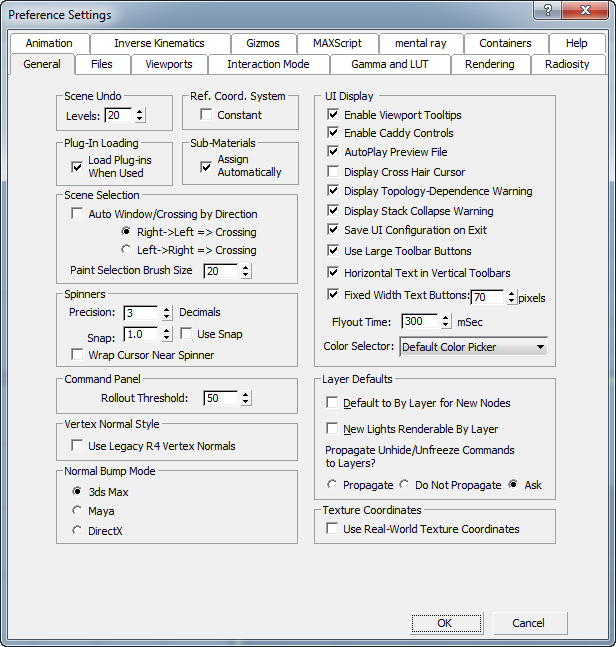
- In the Texture Coordinates group, make sure Use Real-World Texture Coordinates is off, then click OK.
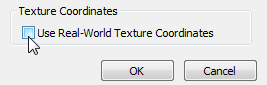
The dimensions of the scene will actually be close to the real-world dimensions, but 3ds Max doesn’t need to enforce that: This option would just add complications to your work.
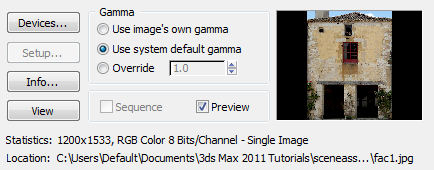
View the reference/texture bitmap, and note its dimensions:
- On the main menu, choose Rendering View Image File. In the View File dialog, navigate to the
\sceneassets\images
folder, and highlight
fac1.jpg.
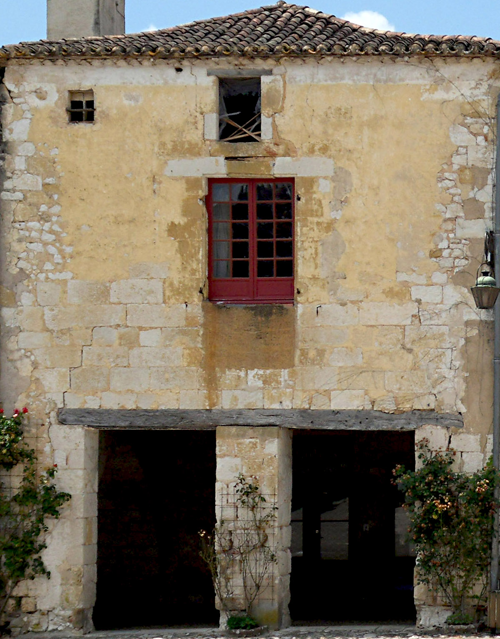
In the lower-left corner of the View File dialog, a status line shows the dimensions of the image, which are 1200 x 1533 pixels. This will become the aspect ratio of the façade.
- Click Open to view the image at full size.
-
 Close the image window after you have looked at the photo, then cancel
Construct the plane that will become the façade:
- On the
 Create panel, activate
  (Geometry), then on the Object Type rollout, click to activate Plane.
 - Near the center of the Front viewport, drag to create a plane.
- On the Parameters rollout, enter 8.7m for the Length (the height), and 6.8m for the Width.
These dimensions roughly correspond to the aspect ratio of the photo: 1533:1200 pixels, or 0.78.
- Also on the Parameters rollout, change Length Segs and Width Segs to 1.
(After you convert the plane to an Editable Poly surface, you will subdivide it by using the polygon tools.)
- Change the name of the plane to Facade1.
- Go to the
 Hierarchy panel. On the Adjust Pivot rollout, turn on Affect Pivot Only, then
  move the pivot vertically so it is at the base of the Facade1 plane.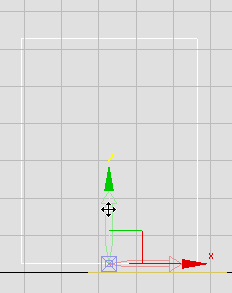
Pivot moved to the base of the plane
- Turn off Affect Pivot Only. With (Select And Move) still active, on the status bar, right-click the X, Y, and Z spinner arrows so the pivot of the plane is now located at the origin (0,0,0).
Setting the Z axis to 0.0 aligns the façade with the Ground object. Setting X and Y to 0.0 simply makes navigation easier, while you are editing the plane.
- Right-click the Facade1 plane, and from the Transform (lower-right) quadrant of the quad menu, choose Convert To Convert To Editable Poly.
Texture the plane:
-
 Open the Slate Material Editor.
 - On the Material/Map Browser panel, locate Materials mental ray, then drag the Arch & Design entry to the active View (the large panel labeled View1 in the center of the Editor).
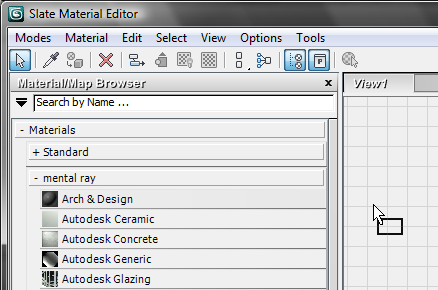
3ds Max displays the Arch & Design material node in the active View.
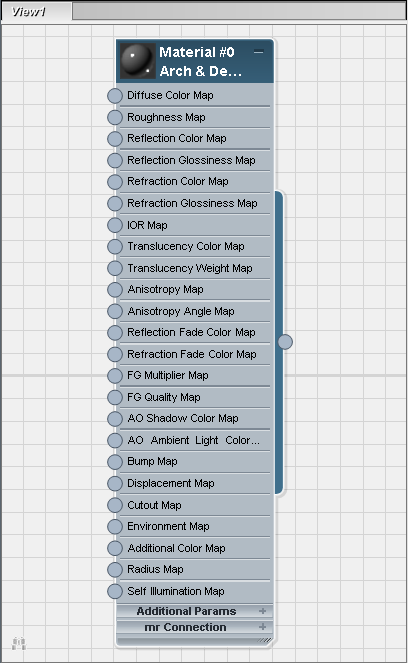
- Double-click the Arch & Design material node to display the material parameters in the Parameter Editor panel on the right.
- Name the material Facade 1.
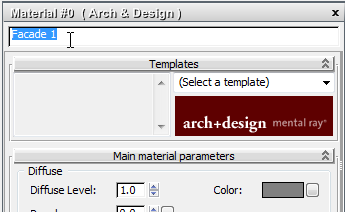
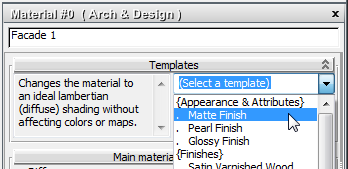
- On the Templates rollout, choose Matte Finish from the drop-down list of templates.
- On the Material/Map Browser panel, locate Maps Standard, and drag the Bitmap entry into the active View.
3ds Max opens a file dialog.
- On the file dialog, choose
fac1.jpg,
turn off Sequence, and then click Open. Important: In the Select Bitmap Image File dialog, be sure to turn off the Sequence toggle.
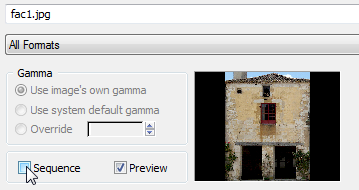
When Sequence is on, 3ds Max attempts to create an IFL animation, and you should open only the single image.
3ds Max adds a Bitmap node to the active View.
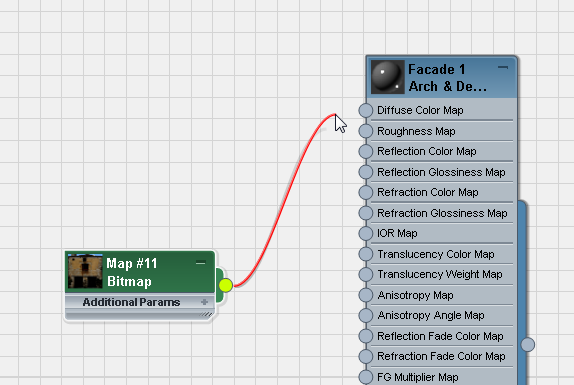
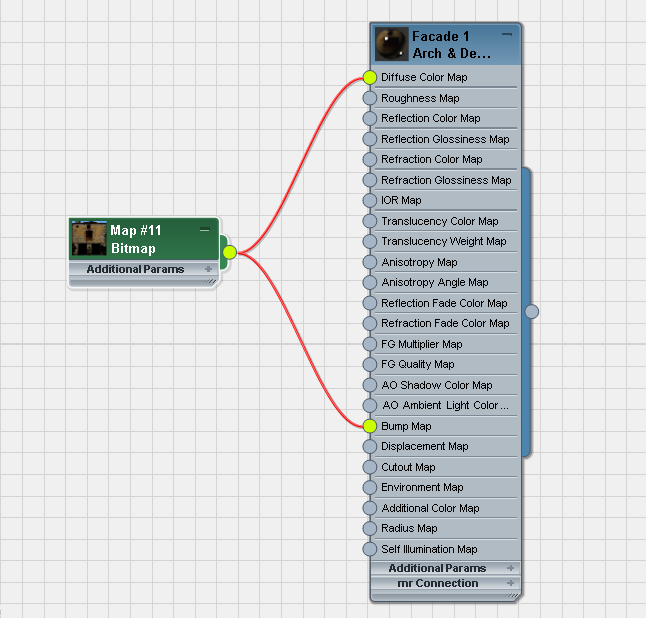
- Drag from the Bitmap node’s output socket (the small circle at the right). A wire appears in the View. Drop the end of the wire on the Arch & Design material’s Diffuse Color Map input socket (the small circle at the left).
- Drag from the Bitmap node’s output socket again, and this time connect the wire to the Arch & Design material’s Bump Map component.
- Click the Facade 1 material node again to make it active, then on the Slate Material Editor toolbar, click
 (Assign Material To Selection).
 - Also on the Slate Material Editor toolbar, turn on
 (Show Shaded Material In Viewport). (If you use a legacy viewport driver, this button's tooltip reads, "Show Standard Map In Viewport.")
 - Close the Slate Material Editor.
- Activate the Front viewport, and press F3 to turn on shading.
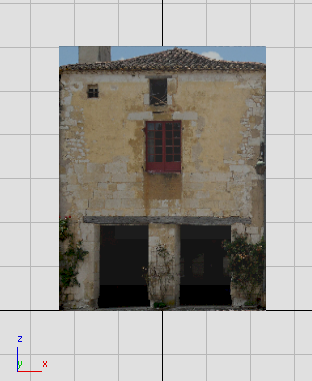
Shaded plane in Front viewport
Save your work:
- Save the scene as facade1_begin.max.
Set Up the Stack so 3ds Max Preserves the Photo Projection
You are almost ready to add detail to the façade. But first, you need to set up 3ds Max so it displays the façade texture consistently, without distortion, and so it clearly highlights selected polygons.
Set up the scene:
- Continue working on your scene from the previous section or open
\modeling\facades\facade_modeling_01.max.
The goal of the steps in this section is to be able to edit the Facade1 poly surface without distorting the texture projected onto it. Editable Poly objects have a toggle, Edit Geometry rollout Preserve UVs, that does a good job of preserving the projection in most cases.
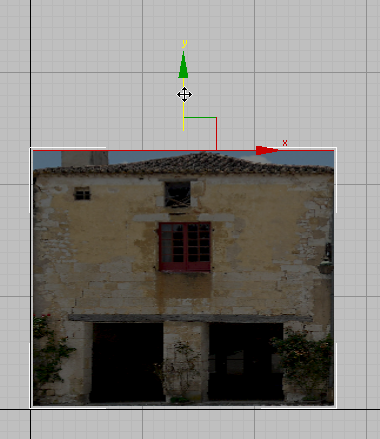
Moving an edge while Preserve UVs is off
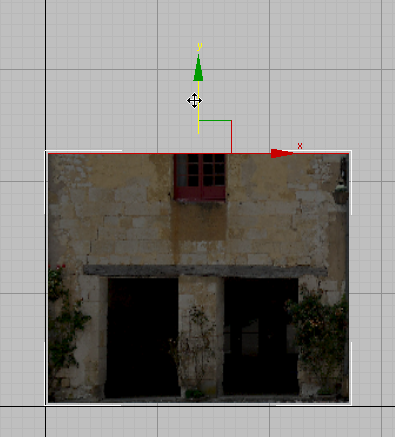
Moving an edge while Preserve UVs is on
The stack setup used in this section has these advantages: It works for surfaces other than Editable Poly, and it preserves the projection when you use 3D methods to shape the roofline, later in this tutorial.
Add a UVW Map modifier:
-
 Select Facade1, then go to the
  Modify panel.
 - From the Modifier List, choose UVW Map.
The UVW Map modifier has no visible effect: It merely provides more explicit mapping control than the implicit mapping provided by the Facade1 object’s texture coordinates.
- In the modifier stack controls, make sure that
 (Show End Result On/Off Toggle) is on.
Add a Poly Select modifier:
- In the modifier stack, go down one level to the Editable Poly object (Facade1).
- From the Modifier List, choose Poly Select.
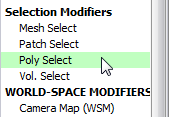
- In the modifier stack controls, make sure that (Show End Result) is on for Poly Select as well.
- In the modifier stack, go to the Editable Poly level. Make sure that (Show End Result On/Off Toggle) is on for the Editable Poly object (Facade1) as well as for the modifiers.
Turning on Show End Result for all three levels of the stack causes the viewports to always display the full bitmap in its final placement, even while you edit the underlying geometry.
Note: Depending on your 3ds Max configuration, when you go to the Editable Poly level, you might see this warning:
For the edits you are doing in this tutorial, it is safe to click Yes and proceed with your work. You also have the choice of turning on Do Not Show This Message Again before you click Yes: That disables display of this warning, but it does so not only for this tutorial, but for all future 3ds Max sessions. The choice is up to you, but for the remainder of this tutorial, we won’t mention the warning dialog again.
Now you have set up the stack so you can see the undistorted bitmap projection, even while you edit the geometry of Facade1.
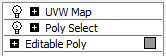
Stack setup for editing a poly surface with a bitmap
Show End Result must be on for all three levels.
One further adjustment corrects for the situation that highlighted polys are hard to see with the default color scheme.
Change the color of selected faces:
- On the Modify panel, with the Editable Poly level active in the stack, scroll down to the Subdivision Surface rollout, and open it if it isn’t already open.
- On the Subdivision Surface rollout, make sure Show Cage is on.
- Click the second of the color swatches that follow Show Cage.
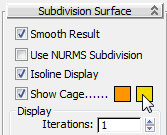
This color is the color of highlighted polygons.
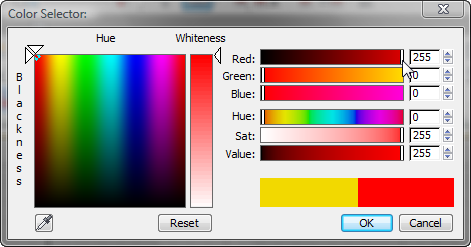
- On the Color Selector, choose a bright red as the highlight color, and then click OK.
In the next lesson, you will turn Facade1 into a three-dimensional façade.
Save your work:
- Save the scene as facade1_stack.max.