About Maya LT Updates
Welcome to the Maya LT 2017 Update 2 What's New, which is an overview of changes to Maya LT since the last update. As of Maya LT 2017, we are maintaining and updating the software regularly, providing new features, and quicker fixes to customer issues.
Maya LT Updates now replace the Service Packs and Extensions. These updates will include defect fixes, and new features.
Updates will be available on the Maya LT Downloads page as a full install of the product on Mac. On Windows operating systems, Maya LT Updates appear in the Autodesk Desktop App, as an incremental install. Each update will contain the fixes and features of any update prior to it.
Similarly, the Maya LT Help itself will be refreshed for each update. Look for specific What's New topics for every update. This means if you are not upgrading your software with each update, you may see help topics where information has been changed and it may not apply to your version of Maya LT.
What's New in General
Export increased polygon count
When exporting an FBX or OBJ file you can now export a maximum of 250,000 polygons at a time. An error displays if the scene or the selected objects surpass the 250,000 limit. See Export objects to a new file.
What's New in Animation
Graph Editor improvements
Improvements to the Modern Graph Editor include improving the position of the selected curve in Stacked view, adding offset and scaling factors for Time Editor clips, restoring Shift-click multiple key selection, and addressing undo and refresh issues, as well as:
- Nearest picked key tool now respects the "constrained y-axis drag" mode
- Custom curves interpolator support
- Improved quaternion curves and tangent manipulation
- Stacked view now restores correctly between sessions
- Fixed Text fields update with display of Time Editor clip
- Improved default colours for better visibility) and improved design for muted curves and muted keys.
- Customizable colors
You can customize the color of the following items of the Modern Graph Editor in the Preferences Color Settings window:
- Translate X, Y, Z curve color
- Rotate X, Y, and Z curve color
- Scale X, Y, and Z color
- Default key color
- Buffer Curve color
- Breakdown Key color
- Key on Buffer curve color
- Time Marker
Refer to the following updated topics:
What's New in the Viewport and Texture Baking
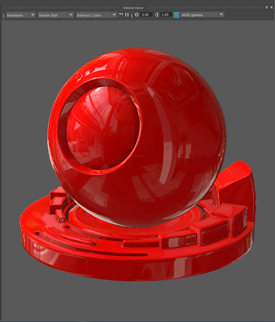
Image based lighting support for the hardware renderer in the Hypershade Material Viewer
You can now select any of the available HDRI environments to add image based lighting to your render when using the hardware renderer in the Material Viewer.
New Shaderfx Game Hair shader
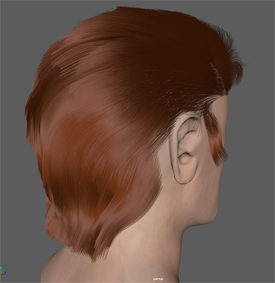
The Shaderfx Game Hair shader allows you to view realistic game hair shading for models directly in the viewport. You can create this shader via the Create tab in the Hypershade.
Create polygon strips to model the hair and apply the Shaderfx Game Hair shader to these polygon strips, then connect an opacity map to the shader to define the hair strands per strip, and a breakup map to provide controlled noise to make hair appear more realistic. You can then preview your hair shading in the viewport.