Control the display of parts and simulation results by clicking light bulb icons in the Browser, on the left side of the Simulation Utility window.
In the Browser, click off the light bulbs ( ) to turn off the Geometry, Build plate or Outline, and turn on (
 ) one of the Results, such as Displacement, Structure type, Temperature, or a Stress display. Results appear after solving a simulation. For any of the Geometry or Results items, you can right-click for access to render properties and other options.
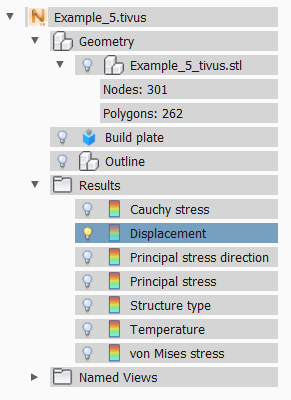
- Displacement
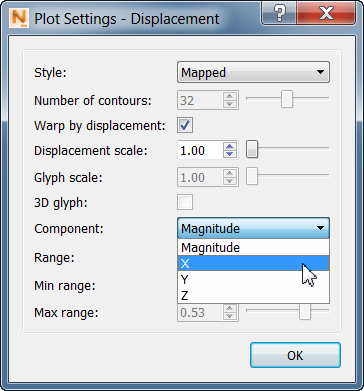
– These are the results from the part-scale mechanical simulation. By default, the magnitude of displacement is shown. To display a single X, Y, or Z component of displacement, click
 , and then select from the Component menu:
- Structure type – The Structure Type color codes the results into 4 different element types, as follows:
0 – Build Plate
1 – Part
2 – Support Structure
3 – Failed Support Structure
- Temperature – These are the thermal results written during the mechanical response simulation.
- Stress – These options display Cauchy, von Mises and Principal stress results in the model, including Principal stress directions.
The Named Views are convenient for seeing the part from different sides. To add custom views to the list, use the View Cube or Navigation Bar to set up the view, and then select Save View from the available menu. For more information about the View Cube and Navigation Bar, see the topic "Canvas and Navigation panels".